
Work in the Task Workspace
Opening a task from anywhere lands you in the Task Workspace: one page that holds the spec, the work, the breakdown, and the conversation. This tour uses SUM-14, the offline maps task Rhea is working on.
You can reach it by short key. /app/tasks/SUM-14 resolves the same as the full identifier, which is why the docs quote keys.
The header
Section titled “The header”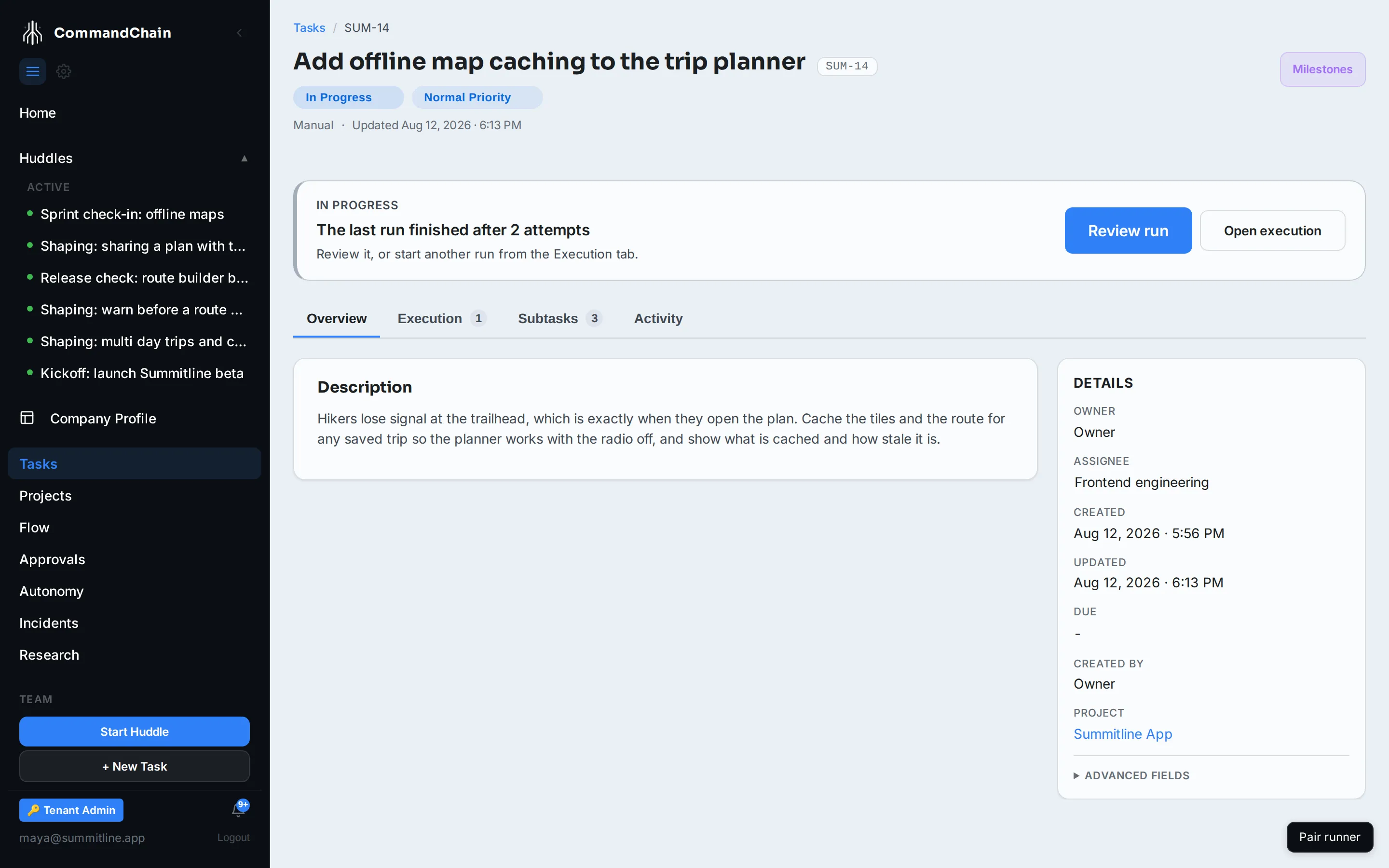
The header carries the title, the short-key badge, and two badges you can edit in place:
- Status. Select it to pick another status. The workspace saves as soon as you choose, and a move the lifecycle does not allow comes back as an error rather than a silent no-op. See task lifecycle.
- Priority. Low, normal, high, or urgent.
Under them, the origin badge says where the task came from (typed in by hand, merged from a huddle, or spawned by another task) and links back to it. Milestones at the right opens the execution timeline.
The status banner
Section titled “The status banner”Below the header sits one banner with the single next action, chosen from the task’s actual state:
| When | The banner says | The action |
|---|---|---|
| An agent is running | Agent running, with the current step and budget | Open execution |
| The agent paused for you | Agent paused, needs you | Approve or Reject |
| A run is under way | Run in progress, with the attempt count | View run |
| The task is blocked | What it is waiting on | Diagnose |
| Nobody is on it | No one is working on this yet | Assign |
| It is open or in progress, with nothing running | Whether the last run finished, or that it has not run yet | Review run, or Open execution |
| The last run finished | Whether it was accepted or rejected | Review run |
| An accepted run has not merged yet | That the work is waiting on its merge | Review run |
An accepted run is a verdict, not a delivery. Work in a repository is finished when its branch merges, so a task whose run was accepted stays in progress until the merge lands. If the merge cannot be made, the task moves to blocked with the reason on it rather than being counted as finished on a branch that never landed.
The only task without a banner is one parked in the backlog, which is the one state with nothing to do next.
The workspace opens on Execution when a run is live or the task is blocked, and on Overview otherwise, so the tab you land on is the one with the answer.
When a task needs something first
Section titled “When a task needs something first”A blocked task, or one whose deliverable was turned down, says in its banner what it needs and who can give it.
When a task is waiting on a repository
Section titled “When a task is waiting on a repository”A software task cannot run until which repository it works in is settled, and an unsettled task sits blocked rather than guessing. The banner names which of four cases it is, with the button that clears it, and the Execution tab repeats the same answer in a Repository card above the run list, so the two can never disagree.
| The banner says | What happened | The button |
|---|---|---|
| This task needs a repository that does not exist yet | It was specified against one nobody has created. The banner names it and what it is for. | Set up repository |
| Choose which repository this task works in | Several are connected and nobody said which. | Choose repository |
| The repository this task points at is no longer connected | The project has since removed it. | Choose repository |
| Choose a repository for this task | It ran without one, and the agent found the work needs code. The banner quotes the agent’s reason. | Choose repository |
Set up repository opens the creation drawer in place, prefilled and editable. Creating the repository links it to the project, re-points this task, clears the block, and starts the work: two clicks from blocked to running, without leaving the page. See when the repository does not exist yet for what gets created and the permission it needs. Connecting an existing repository on the project’s Repositories tab clears the block just as well, and is the right answer whenever the repository was simply never attached.
For the last case you choose an existing repository, and the work starts again in it. Choosing no repository keeps the task waiting, because the agent has already said the work cannot be done without code.
The task list carries the same states in short form on the blocked badge, so a glance separates a task that needs a repository from one waiting on another task.
When a task is waiting on a person
Section titled “When a task is waiting on a person”An agent that hits a blocker it cannot clear raises an assist task against the task it is working on, and that task sits blocked until somebody answers it. The banner names the assist and links straight to it rather than offering Diagnose, because the answer is in that task and not in the run log.
| The banner says | What happened | The button |
|---|---|---|
| Waiting on an assist task | A run hit a blocker only a person can clear, pushed its work to the branch, and stopped | Open assist task |
Answering the assist releases this task, and the work resumes on the branch that run already pushed. Cancelling the assist cancels this task with it. On the task list the blocked badge reads needs an answer, which separates it at a glance from a task waiting on a repository.
When a task without a repository needs you
Section titled “When a task without a repository needs you”These banners appear on tasks that ran without a repository. Most open the Overview tab, where the deliverable and its review are.
| The banner says | What happened | The button |
|---|---|---|
| The review did not accept this deliverable | It was revised once and still misses some acceptance criteria. | Read the review |
| The deliverable could not be reviewed | The review did not finish, so nothing was accepted. | Read the deliverable |
| The agent finished without a deliverable | The run ended with nothing posted. This button opens the Execution tab, where the run is. | Read the run |
Each of these leaves the task blocked. To run it again, use the status badge in the header to move it back to open. When the review turned the deliverable down, you can cancel the task from the same menu instead.
While a review runs the banner says The deliverable is being reviewed, and during the automatic revision it says Revising the deliverable from the review. Neither needs anything from you. See tasks without a repository.
When no runner has a toolchain
Section titled “When no runner has a toolchain”A coding task needs a runner with the task’s language installed. When none of your connected runners has it, the task sits blocked and the banner names the language: No connected runner has Python installed, for example.
Open the install task the banner links to, or
open Runners when there is none. Install the language on a self-hosted runner’s machine, then open
the runner with commandchain-runner and press r. The task starts again on its own once the runner
reports the language. Managed runs come with a fixed set of
toolchains, so a language outside it needs a
self-hosted runner that has it.
Overview
Section titled “Overview”The spec and its metadata.
- Summary is the task description, rendered from Markdown.
- A typed panel appears above it for specialized types: a content task’s active child, a verification’s rubric, an approval’s proposed action.
- The Details sidebar holds owner, assignee, created, updated, due, created by, project, huddle, and parent task. Assignee and due date are editable in place, the same way status is.
- Advanced fields at the bottom is collapsed by default and holds the identifiers you need only when quoting the task to support.
Execution
Section titled “Execution”Everything that has actually run.
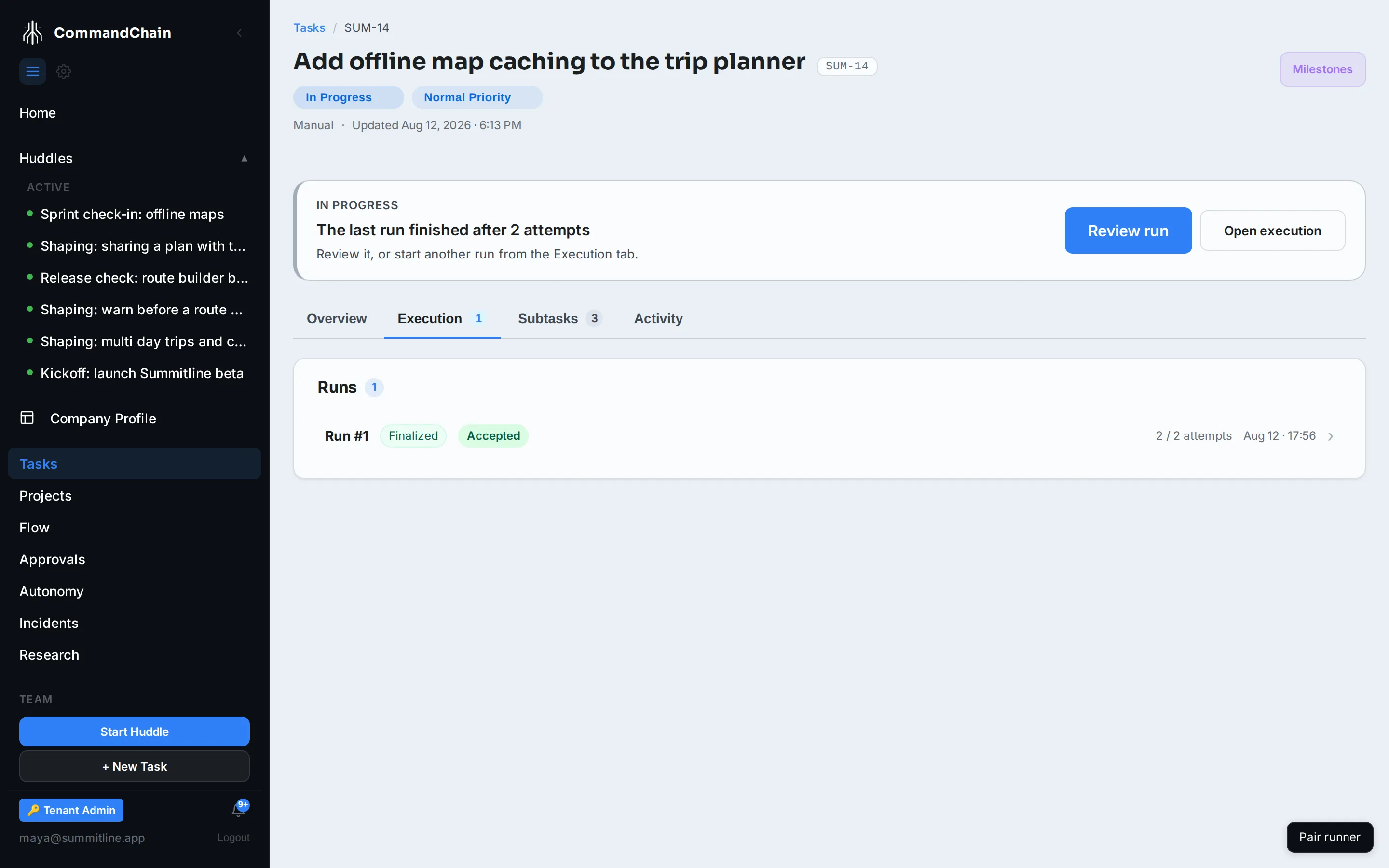
- A run waiting on you, when there is one, sits at the top with Approve and Deny. That is the gate: the run pauses, you decide, and approving lets it continue. Deny asks for a reason.
- Runs, newest first, each with its status, its outcome once it has one, and its attempt count against the cap. Select one to open the run.
A task nothing has executed says so rather than showing an error.
Subtasks
Section titled “Subtasks”The child tasks of this one, with each child’s status, assignee, and due date. See subtasks and milestones.
Activity
Section titled “Activity”The task’s conversation and history: comments from you, notes from agents, and the events that moved it. Use it to leave a correction an agent should read before its next attempt.
Next steps
Section titled “Next steps”- Move a task through its statuses: the legal transitions and how to unblock.
- Assign a task: who does the work, and what assignment starts.
- Runs and attempts: what the Execution tab is showing you.