

Create a project
A project is where one product’s building and marketing both live. Creating one takes a name and a key, and everything else attaches to it afterwards.
Create it
Section titled “Create it”-
Projects in the sidebar, then Create Project.
-
Give it a name. Alpenglow Labs named theirs Summitline App.
-
Check the key. It is derived from the name as you type (Summitline App becomes
SUM), and you can overwrite it: two to six characters, starting with a letter. -
Add a description if the name does not carry it, then Create.
What the key does
Section titled “What the key does”The key is the prefix on every task number the project mints. SUM is why the offline caching work is SUM-14 rather than a uuid, and why you can type SUM-14 into the command palette and land on it.
Keys are unique across the workspace, so a taken one is rejected when you save rather than silently changed. You can edit a key later from the project header, but changing it only affects new tasks: work already numbered SUM-13 keeps that number, because links and conversations already point at it.
The nine tabs
Section titled “The nine tabs”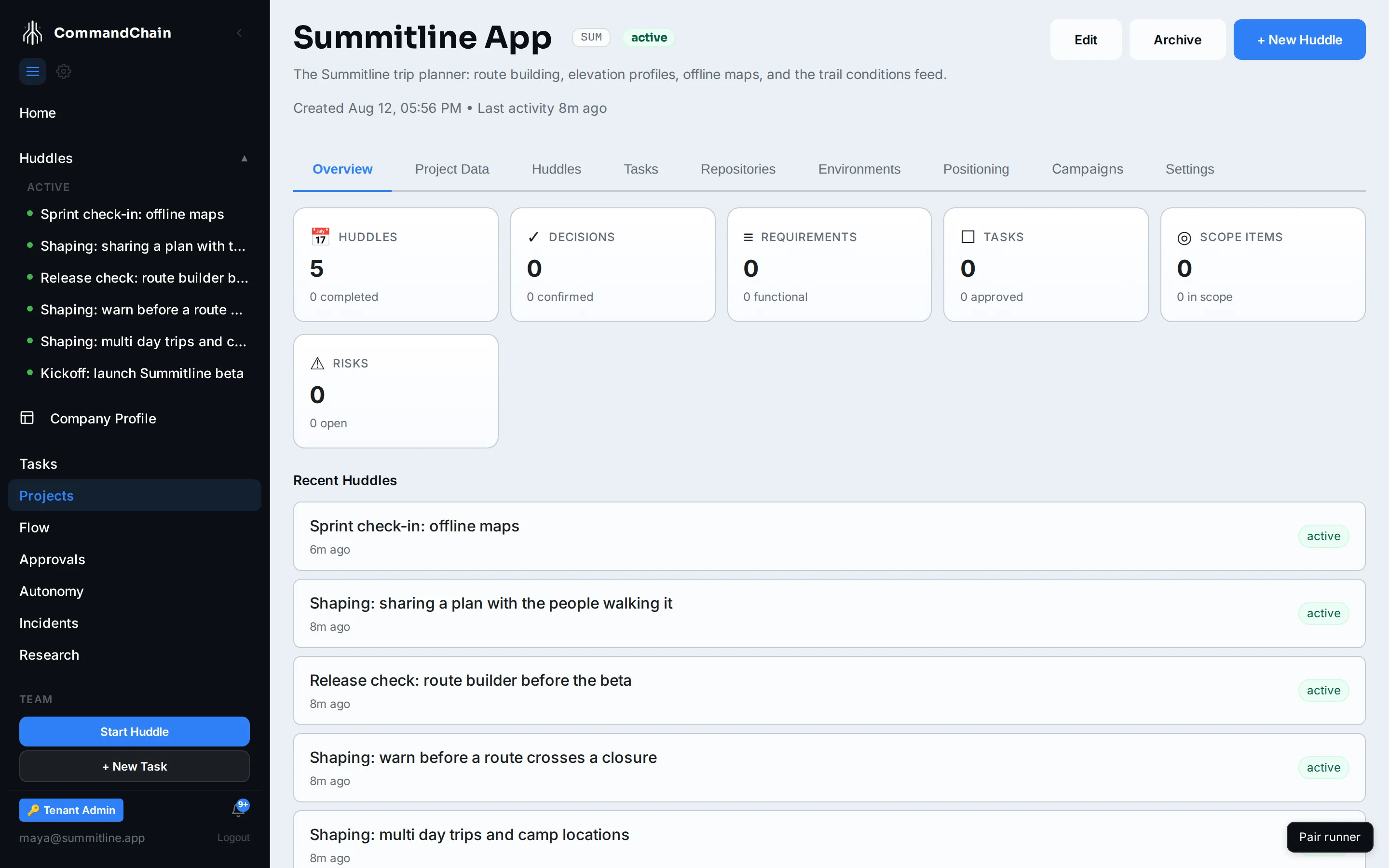
| Tab | What it holds |
|---|---|
| Overview | Counters for the project’s huddles, decisions, requirements, tasks, scope items, and risks, and its recent huddles. Every counter is a link into the tab behind it |
| Project Data | The accumulated intent: decisions, requirements, scope, tasks, risks, and open questions |
| Huddles | Every huddle held in this project, with its status and last activity |
| Tasks | The project’s work, with assignment and the routing score behind it. See assigning tasks |
| Repositories | The code this product is built from |
| Environments | The variables and secrets a run gets |
| Positioning | Who this particular product is for and how it is talked about: its marketing context and the proposals raised against it |
| Campaigns | The campaigns, calendar, and asset library taking this product to market |
| Settings | Who owns the project and who else may approve for it |
The header carries the same three actions everywhere: Edit the name, key, and description, Archive it, and + New Huddle to start a conversation already scoped to this project.
Set the owner and approvers
Section titled “Set the owner and approvers”Settings decides who can approve agent steps, ship actions, and assignment overrides for this project. The owner is always an approver, and it defaults to whoever created the project. Add other people by typing a name or email and picking them from the list, then choose Save changes.
That list is what the project’s Tasks tab checks before it shows you the bulk-assign and auto-assign controls, so a project with the wrong owner reads as a project you cannot direct.
Next steps
Section titled “Next steps”- Set the project’s intent: what the project is trying to do, and how that steers your team.
- Connect repositories: give the project code to work on.
- Projects and your workspace: when to create a second project rather than a second tab.