

Move a task through its statuses
An ordinary task has six statuses. Knowing which moves are legal is what stops a task list from drifting into fiction, because the platform refuses the rest.
The six statuses
Section titled “The six statuses”| Status | Means |
|---|---|
| backlog | Written down, not on the plate yet. Work can start here and can be sent back here |
| open | Ready to be picked up. What a new task starts at |
| in progress | Being worked, usually by a run |
| blocked | Cannot proceed until something else changes |
| done | Finished. For work in a repository, reached when the branch merges, not when the run is accepted |
| cancelled | Deliberately not doing it |
The moves the platform allows
Section titled “The moves the platform allows”stateDiagram-v2 [*] --> backlog [*] --> open backlog --> open backlog --> cancelled open --> in_progress open --> blocked open --> backlog open --> done open --> cancelled in_progress --> blocked in_progress --> backlog in_progress --> done in_progress --> cancelled blocked --> open blocked --> in_progress blocked --> backlog blocked --> cancelled done --> open : reopen cancelled --> open : reopen
Three consequences worth knowing:
- Backlog is a park, not a one-way door. Anything still live can be sent back to the backlog and brought out again later. Only finished work cannot: done and cancelled stay put.
- Blocked is not a dead end. It goes back to open or straight to in progress once the blocker clears.
- Done and cancelled are terminal. They change only by reopening, which is its own action rather than an ordinary move.
Change a status
Section titled “Change a status”-
Open the task and select the status badge in the header.
-
Pick the new status. It saves at once, and the badge and banner update with it.
-
A move the lifecycle does not allow (backwards from done, say) comes back as an error and nothing changes.
The task list can do the same thing in bulk: select rows, then Change status in the bar that appears. Cancel selected is the same action pointed at cancelled.
A project’s own Tasks tab has a shorter version of the same thing: select rows, then Send to backlog to park them, or Move to open to bring parked work back. See Work a project’s task list.
Read the statuses in bulk
Section titled “Read the statuses in bulk”The task list is where a whole project’s statuses are legible at once. Filters narrows it: by Project, by assignee, by owner, or by type. The segments above it (Needs me, Live, Overdue, Mine, Assigned to me, All) slice the same list by relevance, and every column header sorts. Mine is the work held by your position; Assigned to me is the work addressed to you personally, which is where a request for a credential or a setup value arrives.
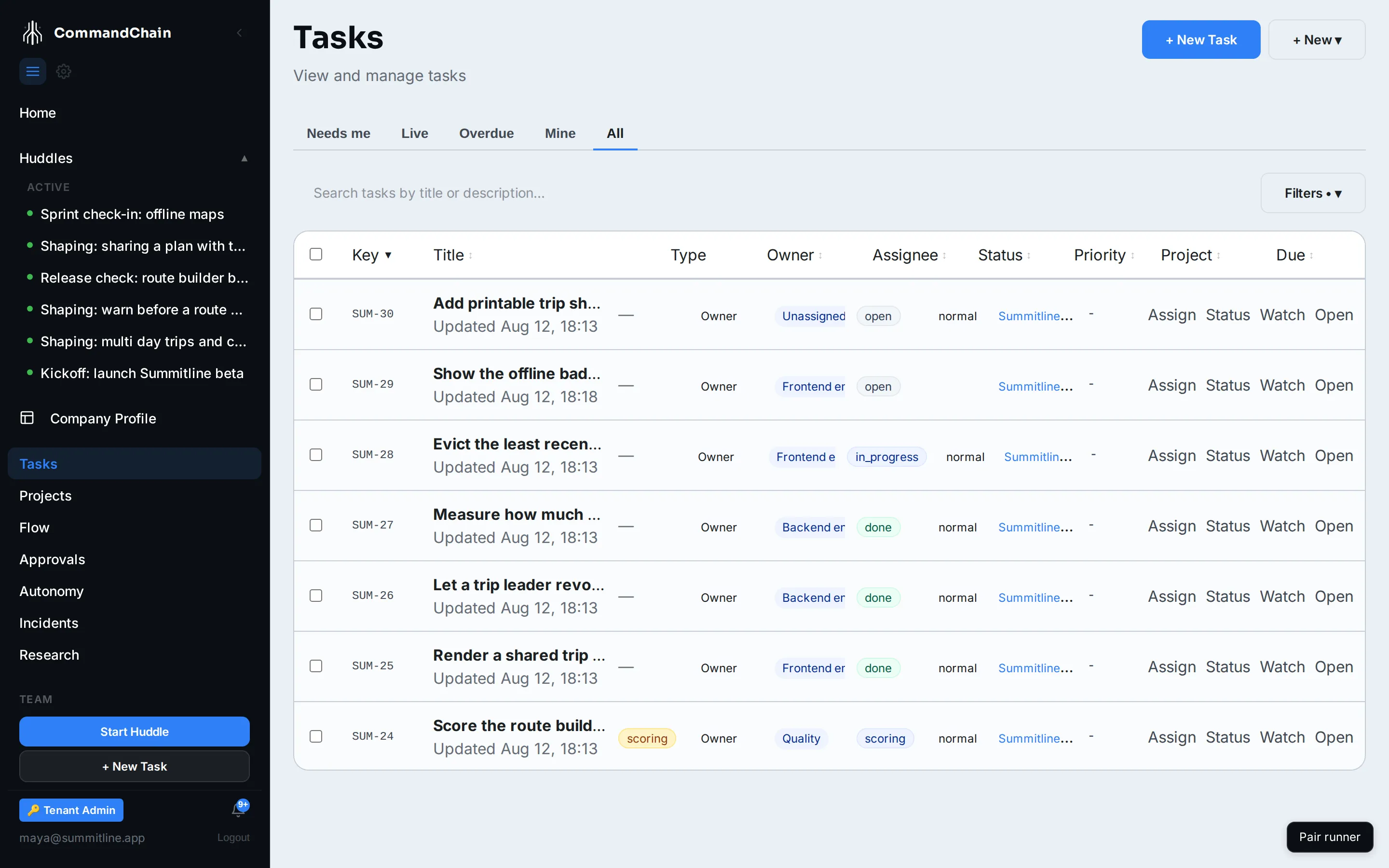
Reading down the Status column is the fastest way to spot the two problems this page is about: work that has been in progress too long, and work that is blocked with nobody looking at it.
Unblock a stuck task
Section titled “Unblock a stuck task”blocked means the task is waiting on something. The workspace banner names what:
- Waiting on other tasks. The banner counts them. Finish or cancel those, then move this one back to open or in progress.
- A failed run. The banner offers Diagnose, which opens the Execution tab where the last attempt and its error are. Fix the cause (a missing credential, a repository the agent cannot reach, a spec that was wrong), then set the task back to in progress to let it run again.
- Waiting on you. If the run paused for an approval, it is not blocked at all: the banner says the agent is paused, and Approve or Reject moves it.
Tasks without a repository
Section titled “Tasks without a repository”A task with no repository still runs. It runs as a plain AI turn, with no code checkout and no branch, and the agent posts a deliverable on the task.
-
The agent does the work and posts the deliverable.
-
A review checks the deliverable against the task’s acceptance criteria.
-
If the review asks for changes, the agent revises the deliverable once on its own, and the review runs again.
-
The deliverable and its review land on the task’s Overview tab.
If the review still does not accept the revised deliverable, the review cannot finish, or the agent posts nothing, the task moves to blocked and its banner says which. Blocked is not a dead end: move it back to open with the status badge to run it again, or cancel it.
If the agent finds that the work needs code changes, it stops and asks for a repository. The task moves to blocked and the banner offers Choose repository. See when a task is waiting on a repository.
Reopen finished work
Section titled “Reopen finished work”A task that turned out not to be done reopens to open, carrying its history, its runs, and its comments with it. Reopening is deliberate and separate from an ordinary move, so a finished task cannot be quietly walked backwards.
Specialized types do not use these statuses
Section titled “Specialized types do not use these statuses”Content, verification, approval, feedback, and scheduled-trigger tasks each replace the six statuses with a lifecycle of their own, and their transitions are enforced the same way. See task types for the map, and the guides for content, verification, approvals, and scheduled triggers.
Next steps
Section titled “Next steps”- Work in the Task Workspace: where every status change happens.
- Break work into subtasks and milestones: splitting a task that keeps getting blocked.
- Runs and attempts: what in progress usually means.