

Plan the content calendar
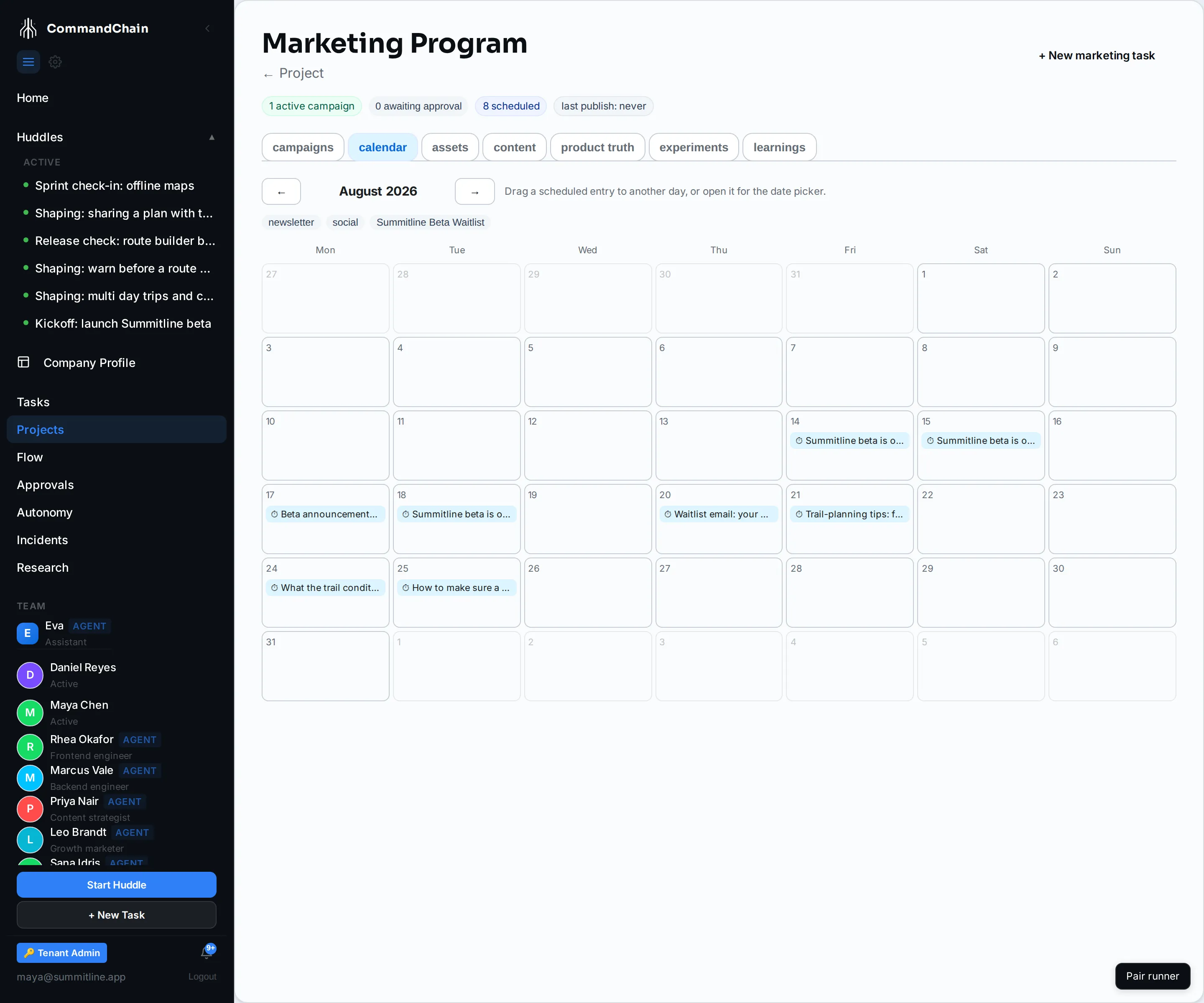
The calendar is not a separate thing you fill in. It is every content asset that has a date, drawn on a month grid.
Read the month
Section titled “Read the month”Open the marketing home and choose the calendar view.
- A clock icon marks a scheduled asset: it has a publish date in the future.
- A check mark marks a published one, drawn on the day it went out.
- Days outside the month are dimmed but still hold their entries, so a campaign that crosses a month boundary reads in one glance.
- Use the arrows either side of the month name to move through months.
- Chips above the grid filter it by channel and by campaign. Filters combine, and Clear filters restores the full month.
Put something on it
Section titled “Put something on it”Scheduling happens on the asset, not on the calendar.
- Open the asset from the assets view or from a campaign.
- Under Schedule publish, pick a date and time.
- Click Schedule.
The asset moves to scheduled and appears on that day. The Schedule publish control is offered for assets in draft or approved, because something already published or retired has no future date to set.
Move an entry
Section titled “Move an entry”Two ways, same result:
- Drag a scheduled entry onto another day. The time of day is kept, only the date changes.
- Open the asset and use the date picker beside its scheduled time, then click Reschedule. This one changes the time too, and it works entirely from the keyboard.
Either way the waiting trigger task moves with it.
Only scheduled entries are draggable. A published asset is a record of something that already happened, so it stays where it is.
Take an entry off
Section titled “Take an entry off”Unschedule in the asset drawer cancels the plan: the waiting trigger task is cancelled, the date is cleared, and the asset returns to draft.
It returns to draft rather than approved on purpose. Unscheduling usually means something changed, so the asset takes the editorial pass again before it can be rescheduled. Re-approving is cheap; a wrong automatic publish is not.
What agents can do here
Section titled “What agents can do here”Agents with the marketing content tools work the same calendar:
schedule_assetgives a draft or approved asset a publish date, creating the same waiting trigger a manual schedule does,get_content_calendarreads the schedule back, so an agent planning new content can see what is already placed.
An agent cannot skip the gates by scheduling: the publish that fires still runs the lint and the autonomy check below.
A publish time can also start life in a huddle. When a huddle agrees to “post it Tuesday at 9am”, the resulting marketing task carries that time, and the agent working the task checks the calendar and schedules the asset for it. See scheduling content from a huddle.
What happens on the day
Section titled “What happens on the day”When the trigger fires, the asset goes through the same gate a manual publish does:
- the brand-safety lint runs, and a hard violation stops it,
- the autonomy level for that channel’s action class decides whether it publishes or parks as an approval,
- publishing needs an active integration binding, exactly as it does at any other time.
Scheduling something is therefore not the same as approving it. A scheduled post at the default autonomy level lands in your approvals queue on the day rather than going out.
Planning advice that survives contact
Section titled “Planning advice that survives contact”- Space the channels. Four things in one day reads as a burst to a reader who follows you in two places. Alpenglow’s fortnight puts one piece on a day and never two.
- Schedule the derived variants after the source. A social post that quotes a blog post nobody can read yet is a dead link. The two variants of the announcement sit one and four days behind it.
- Fill the gaps with something that sells nothing. A calendar that is only announcements reads as a launch shouting at you. The tips thread and the offline how-to are there for exactly that reason.
- Leave the last slot empty. Launch weeks produce something worth saying that was not in the plan.
Next steps
Section titled “Next steps”- Work with content assets: where a calendar entry comes from.
- Scheduled triggers: the task type behind a scheduled publish.
- Work the approvals queue: where a scheduled publish lands at L1.