
Act on notifications
Notifications are the workspace tapping you on the shoulder. Each one carries a title, a line of detail, and a link to the thing it is about, so acting on one is a single click.
The bell
Section titled “The bell”The bell sits at the bottom of the sidebar with an unread count on it (it stops counting at 9+). Selecting it opens a panel with your five most recent notifications, newest first, unread ones highlighted.
From the panel you can:
- Select a notification to mark it read and follow it to the huddle, task, or page it points at.
- Mark all read, which clears the count without opening anything.
- View all notifications, which opens the full inbox.
The panel updates live. A notification raised while you are looking at it appears without a refresh.
The inbox
Section titled “The inbox”View all notifications opens the Notifications page: the same list, without the five-item limit, each entry showing its full body, its action, and when it arrived.
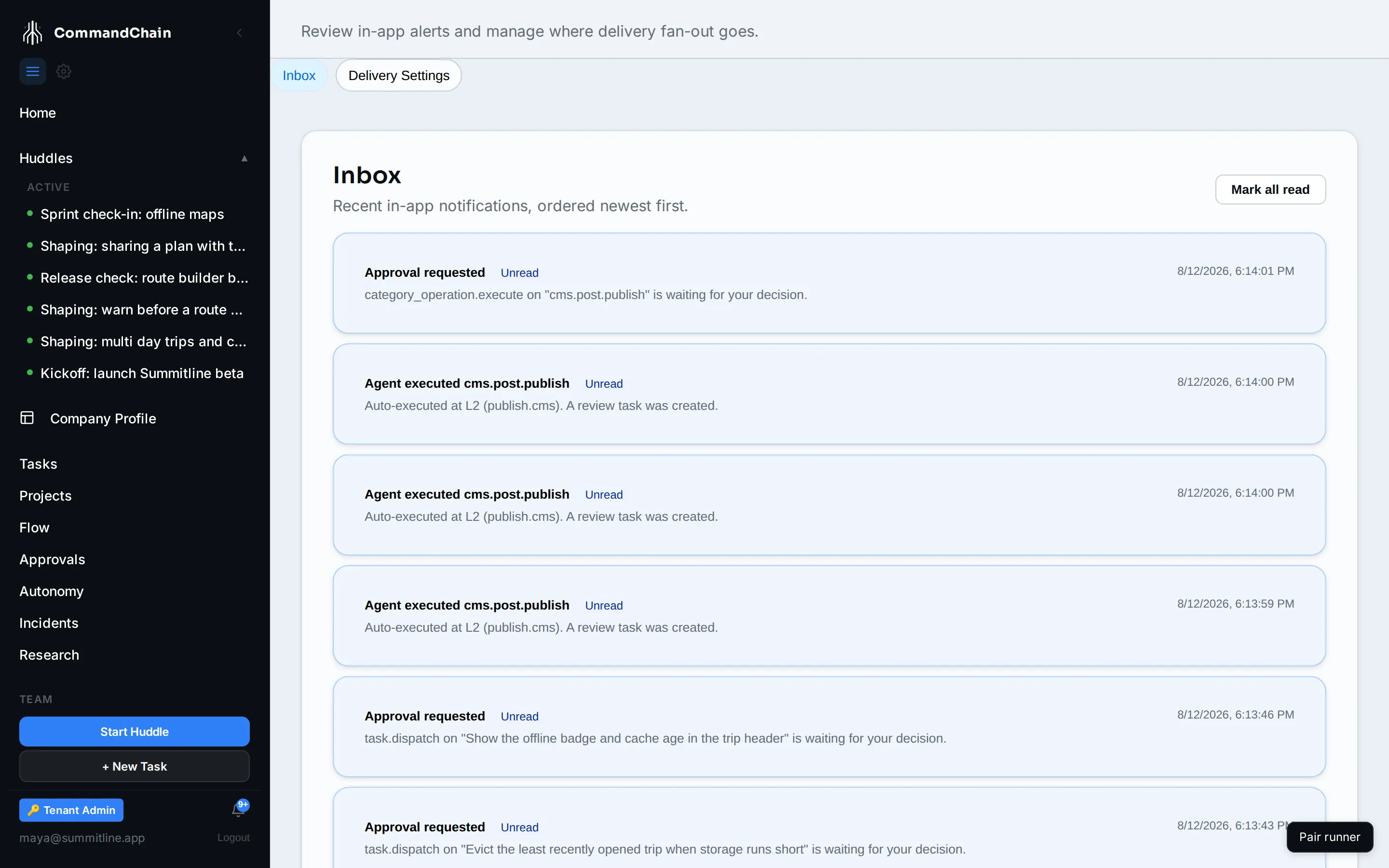
Selecting an entry does the same two things the panel does: marks it read, and follows its link.
What generates one
Section titled “What generates one”-
You are invited to a huddle
Section titled “You are invited to a huddle”Adding someone as a participant on a huddle they did not create notifies them, with a link to the huddle.
-
A huddle you are in starts
Section titled “A huddle you are in starts”Every human participant is notified when the huddle goes live, with a Join Huddle action.
-
Something needs your approval
Section titled “Something needs your approval”When an agent hits an action its autonomy level will not let it take alone, the request lands in your approvals queue and you are told about it. The notification names the action and what it is against, and Review opens the queue.
You are notified as the person holding the approving role, so a request routed to a role an agent holds notifies nobody: agents do not have an inbox.
-
An agent acts, then asks you to review
Section titled “An agent acts, then asks you to review”At L2 on the autonomy ladder an agent acts first and is reviewed after. When it does, you get a notification naming the operation, and a review task is created alongside it so the work is on your list rather than only in your inbox.
Next steps
Section titled “Next steps”- Read the cockpit: the live activity feed, which is broader than your notifications.
- Jump anywhere with the command palette: reach a task without leaving the keyboard.
- The autonomy ladder: what decides between acting, notifying, and asking.