

Review the tasks a huddle proposes
A huddle’s output is work. When you end one, your team writes up what was discussed as task drafts, and you decide which of them become tasks. This page follows the kickoff huddle, whose drafts became the Summitline Launch tasks.
Two clicks stand between a finished conversation and running work: Create tasks, then Ship. Everything in between is review.
-
Create the tasks
Section titled “Create the tasks”Create tasks in the huddle header. This ends the live huddle. It moves to generating and your team writes the drafts: a title, a spec, and any questions that have to be answered before the work can start. This takes a minute or two, because each draft is written rather than templated.
Nothing is confirmed and nothing is lost. The very next screen carries Cancel & Reopen, and the review screen after it carries Reopen Huddle, so ending a huddle is reversible for as long as you have not shipped.
Ending the live huddle does not end the conversation. The chat stays open as a one-on-one with Eva, from that moment until you ship. See refine the drafts with Eva below.
-
Review the drafts one at a time
Section titled “Review the drafts one at a time”When the drafts are ready, the huddle opens into Review Task Drafts.
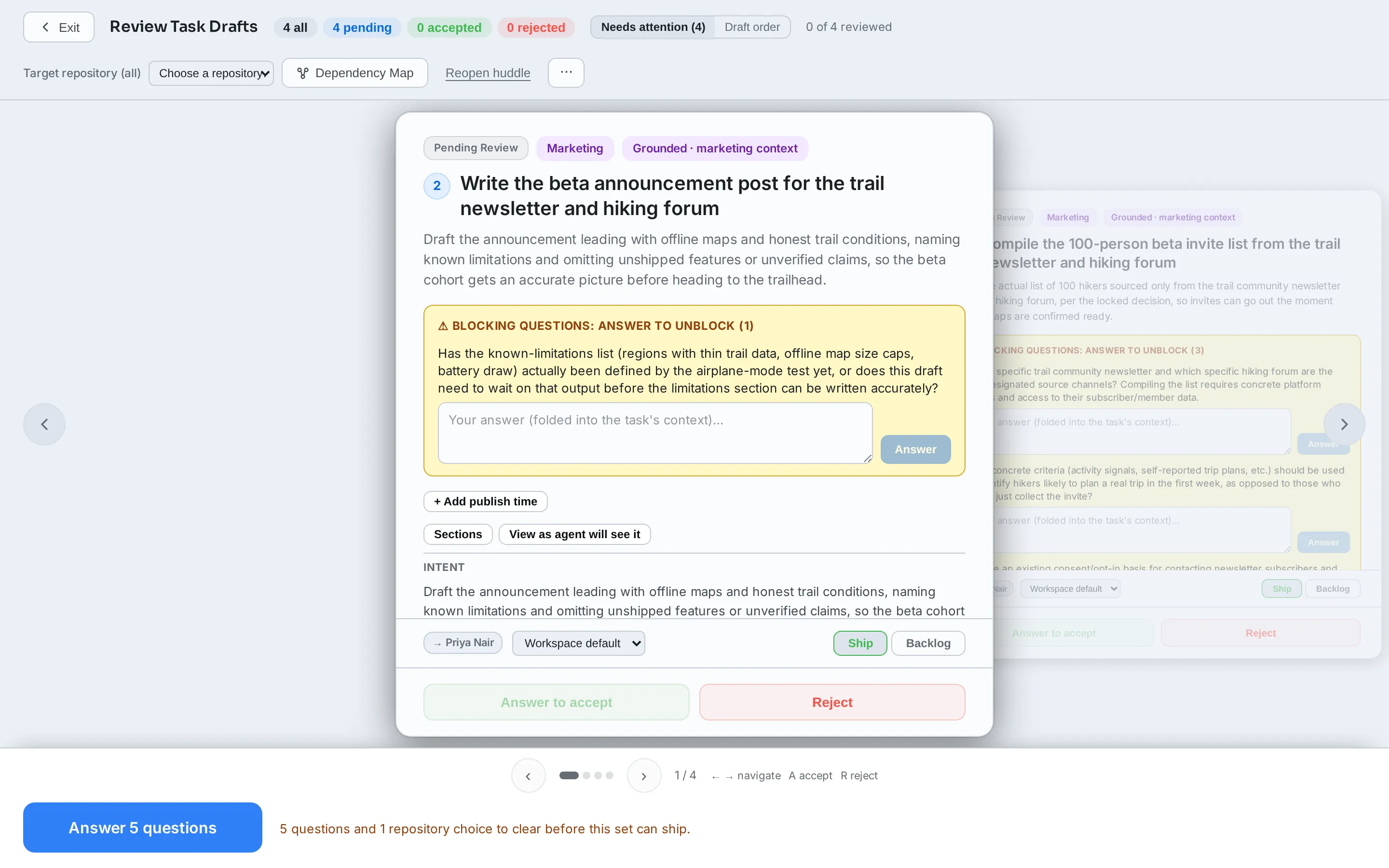
Every draft ships unless you say otherwise. There is nothing to accept in bulk and no gate that waits for you to touch each card: the button at the bottom already counts the drafts it will ship, and rejecting is the act that removes one from that count.
For each draft:
- Reject drops it. Nothing is hard-deleted, so you can change your mind.
- Edit the title or the spec first. What ships is what the agent gets, so fixing a vague acceptance criterion here is the cheapest it will ever be. Every software criterion needs the command that proves it, and this review is the cheapest place to add one.
- Accept marks it reviewed. It drives the “N of M reviewed” counter and nothing else, because a draft you never opened ships too.
Keyboard: A accepts, R rejects, and the arrow keys move between drafts.
Dependency Map shows the drafts as a graph instead of a stack, which is the faster way to see that three of them are waiting on the fourth. It carries the same Ship button, because it is a second view of this screen rather than a second flow.
-
Decide who gets it, and whether it starts now
Section titled “Decide who gets it, and whether it starts now”Each card’s footer holds the two decisions that decide what shipping does.
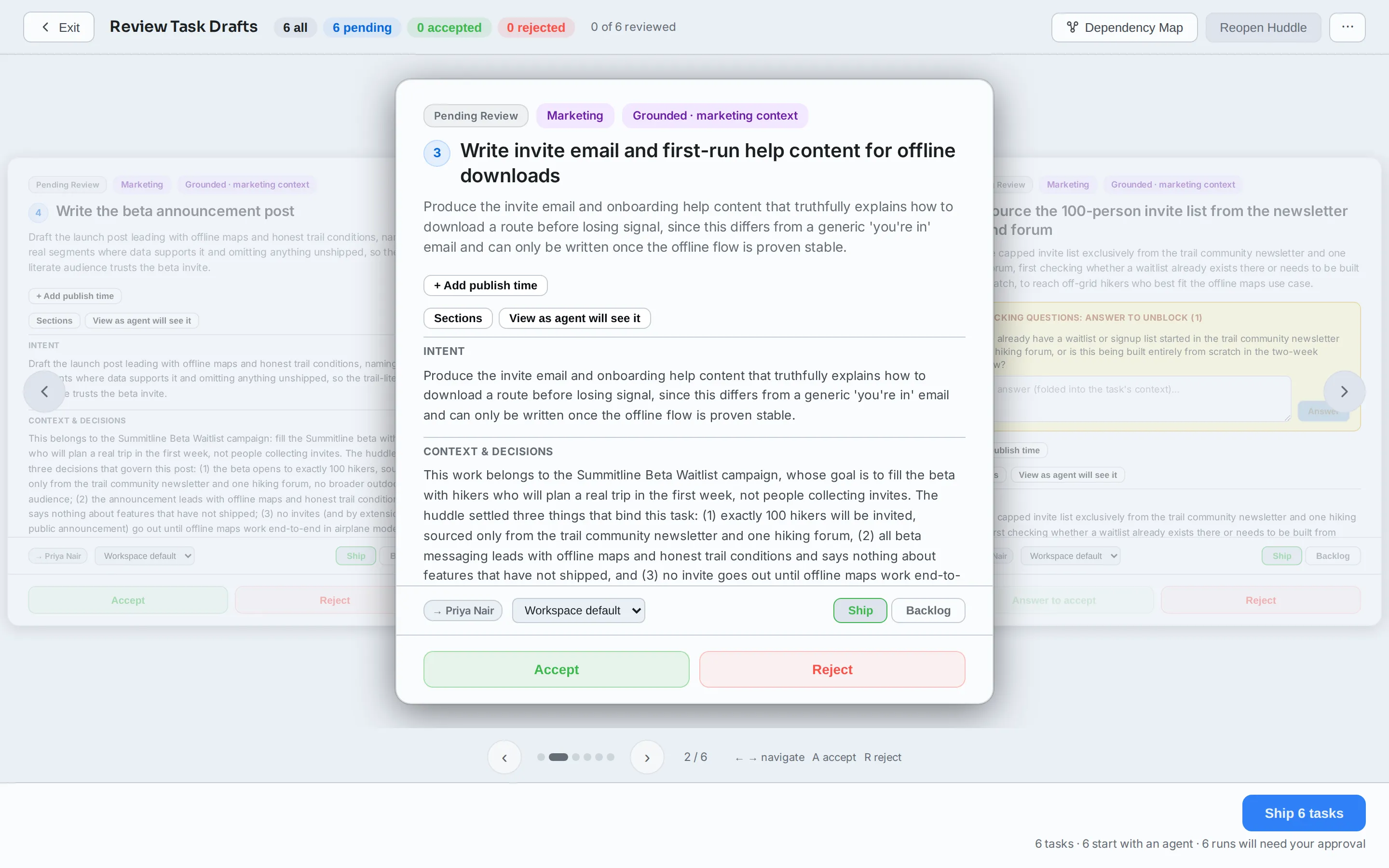
- The agent. The card says who the task will ship with: an arrow and the agent’s name. That comes from your workspace default for the kind of work the draft is, so a marketing draft goes to whoever holds marketing. The picker beside it overrides that for this task alone, and Workspace default at the top of the picker puts it back.
- Needs an agent instead of a name means nothing would pick this task up. It still ships, and it lands parked. Set a default on the Agents page so this stops happening. See assigning tasks.
- You answer this in place of an agent name means Eva decided the work is a person’s, not an agent’s: a decision or a question only you can settle. That task ships assigned to you and no agent is dispatched for it. Click the badge and choose An agent does this to overrule her. Click any agent name and choose I answer this instead to take a task yourself. Whichever you pick, nothing is created until you ship, so you can change your mind as often as you like.
- Ship or Backlog. Shipped tasks are ready to start; backlog tasks are created and parked. Every card starts on Ship. The header’s ⋯ menu moves all of them at once.
- Target repository. Every software draft says which repository its work belongs in. See which repository the work lands in below.
Three things on a card change what shipping does. The first two stop the draft until you deal with them, and the ship button takes you to the card rather than refusing:
- Blocking questions, shown in a highlighted box on the draft. Answer each one in place. Your answer is folded into the task’s context.
- An ungrounded draft, meaning one written without reading the repository it targets. Acknowledge it on the card and it ships, or reject it and ask for the work to be re-specified.
- No verify command. A software draft that targets a repository but carries no command that proves the work ships to Backlog only. The card disables Ship and says why, because there is no fallback command and a task nothing can prove should not be handed to an agent. Ground the draft again, or give it a toolchain, and Ship comes back.
A draft whose detail generation failed cannot ship at all. It says so on the card, and the line under the button counts it out: reject it, or reopen the huddle and try again.
-
Ship N tasks creates them. Under it, one line says what that will do before you click it:
4 tasks · 3 start with an agent · 1 to backlog · 3 runs will need your approval
When some of the batch is coming to you rather than to an agent, the line says so before you click, right after the count:
12 tasks · 3 come to you · 9 start with an agent
The last clause is the part that changes with your autonomy ladder setting for
task.dispatch. At L1 the runs queue as approvals and wait for you. At L2 or L3 the same line reads 3 runs start immediately, and they do. The counts are live, so changing a card changes the sentence.Shipping creates the tasks in the huddle’s project, keeps the dependencies between them, and carries the huddle’s decisions, requirements, and scope into the project.
-
Land in the project
Section titled “Land in the project”Shipping takes you to the project’s Tasks tab, which is where the work now lives. The new tasks carry short keys in the project’s sequence, and each one links back to the huddle it came from.
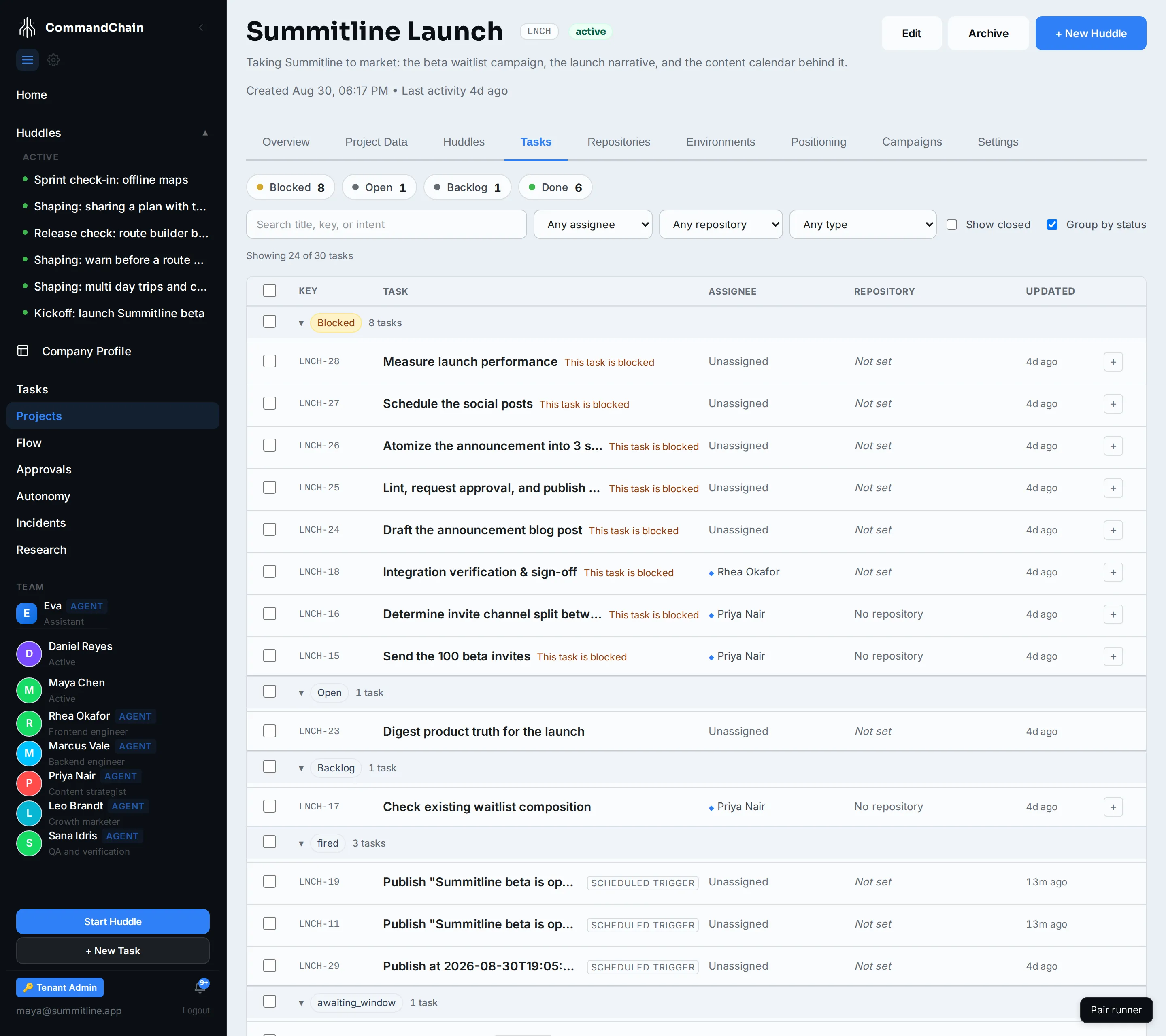
If the runs are waiting on you, a banner at the top says so: N runs are waiting for your approval, with Review to open the approvals queue. It stays until the queue is empty, so it survives a reload and cannot be dismissed by accident.
See what lands where for the decisions and requirements that came across with the work.
When a task comes back to you
Section titled “When a task comes back to you”Not every draft is an agent’s work. When the huddle runs into something only a person can settle, a budget, a brand call, a confirmation about a system nobody in the room can see, that draft ships as your task rather than an agent’s. The card says You answer this before you ship, and the badge is a control, so you decide who holds it.
Two shapes arrive, and they read differently once the task exists:
| What the huddle could state | What lands in the project |
|---|---|
| One or more concrete questions with short answers | A task with a short form on its Overview tab, one field per question |
| Only that a person has to look at this | An ordinary task addressed to you, with the reason written into its description |
Either way the task is assigned to whoever clicked Ship, no agent is dispatched for it, and its banner reads Waiting on you instead of promising a run that is never coming. You answer it in the Task Workspace, on the same Overview tab you would read the spec on.
Answering releases the work behind it
Section titled “Answering releases the work behind it”This is the part worth knowing before you ship. If the question was blocking other drafts in the same batch, those tasks are created blocked and stay that way until you answer.
Submitting the last field completes your task and, in the same moment, re-opens everything that was waiting on it and hands each one to the agent that already holds it. You do not go back to the task list to unblock anything, and nobody has to remember that a decision was outstanding.
The reverse is just as true: leave the question unanswered and nothing behind it moves. That is the trade being made deliberately. The huddle said this had to be settled first, so the product treats it as the blocker it is rather than letting the work start on a guess.
Which repository the work lands in
Section titled “Which repository the work lands in”Every software draft carries a Target repository, and it is shown whether the project has ten connected repositories, one, or none. A single-repository project used to show no control here at all, on the reasoning that there was only one answer. That reasoning is wrong often enough to matter: a project with one repository is exactly the project where the next piece of work is the one that does not belong in it, and hiding the control meant nobody was ever shown the binding they were approving.
The picker offers three kinds of answer:
| Choice | What it means |
|---|---|
| A connected repository, by name | This work happens in that repository |
| New repository | This work needs a repository nobody has created yet |
| No repository needed | This work touches no code |
Your team fills this in while writing the drafts, from what the huddle actually said. A conversation about splitting a marketing site out of an existing application produces one draft targeting a repository that does not exist and the rest targeting the one that does. Change any of them here. Marketing drafts are always No repository needed and have no picker.
Choosing “New repository” creates nothing
Section titled “Choosing “New repository” creates nothing”This is the part worth being precise about. Choosing it opens two fields, a name and one sentence saying what the repository is for, and writes them onto the draft. It does not talk to GitHub. No repository is created, no name is reserved, and nothing is pushed anywhere.
What it does is let the draft ship while saying honestly what it needs. The task is created, it sits blocked rather than starting against the wrong repository, and it carries the proposal and a button that acts on it. Creating the repository is a separate, deliberate act by a person, taken from the task itself. See work in the Task Workspace.
The name has to be one GitHub would accept, letters, numbers, dots, hyphens, and underscores, and the purpose sentence is required, because a proposed name with no explanation is not something the next person can act on.
What a software draft has to carry
Section titled “What a software draft has to carry”A software draft is a promise that the work can be proved finished. Four things on it carry that promise, and each one is visible on the card before you ship, in the draft’s Sections view.
| What the draft carries | What it means |
|---|---|
| Criterion ids with paired checks | Every acceptance criterion is numbered, AC1, AC2, and each one names the command that proves it. A criterion with no command beside it is the thing to fix here: it is the sentence nobody can settle an argument about later. |
| Negative cases for gate changes | When the work changes a check, a lint rule, or a build workflow, the draft carries a planted violation and the command that must reject it. A check that passes because it is looking at nothing is the failure this catches. |
| The toolchain | The language, the package manager, and the prepare and verify commands, read from the repository’s own manifests rather than guessed. This is where the verify command comes from, so a draft with no toolchain is the one that ships to Backlog only. |
| Human-only steps | Anything that could not be automated, with the reason and what was tried first. This list is expected to be empty. A step on it is a claim that no command can do the job, so read it as one, and send the draft back if you disagree. |
If a draft arrives missing any of these, the fix is the same as for a vague criterion: edit it here, or ask Eva to. See refine the drafts with Eva below.
Refine the drafts with Eva
Section titled “Refine the drafts with Eva”The review controls are one way to shape the drafts. The other is the chat you were just in. When you end a huddle, the other agents pause and the conversation becomes a wrap-up: a one-on-one with Eva, open from the end until you ship. In the room she listened and extracted; in the wrap-up she converses. Ask her about the drafts and she answers. Ask her to change them and she does it:
- “Rename the second task to Beta invite email” edits that draft.
- “Add a task for the press kit” creates a new one.
- “Combine the two content tasks” merges them: she creates the combined draft, repoints anything that depended on the originals, and rejects the sources.
- “Reject the press kit” sets that one aside. Rejecting is also how a draft is removed; nothing is hard-deleted, so you can change your mind.
Her edits go through exactly the same review rules as yours, and the review screen updates live as she works, so you can watch a rename land on the card while you talk.
One decision stays yours alone: Ship is a button only you click. Eva refines, you decide what becomes work.
If you re-open the huddle instead, the whole room comes back: the paused agents return, the wrap-up conversation stays in the transcript for everyone to read, and Eva goes back to listening. Choose Create tasks again and the one-on-one resumes where it left off.
What a good draft looks like
Section titled “What a good draft looks like”The drafts are only as good as the huddle. If a draft arrives vague, the fix is upstream: settle the decision in the room, then say so out loud, and the next draft carries it. See topics and intent.
Scheduling content from a huddle
Section titled “Scheduling content from a huddle”When a huddle agrees on a publish time for a piece of content (“post the launch announcement Tuesday at 9am”), the marketing draft carries that time with it. You will see a Publish schedule on the draft during review:
- The extracted time and channel are editable, so you can correct a misheard time or clear it entirely before the draft ships.
- A time that is already in the past gets a warning badge. Shipping rejects anything more than a day old, so fix or clear it here.
After shipping, the task shows the publish time in its Overview, linking to the content calendar. The time on the task is intent, not the schedule itself: the agent that picks up the task creates or finds the content asset and schedules it for that time, and from then on the asset’s own schedule is the one that counts.
Only an explicit time stated in the huddle rides the draft. “Sometime next week” stays in the task’s notes for the agent to resolve.
Next steps
Section titled “Next steps”- Work in the Task Workspace: where a shipped draft lands.
- Huddle summaries: the written record of the same huddle.
- Assign a task: who picks up the new work, and the default that decides it.