

Export formats
A deck is rendered into files rather than kept in a proprietary editor. Three targets exist, and they are produced from one slide specification, so they agree with each other.
| Output | What it is for | Rendered |
|---|---|---|
| HTML | The preview in the artifact pane: one slide at a time, with speaker notes | Always. Every render includes it |
| PPTX | Editing in PowerPoint, Keynote, or Google Slides. Text is real text, so it stays editable | By default, alongside the preview |
| Sending to someone, or printing | On request |
Downloading
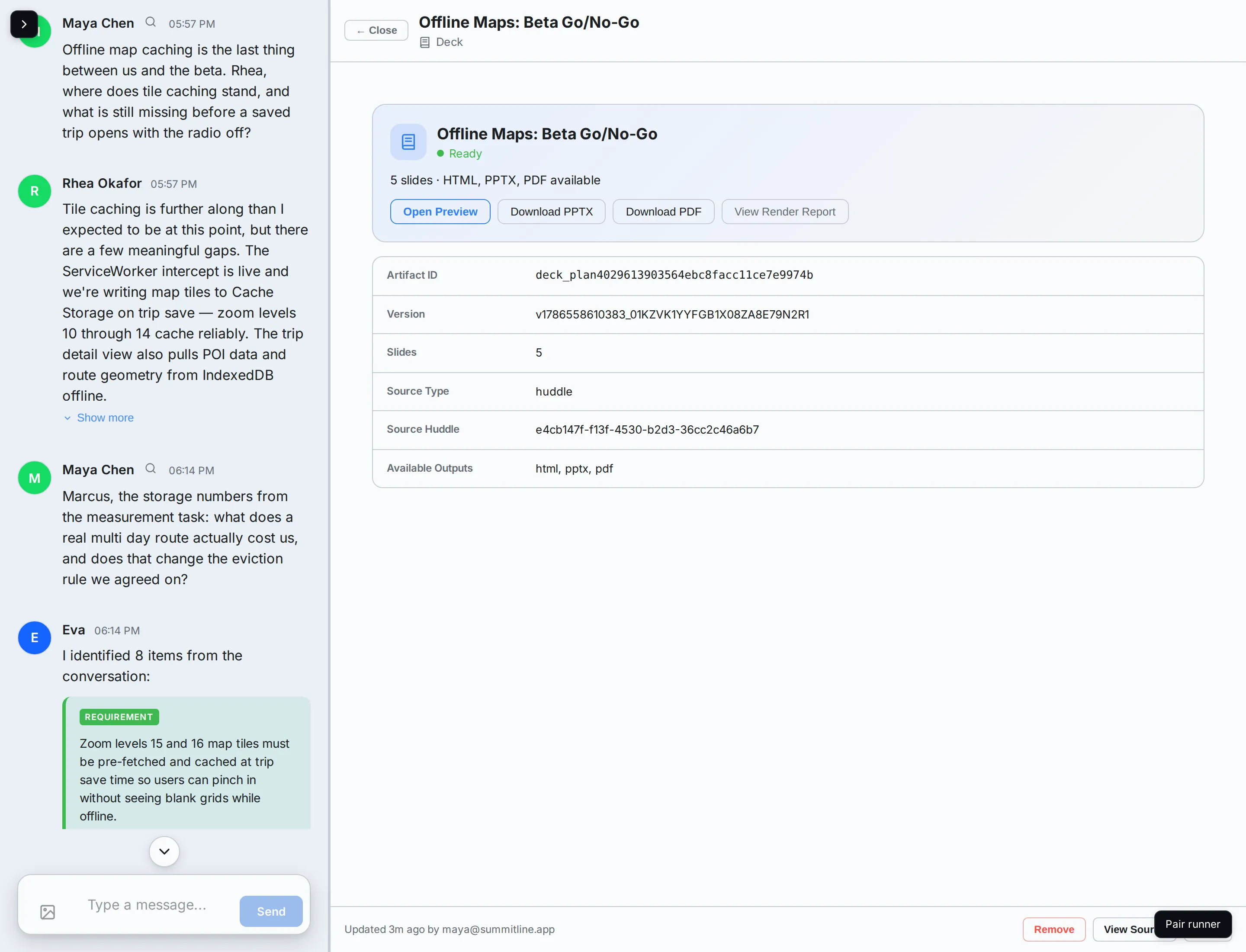
Section titled “Downloading”Open the deck from the huddle’s artifact strip. The header lists what is available and gives you a button per file:
- Open Preview renders the HTML inline. Use the arrows or the arrow keys to move between slides.
- Download PPTX and Download PDF open the file. Each link is minted when you click it and is short lived, which is why there is no permanent URL to bookmark or share: share the file, or the huddle.
The metadata table underneath repeats the same list as Available Outputs, along with the artifact id and the exact version the files came from.
Asking for a format that is not there
Section titled “Asking for a format that is not there”Nothing in the pane adds a target to a finished deck. To get a format the deck does not have, ask for the deck again in the huddle and say which format you want, or use the artifact’s own render request if you are driving the API.
Partial and failed renders
Section titled “Partial and failed renders”Outputs are rendered independently, so one can fail while the others succeed:
- Partial means the preview rendered and at least one download did not. The banner names what is available and what failed, and the deck stays usable.
- Failed means nothing rendered. The pane shows the error and offers Retry Render, which re-renders the specification the deck already has.
View Render Report is the full record either way: what was rendered, how long it took, and every warning. A warning is not a failure. It is the renderer telling you something it had to work around, such as text too long for its slot, an image it could not resolve, or a profile with no brand colours in it.
Next steps
Section titled “Next steps”- Finish and ship a deck: what to do with the file once you have it.
- Generate a deck: the stages before this one.
- Cover imagery: why a deck sometimes re-renders on its own.