

Invite teammates
Settings → Governance → Users holds everyone in your workspace and every invitation you have sent. It needs the manage_org_roles permission.
The page has two tabs: Users, the people who have joined, and Pending Invitations, the ones who have not yet.
Invite someone
Section titled “Invite someone”- Click + Invite User.
- Enter their email address.
- Choose their Access. The list has two groups: the roles your workspace has defined, and three built-in levels (Administrator, Team Member, Viewer).
- Read the permission list under the picker. It is the exact set the invitation grants, not a summary of it.
- Click Create Invitation.
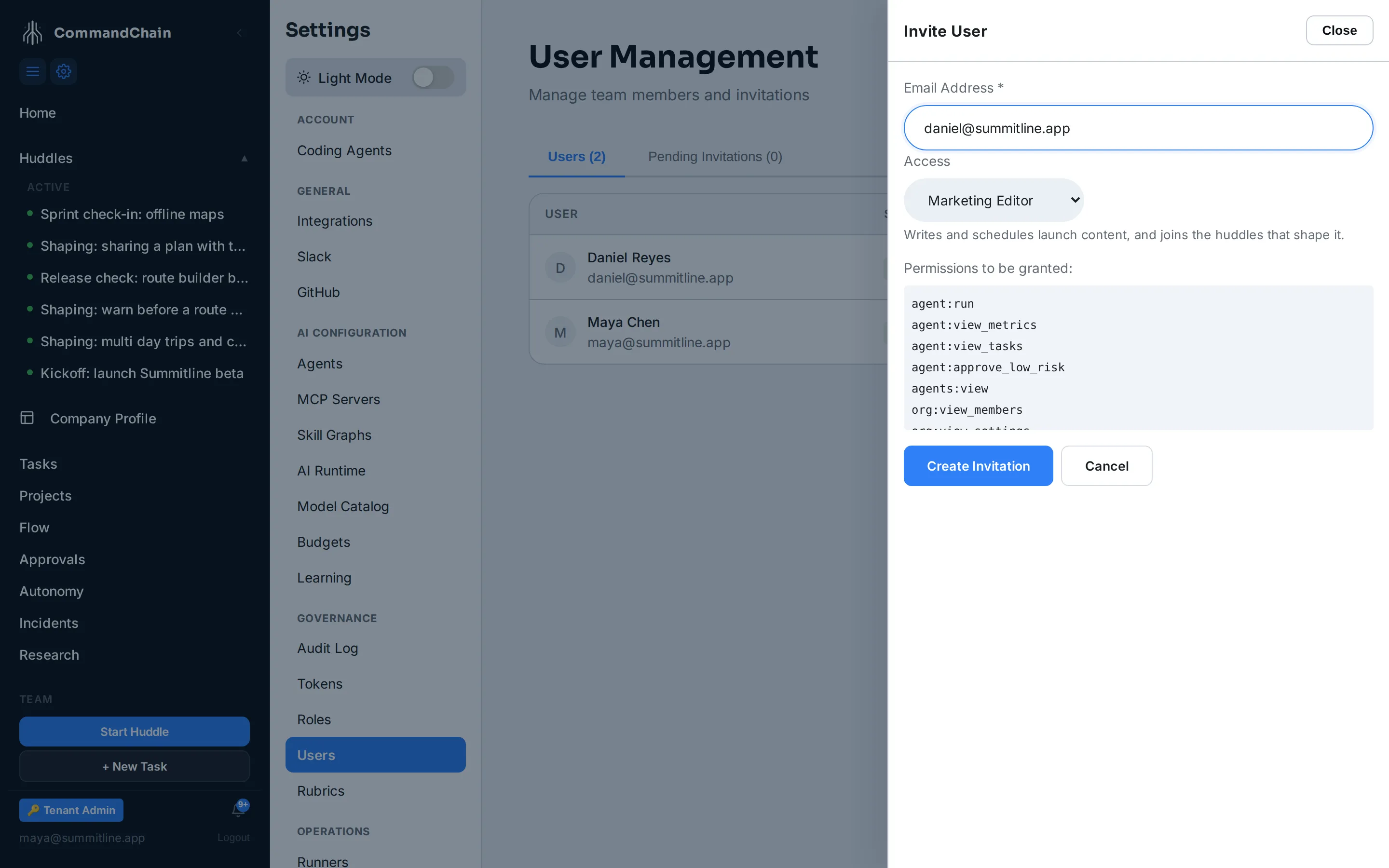
Choosing a workspace role does two things a built-in level does not: it grants that role’s permission set, and it seats the invitee in the role when they accept, so the org chart is right without a second step. A role somebody already holds still grants its permissions but does not reseat anyone.
What the invitee receives
Section titled “What the invitee receives”The invitation is emailed. They click the link, choose a password, and land in your workspace. The account is created with the address you invited, so the password is the only thing they fill in; someone who already has a CommandChain account signs in from the same page instead.
The link also appears in the drawer after you submit, so if the mail is caught by a spam filter you can copy it and send it however you normally would.
After they accept
Section titled “After they accept”Their row moves from Pending Invitations to Users, and the permissions the invitation carried become theirs. From that point on their access changes through roles, not through the invitation.
Their arrival is recorded in the audit log as user.joined, with the invitation it came from.
Removing someone
Section titled “Removing someone”Removing a member from the Users tab ends their access. Work they created stays: tasks keep their history, huddles keep their messages, and the audit log keeps every action under their name. A workspace whose record thinned out when somebody left would not be a record.
Next steps
Section titled “Next steps”- Roles and permissions: define the access before you send the invitation.
- The audit log: who joined, who changed what, and when.
- Permission tokens: access for a script rather than a person.