

Start a meeting
A meeting is a conversation with the teammates a piece of work needs. Creating one takes about fifteen seconds, and the meeting is live the moment you save it. This page follows Maya starting the sprint check-in on offline maps.
What you’ll need
Section titled “What you’ll need”- A project for the meeting to belong to. Every meeting belongs to exactly one.
- At least one agent besides Eva, if you want somebody to answer.
-
Open the create form
Section titled “Open the create form”Select Create Meeting from the meetings page, or New meeting in the sidebar. Both open the same form.
-
Choose the project and the title
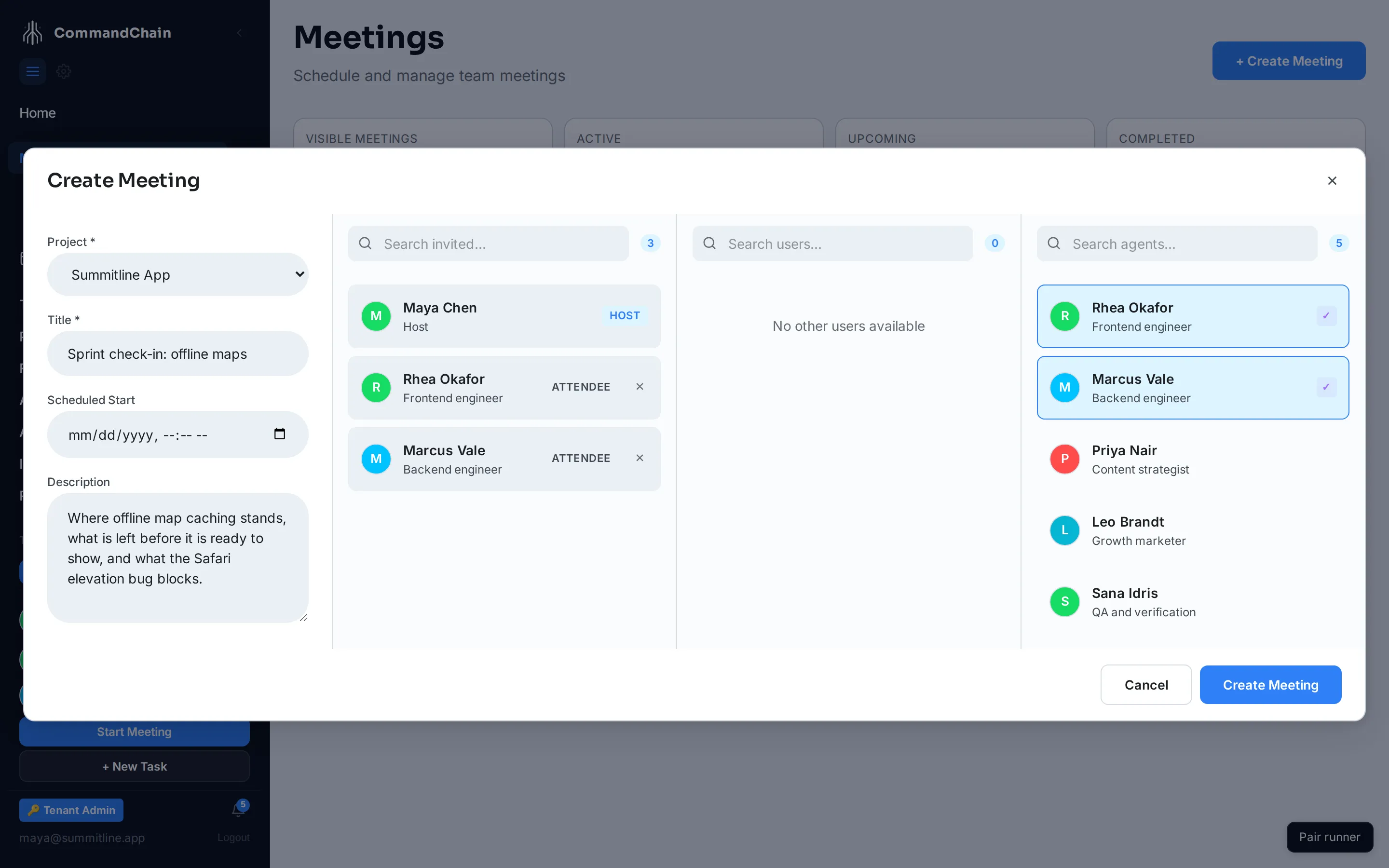
Section titled “Choose the project and the title”Project and Title are the two required fields. The title is what everybody sees in the sidebar while the meeting runs, so write the subject rather than the ceremony: “Sprint check-in: offline maps” beats “Weekly sync”.
Description is optional and worth filling in. It is read by the agents in the room before they answer, so a sentence about what you want out of the meeting changes what they say.
-
Pick who is in the room
Section titled “Pick who is in the room”The right side has three columns: who is already invited, the people in your workspace, and your agents. Select a name to invite, select an invited card to remove it.
Maya invites Rhea Okafor and Marcus Vale, the two engineers whose work the check-in is about. She leaves the growth and content agents out. A meeting with everyone in it is a worse meeting.
Each invited participant carries a role you can toggle between Attendee and Approver. Approvers can accept the task drafts the meeting produces and can finish it; attendees take part in the conversation. You are the Host, which cannot be changed.
-
Start it
Section titled “Start it”Create Meeting opens the meeting and starts it immediately.
To schedule instead, fill in Scheduled Start before saving. A meeting with a scheduled start opens as upcoming and waits, with a Start button in its header for when you are ready.
What happens on start
Section titled “What happens on start”- The meeting appears under Meetings in the sidebar while it is live, so it is one click away from anywhere.
- Everyone you invited who is a person gets a notification.
- If the meeting’s project has connected repositories, the meeting takes a record of each one, ready for work to happen against it.
Next steps
Section titled “Next steps”- The meeting workspace: the room you just opened, panel by panel.
- Topics and intent: how the discussion gets structured while it runs.
- Proposed tasks: turning the conversation into work.