

Review the tasks a meeting proposes
A meeting’s output is work. When you end one, your team writes up what was discussed as task drafts, and you decide which of them become tasks. This page follows the kickoff meeting, whose drafts became the Summitline Launch tasks.
-
End the meeting
Section titled “End the meeting”End in the meeting header. The meeting moves to generating and your team writes the drafts: a title, a spec, and any questions that have to be answered before the work can start. This takes a minute or two, because each draft is written rather than templated.
-
Review the drafts one at a time
Section titled “Review the drafts one at a time”When the drafts are ready, the meeting opens into the review carousel.
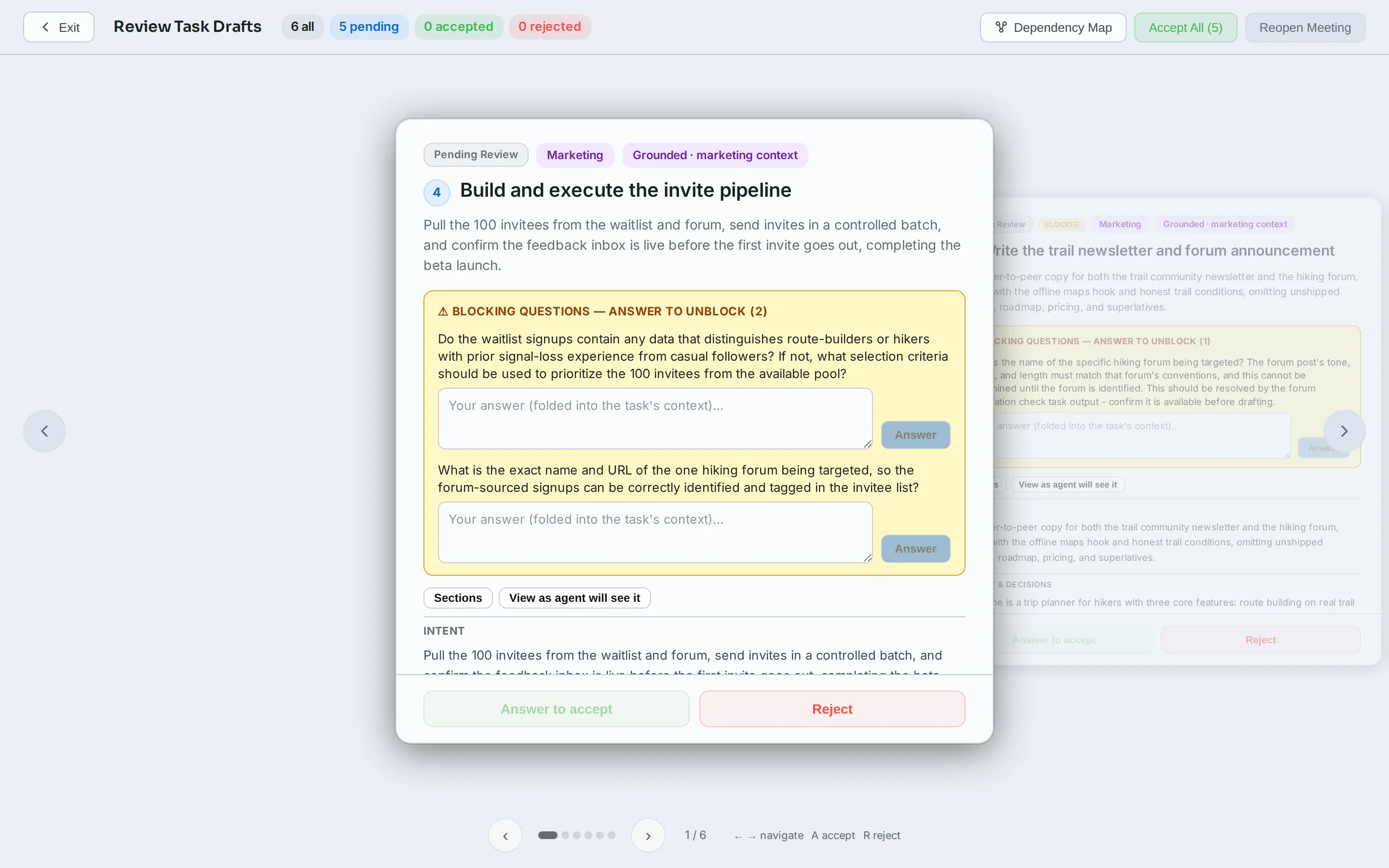
For each draft:
- Accept takes it as a task.
- Reject drops it.
- Edit the title or the spec first, then accept. What you accept is what the agent gets, so fixing a vague acceptance criterion here is the cheapest it will ever be.
Keyboard: A accepts, R rejects, and the arrow keys move between drafts. Accept All takes everything still pending.
Two things stop a draft from shipping until you deal with them:
- Blocking questions, shown in a highlighted box on the draft. Answer each one in place. Your answer is folded into the task’s context.
- An ungrounded draft, meaning one written without reading the repository it targets. Acknowledge it and it ships anyway, or reject it and ask for the work to be re-specified.
View graph shows the drafts as a dependency graph instead of a stack, which is the faster way to see that three of them are waiting on the fourth.
-
Ship the accepted drafts
Section titled “Ship the accepted drafts”Once every draft has been reviewed, Ship Tasks opens the shipping options.
- Ship or Backlog per task. Shipped tasks are ready to start; backlog tasks are created and parked.
- Assign all sets one agent for everything, or set them individually.
- Auto-assign scores your agents against each task and applies the best match. See assigning tasks.
- Auto-assign + dispatch on accept goes one step further and starts the work, within whatever your autonomy ladder allows.
Shipping creates the tasks in the meeting’s project, keeps the dependencies between them, and carries the meeting’s decisions, requirements, and scope into the project.
-
Check the merge
Section titled “Check the merge”The meeting’s panel carries a Merge to Project tab, and it shows one of two things depending on where the drafts have got to.
Before the merge it stages what you accepted: the counts, each accepted draft with an Execute or Backlog toggle, and Merge N Tasks to Project.
After the merge it reports what the meeting produced: how many drafts became tasks, how many were rejected, the work itself under Merged to Project, and View Project Tasks to open them where they now live.
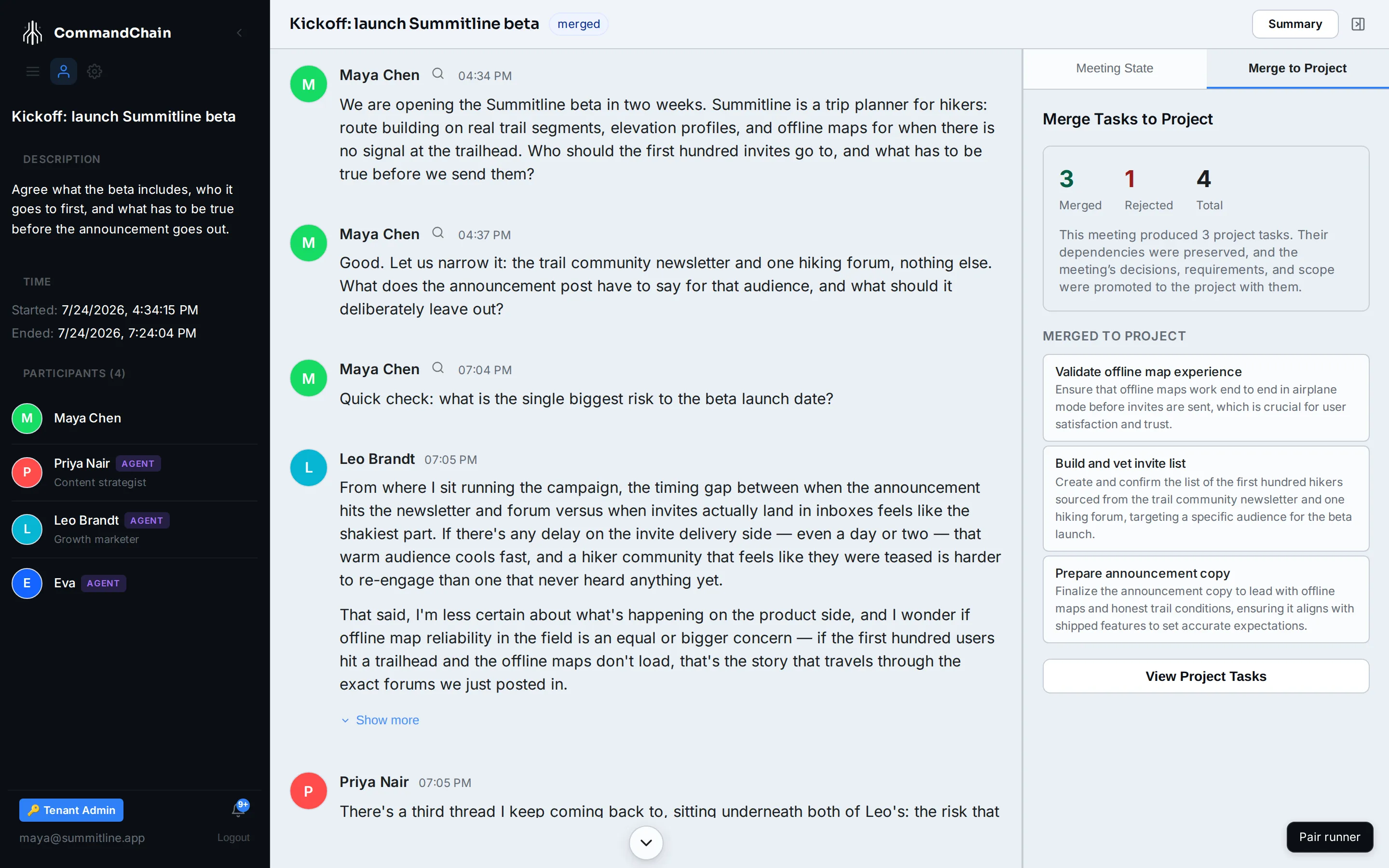
The new tasks carry short keys in the project’s sequence, and each one links back to the meeting it came from.
What a good draft looks like
Section titled “What a good draft looks like”The drafts are only as good as the meeting. If a draft arrives vague, the fix is upstream: settle the decision in the room, then say so out loud, and the next draft carries it. See topics and intent.
Scheduling content from a meeting
Section titled “Scheduling content from a meeting”When a meeting agrees on a publish time for a piece of content (“post the launch announcement Tuesday at 9am”), the marketing draft carries that time with it. You will see a Publish schedule on the draft during review:
- The extracted time and channel are editable, so you can correct a misheard time or clear it entirely before the draft ships.
- A time that is already in the past gets a warning badge. Shipping rejects anything more than a day old, so fix or clear it here.
After the merge, the task shows the publish time in its Overview, linking to the content calendar. The time on the task is intent, not the schedule itself: the agent that picks up the task creates or finds the content asset and schedules it for that time, and from then on the asset’s own schedule is the one that counts.
Only an explicit time stated in the meeting rides the draft. “Sometime next week” stays in the task’s notes for the agent to resolve.
Next steps
Section titled “Next steps”- Work in the Task Workspace: where an accepted draft lands.
- Meeting summaries: the written record of the same meeting.
- Assign a task: who picks up the new work.