
Capture web pages into a meeting
Some conversations are about a page: a competitor’s pricing, a gear guide you want to write better than, a screen of your own product that is behaving oddly. The browser extension pulls that page into the meeting as an artifact your team can read and edit, instead of a link nobody opens.
What you’ll need
Section titled “What you’ll need”- Google Chrome, or another Chromium browser that loads Manifest V3 extensions.
- A checkout of CommandChain, with
pnpm installalready run. The extension is not on the Chrome Web Store, so you install it from source. - A live meeting. Connecting is done from inside the meeting, so a finished one cannot be connected to.
-
Build the extension
Section titled “Build the extension”From the repository root:
Terminal window pnpm --filter @commandchain-ai/extension-webframe buildThis writes the loadable extension to
apps/extension-webframe/dist. -
Load it into Chrome
Section titled “Load it into Chrome”- Open
chrome://extensions. - Turn on Developer mode, top right.
- Select Load unpacked and choose the
apps/extension-webframe/distfolder. - Pin CommandChain WebFrame Capture to the toolbar so the popup is one click away.
Open the popup now and it says Not connected, which is correct: it has no meeting yet.
- Open
-
Connect it to a meeting
Section titled “Connect it to a meeting”Open a live meeting and select Connect extension in the artifact strip above the conversation.
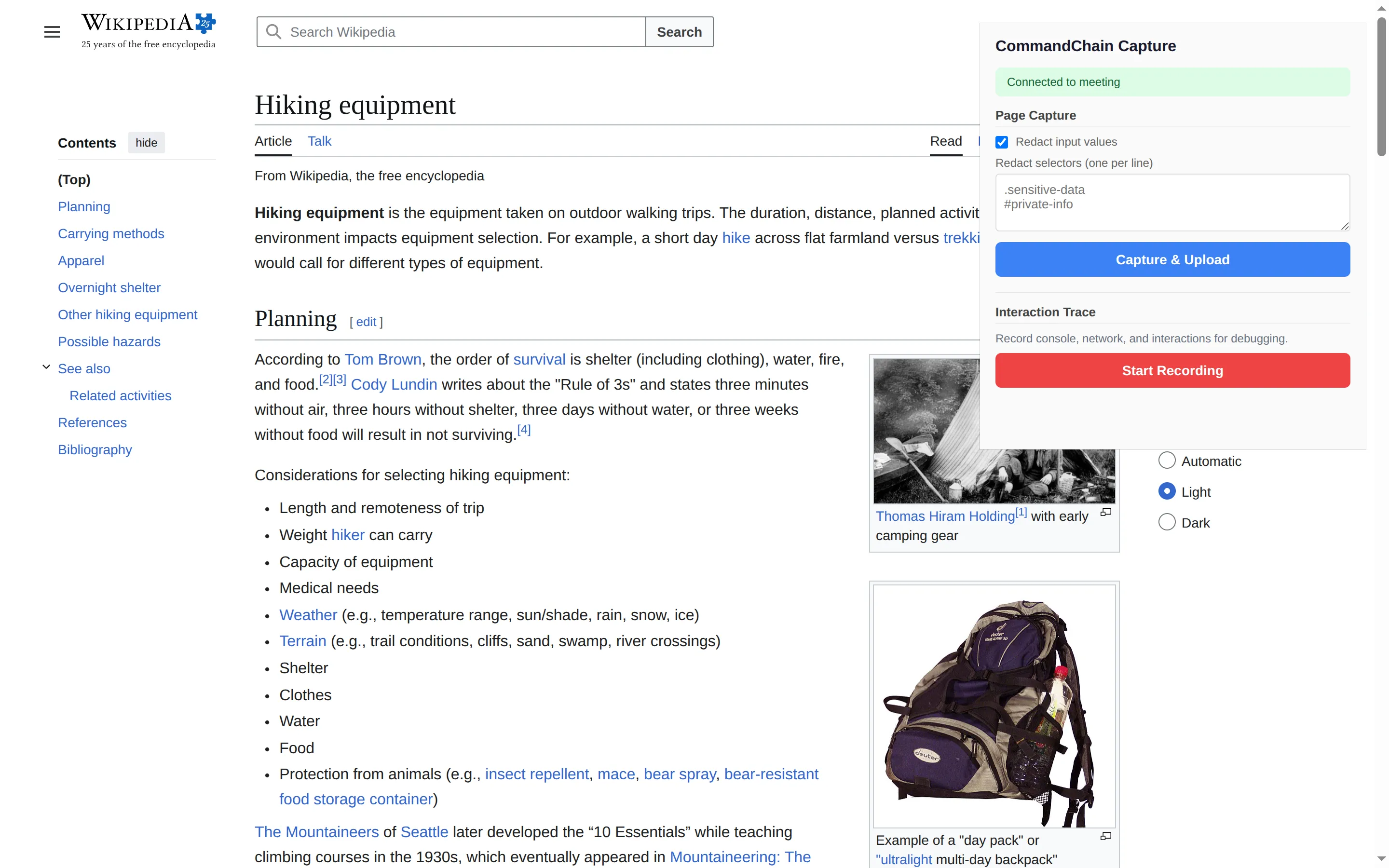
That hands the extension a key scoped to that one meeting, good for fifteen minutes. The popup switches to Connected to meeting, and the two buttons in it become available.
-
Capture a page
Section titled “Capture a page”Go to the page you want, open the extension popup, and select Capture & Upload.
Two options shape what is captured:
- Redact input values (on by default) strips the contents of form fields, so a half-filled form does not travel with the page.
- Redact selectors takes one CSS selector per line and blanks out everything matching them. Use it for anything on screen you would not paste into chat.
The capture takes the page’s HTML and its stylesheets, uploads them, and adds the page to the meeting as an artifact. It appears in the artifact strip within a second or two, and everybody in the meeting can open it.
Recording an interaction instead
Section titled “Recording an interaction instead”The popup’s second half records what happens while you use a page: console messages, network requests, and your interactions, with periodic snapshots of the page.
- Select Start Recording, then use the page.
- Select Stop Recording. Recording stops on its own after two minutes.
- The popup shows what it caught: duration, snapshots, console errors, warnings, network failures, total requests, and the worst offenders in each list.
- Choose a meeting from Share to Meeting and share it, or Discard.
A shared recording lands in the meeting as a trace artifact, which is the fastest way to hand an agent a bug report that is actually reproducible.
When it does not work
Section titled “When it does not work”| What you see | What it means |
|---|---|
| Not connected in the popup | No key yet, or the meeting was never connected. Open the meeting and select Connect extension |
| A message that the key expired | Keys last fifteen minutes. Reconnect from the meeting |
| No Connect extension control in the meeting | The meeting is not live. Connecting works only in a meeting that is running |
Next steps
Section titled “Next steps”- Meeting artifacts: what else lives in the artifact strip.
- Work in a meeting: where the captured page lands.
- Security model: the boundaries the rest of the product works inside.