

Start a session
Before you start
Section titled “Before you start”You need at least one computer with the CommandChain app installed, connected and online, and a coding agent signed in on it. If the Computer field is empty or every computer shows (offline), see Install the CommandChain app or Keep the CommandChain app running.
Open the form
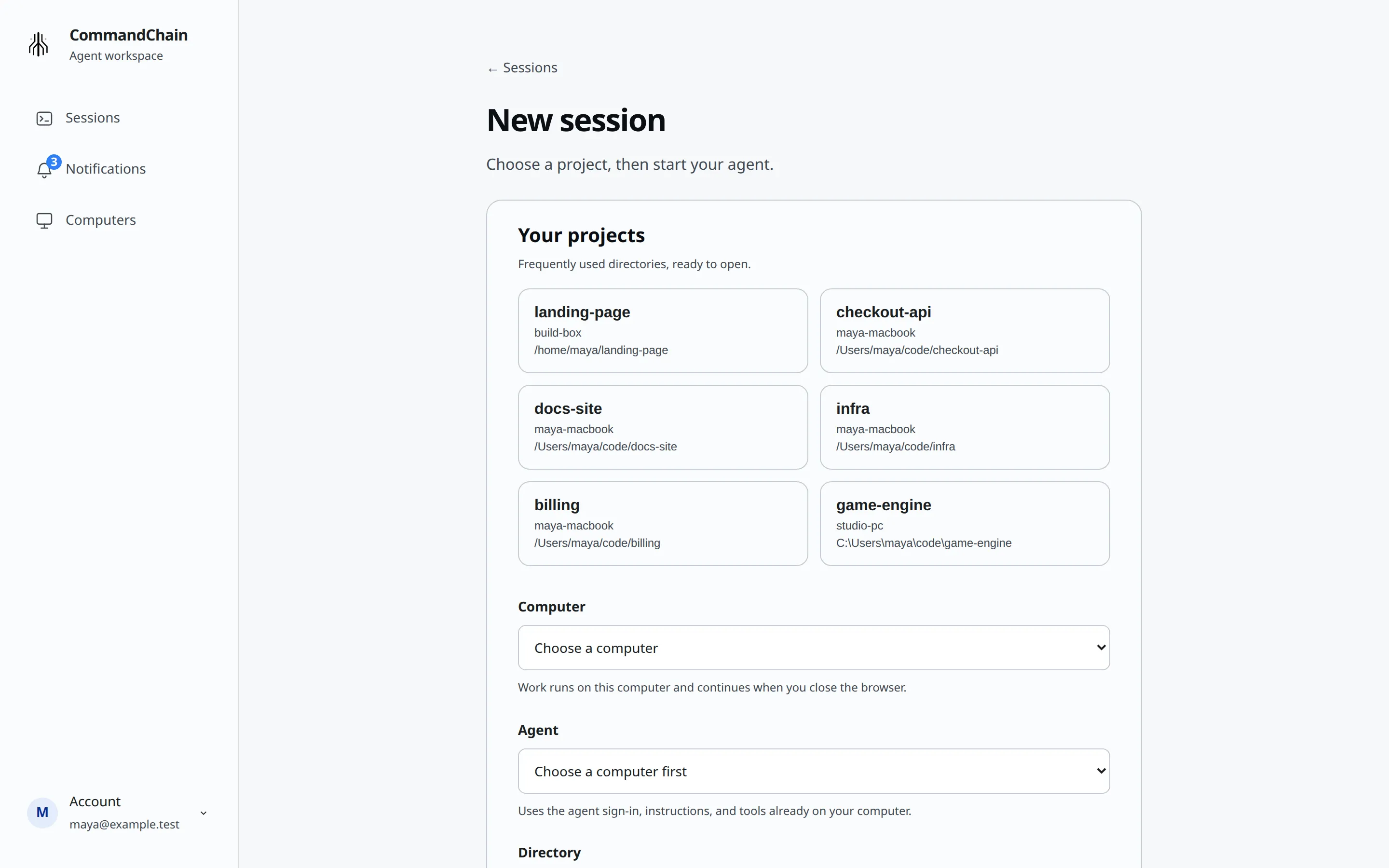
Section titled “Open the form”Choose New session on the Sessions page. The page opens with New session and the line Choose a project, then start your agent.
Reuse a recent project
Section titled “Reuse a recent project”Once you have used CommandChain for a while, Your projects lists up to 6 folders from your sessions, each with its computer. Folders with the most sessions come first, then the most recently used. Choose one to fill in the computer, the folder and, if it is still installed, the agent. Picking a project sets Agent permissions back to Auto approve (default). A project on an offline computer is shown but cannot be chosen.
Fill in the form
Section titled “Fill in the form”- Computer: choose one of your computers. Offline computers are listed with (offline) and cannot be chosen. Once you pick one, its memory, CPU and disk appear under the field.
- Agent: the agents installed on that computer, each with its version, for example Claude Code · 2.1.30. If none is ready, you see No supported agent is ready on this computer. Install and sign in to a coding agent there, then refresh computers. See Supported agents.
- Model and Effort: appear once you pick an agent. See Pick a model and effort.
- Directory: the folder the agent works in. It starts as your home folder on that computer. It must be an absolute path to a folder that already exists there. CommandChain does not clone anything. On a Windows computer, write the path with a drive letter, for example
C:\Users\you\code\project. - Security settings: open it to change Agent permissions. The default is Auto approve (default). See Choose agent permissions.
Then choose Start session.
Browse for a folder
Section titled “Browse for a folder”Choose Browse directories next to the Directory field to look at the folders on that computer. The browser opens at the path in the field.
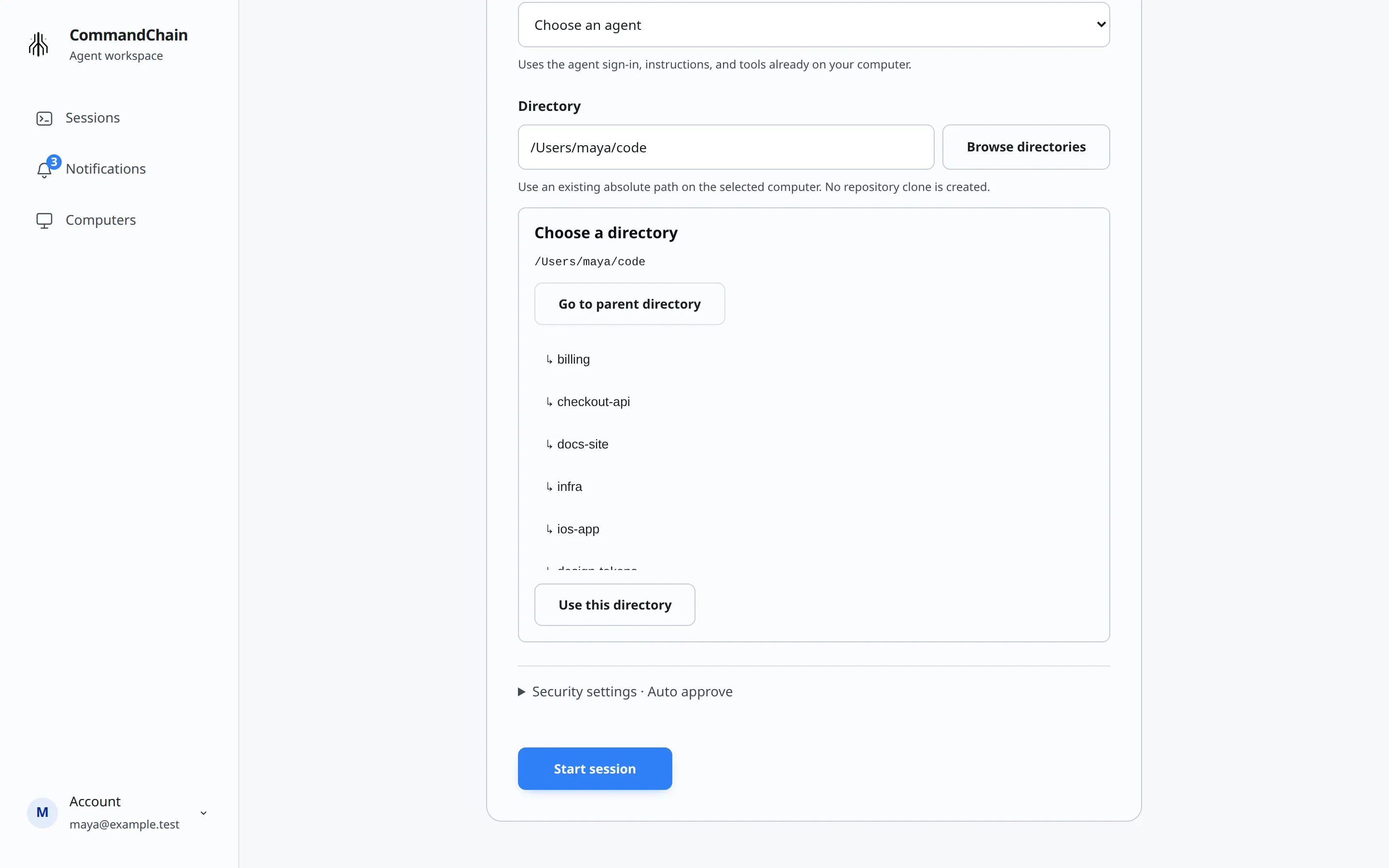
- Choose a folder name to open it.
- Go to parent directory moves up one level.
- Use this directory puts the current path in the Directory field.
If a folder has no subfolders, you see This directory has no subdirectories. You can use it or go to its parent.
What happens when you start
Section titled “What happens when you start”The button reads Starting session… while CommandChain reaches your computer and opens the agent. When the session is ready, its conversation opens. The work runs on your computer, so it keeps going if you close the browser.
If you leave the form and come back in the same browser tab, your choices are still there. They are cleared once the session starts, and they do not carry over to a new tab. If starting fails, the error appears above the button. Choosing Start session again is safe: it does not create a second session.
If the form shows an error
Section titled “If the form shows an error”Most errors name the field to fix, for example Choose an agent installed on this computer. One needs a step on your computer: Update CommandChain on this computer and reconnect it to use automatic approval. means that computer runs an older version of the CommandChain app. See Update or uninstall.