

Supported agents
CommandChain works with five coding agents. Each one runs on your computer as its own command-line program, with its own sign-in and settings.
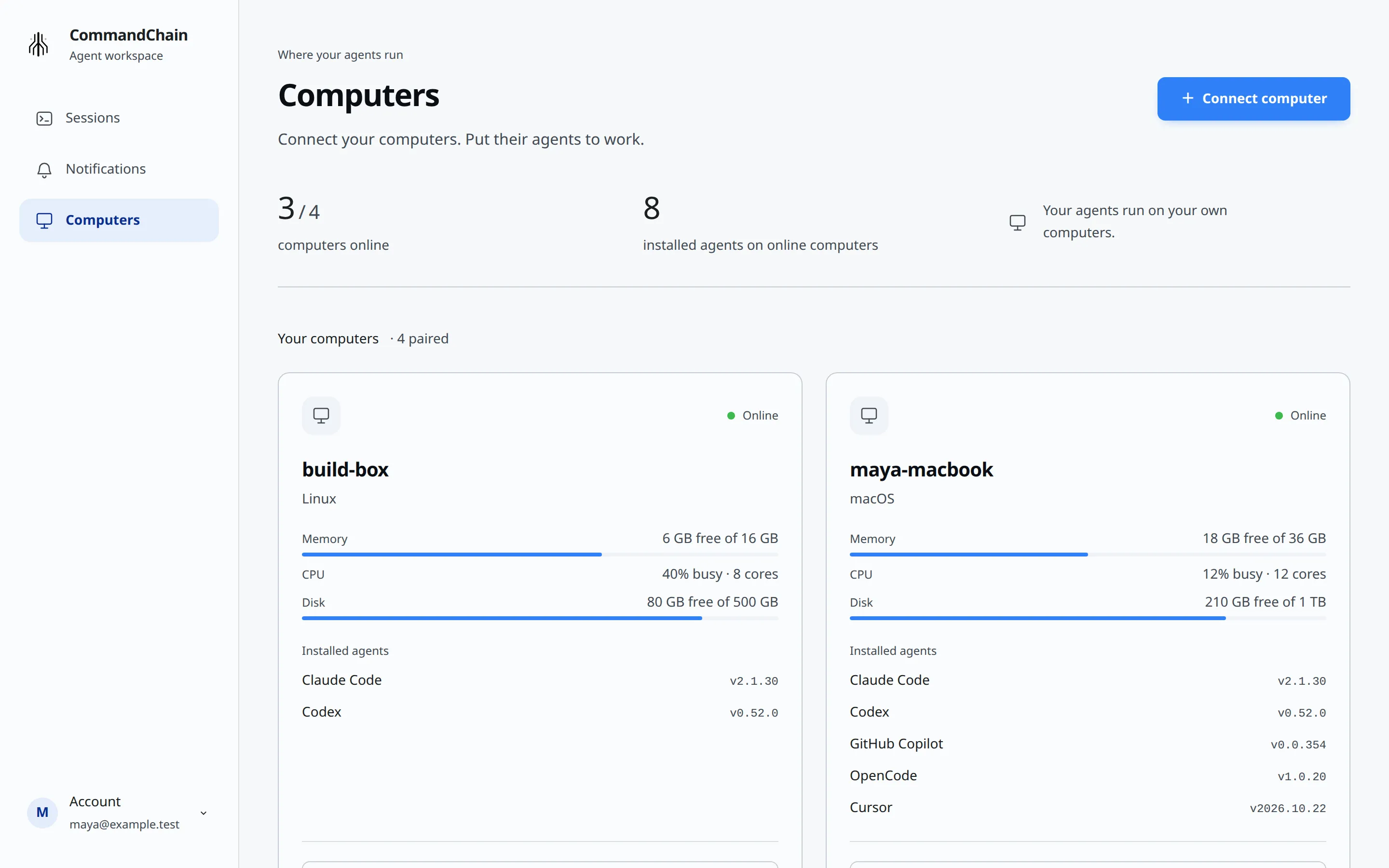
The five agents
Section titled “The five agents”- Claude Code: command
claude. Sign in by openingclaudein a terminal and using its own sign-in. - Codex: command
codex. Sign in by openingcodexin a terminal and using its own sign-in. - GitHub Copilot: command
copilot. Sign in withcopilot login. - OpenCode: command
opencode. Sign in withopencode auth login. - Cursor: command
cursor-agent. Sign in withcursor-agent login.
CommandChain uses each agent’s own sign-in and account. Sign in to each agent once on the computer, in a terminal, before your first session there.
Let CommandChain install an agent
Section titled “Let CommandChain install an agent”If a computer has no coding agent yet, run commandchain-runner in a terminal there. Before it connects the computer, it shows a numbered menu to install Claude Code, Codex or both:
- Pick one or more. Each installs as you, with the vendor’s own installer. Codex installs with npm, so npm must be on the computer.
- Sign in to each one you installed, with that agent’s own sign-in: in your browser, or with a device code for Codex.
- CommandChain checks that the sign-in worked, then connects the computer.
If Claude Code or Codex is installed but none is signed in, it skips the menu and goes straight to signing in. Press Ctrl+C at any prompt to quit. GitHub Copilot, OpenCode and Cursor are not in the menu: install them yourself, then type r and press Enter to check again. The background app never shows this setup; only a terminal does.
On Windows, CommandChain is tested with Claude Code. Some features are not available on Windows yet; they are marked “not on Windows” below. For the Windows versions CommandChain runs on, see Install the CommandChain app, and for Windows problems, see Troubleshooting.
How the CommandChain app finds agents
Section titled “How the CommandChain app finds agents”The app looks for each command on your PATH, then in the places agents are usually installed:
- macOS and Linux:
~/.local/bin(Claude Code’s own installer), npm global installs, nvm, fnm, Volta, bun, pnpm, asdf, mise and Homebrew, among others. This works for the background app too, even though it does not read your shell profile. - Windows:
%USERPROFILE%\.local\bin(Claude Code’s own installer), npm global installs (%APPDATA%\npm), Volta, bun, pnpm and Scoop, among others. On Windows the app runs only an agent’s own program (a.exefile, such asclaude.exe) or the npm package of Claude Code, Codex, GitHub Copilot or OpenCode. It never runs.cmd,.bator.ps1launcher scripts, so an agent available only through one of those shows as not found. Codex and GitHub Copilot installed with npm also need Node.js on yourPATH.
Finding an agent does not check that you are signed in to it. That is checked when you start a session: if the agent needs you to sign in, the session says so. The one exception is commandchain-runner in a terminal, which asks you to sign in when Claude Code or Codex is installed but not signed in, and no other agent is installed.
When an agent is missing
Section titled “When an agent is missing”A newly installed agent appears on its computer’s card within about 2 minutes. If it does not:
- Check that the command works in a new terminal on that computer, for example
claude --version. - On the Computers page, choose Refresh computers.
- Restart the CommandChain app on that computer. See Keep the CommandChain app running.
Running commandchain-runner in a terminal also lists what it found:
Agents on this computer ✔ Claude Code · Codex not foundWhat each agent can do
Section titled “What each agent can do”Sessions look the same for every agent, with a few differences.
Claude Code
- A message you send while it works waits in a queue and goes in after the current turn.
- Stop agent ends the agent process. Your next message resumes the conversation.
- Supports every permission mode, including Ask for approval.
- You can connect a Claude Code session already open in your terminal (not on Windows). See Connect Claude Code in your terminal.
Codex
- A message you send while it works goes into the current turn.
- Stop agent ends the current turn.
- Supports every permission mode.
- You can connect to a Codex app that is already running (not on Windows).
GitHub Copilot, OpenCode and Cursor
- A message you send while it works waits in a queue.
- Stop agent ends the current turn.
- GitHub Copilot and OpenCode support every permission mode. Cursor offers Auto approve and Full access only, because it cannot ask before editing files.
- GitHub Copilot’s model is always Auto.
In sessions started from CommandChain, every agent supports Restart agent. And you can open sessions you started in a terminal with any of them. See Open sessions started in your terminal.