

Manage your machines
Open Computers in the menu to see every computer you connected. On a phone, it is in the bar at the bottom of the screen.
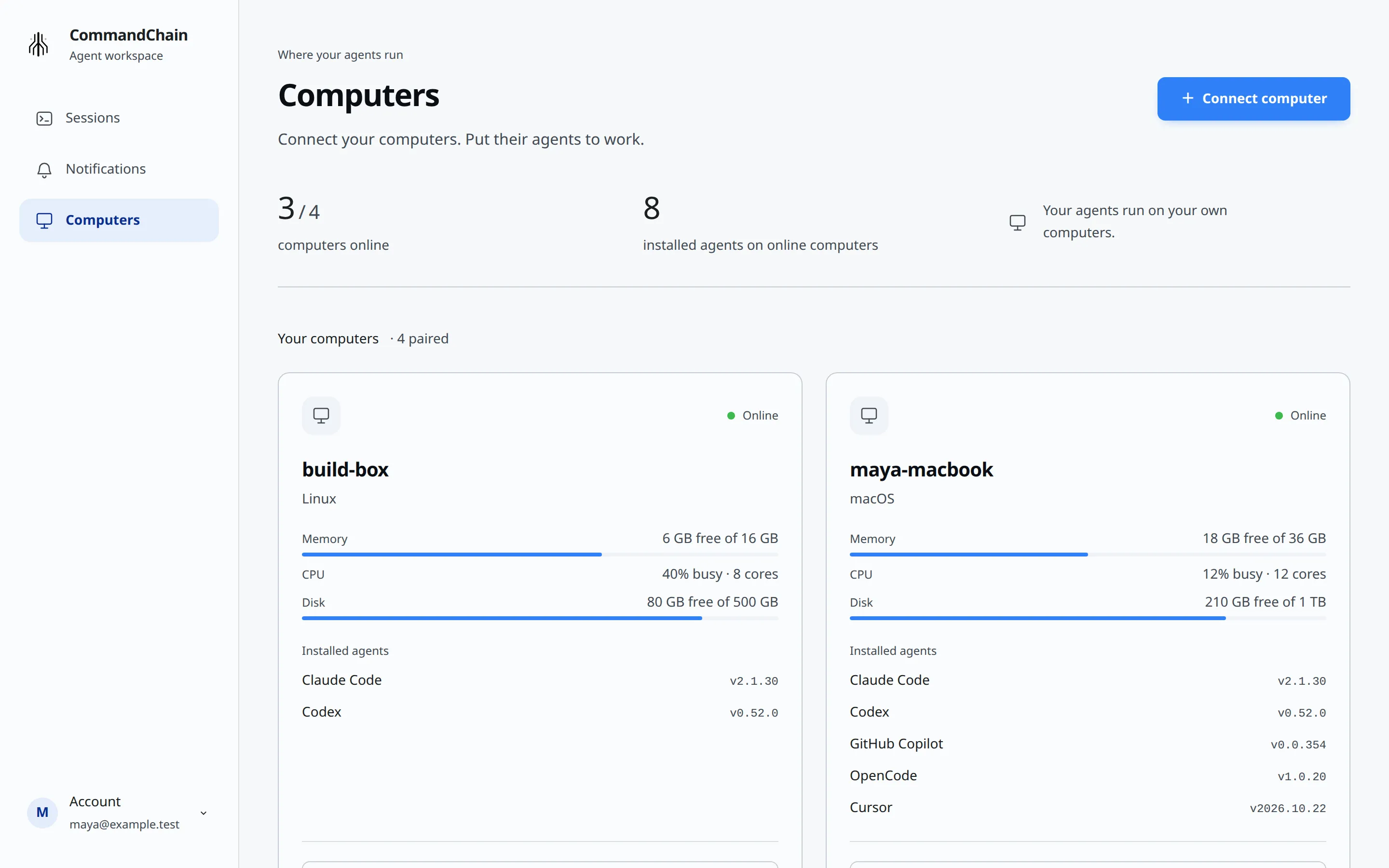
The top of the page shows how many of your computers are online, and how many agents are installed on the online ones. Below that, each computer has a card. Online computers come first.
If you have not connected a computer yet, the page shows Connect your first computer instead. To add one, choose Connect computer and follow Connect your computer.
What a card shows
Section titled “What a card shows”- Status: Online, Offline or Status unknown.
- Platform: macOS, Linux or Windows. A system CommandChain does not recognize shows as Other system.
- Resources (online computers only): free Memory, CPU load and free Disk. CommandChain asks the computer for these when you open the page or refresh it, not all the time. If memory runs low, the card says “Low memory. Agents may run slowly.”
- Installed agents: each coding agent the CommandChain app found on that computer, with its version. If none is found, the card says “Install and sign in to a supported coding agent on this computer.” See Supported agents.
- New session: start a session on this computer. It appears when the computer is online and has at least one agent.
- Find existing sessions: open a session you started in a terminal on this computer. See Open sessions started in your terminal.
- View managed sessions: the sessions list, filtered to this computer.
Availability updates by itself every few seconds. To read resources again, choose Refresh computers at the bottom of the page, or pull down on a phone.
The list does not check whether you are signed in to each agent. That is checked when you start a session.
On your phone
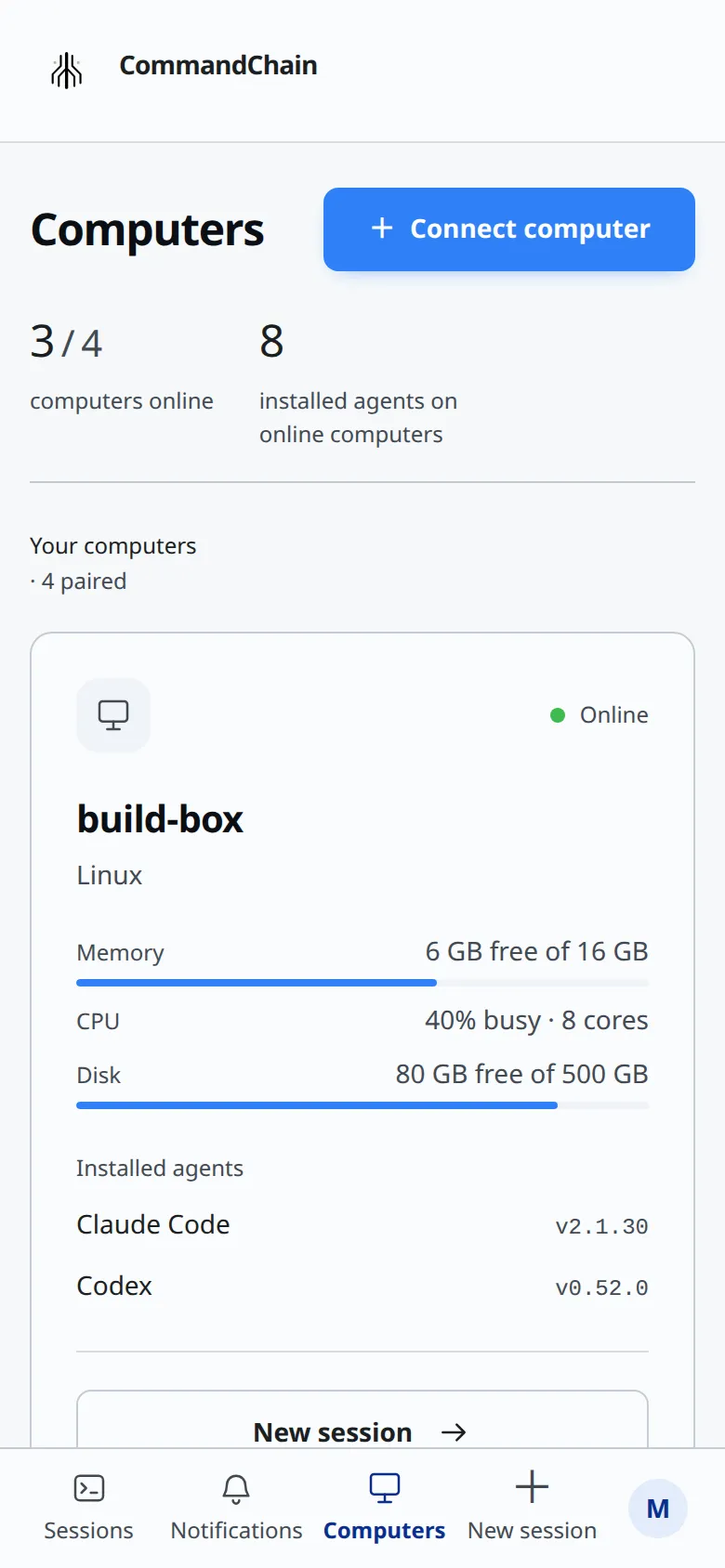
Section titled “On your phone”The page works the same on a phone, one card per row.
When a computer is offline
Section titled “When a computer is offline”A computer is Offline when it is turned off, asleep, disconnected from the network, or the CommandChain app on it is not running. Its card says:
On that computer, run
commandchain-runnerto reconnect it.
That command shows what is wrong and starts the app again. See Keep the CommandChain app running. Messages you send to a session on an offline computer wait until it is back.
Remove a computer
Section titled “Remove a computer”Only a workspace admin can remove a computer. If you created your account yourself, you are its admin. Anyone else sees “Only a workspace admin can remove a computer.”
- On that computer, uninstall the CommandChain app or stop it, so the computer goes Offline. See Update or uninstall or Keep the CommandChain app running.
- Wait 5 minutes. A computer that was connected in the last 5 minutes cannot be removed yet: the dialog says “This computer was connected in the last 5 minutes. Try again after it has been offline for 5 minutes.”
- On its card, choose Remove, then Remove in the dialog. Only an offline card has this button.
To use that computer again later, run the install command on it and approve the new code.
Every computer on this page counts toward your plan, online or offline, until you remove it. See Plans and billing.
The same computer twice
Section titled “The same computer twice”Every approved code adds a new card. If you connect a computer again with a new code (for example after deleting its connection), the new card is online and the old one stays Offline. Remove the old one.