

Create your account
You sign up with an email address and a password, then confirm the address with a 6-digit code. It takes a minute.
Create the account
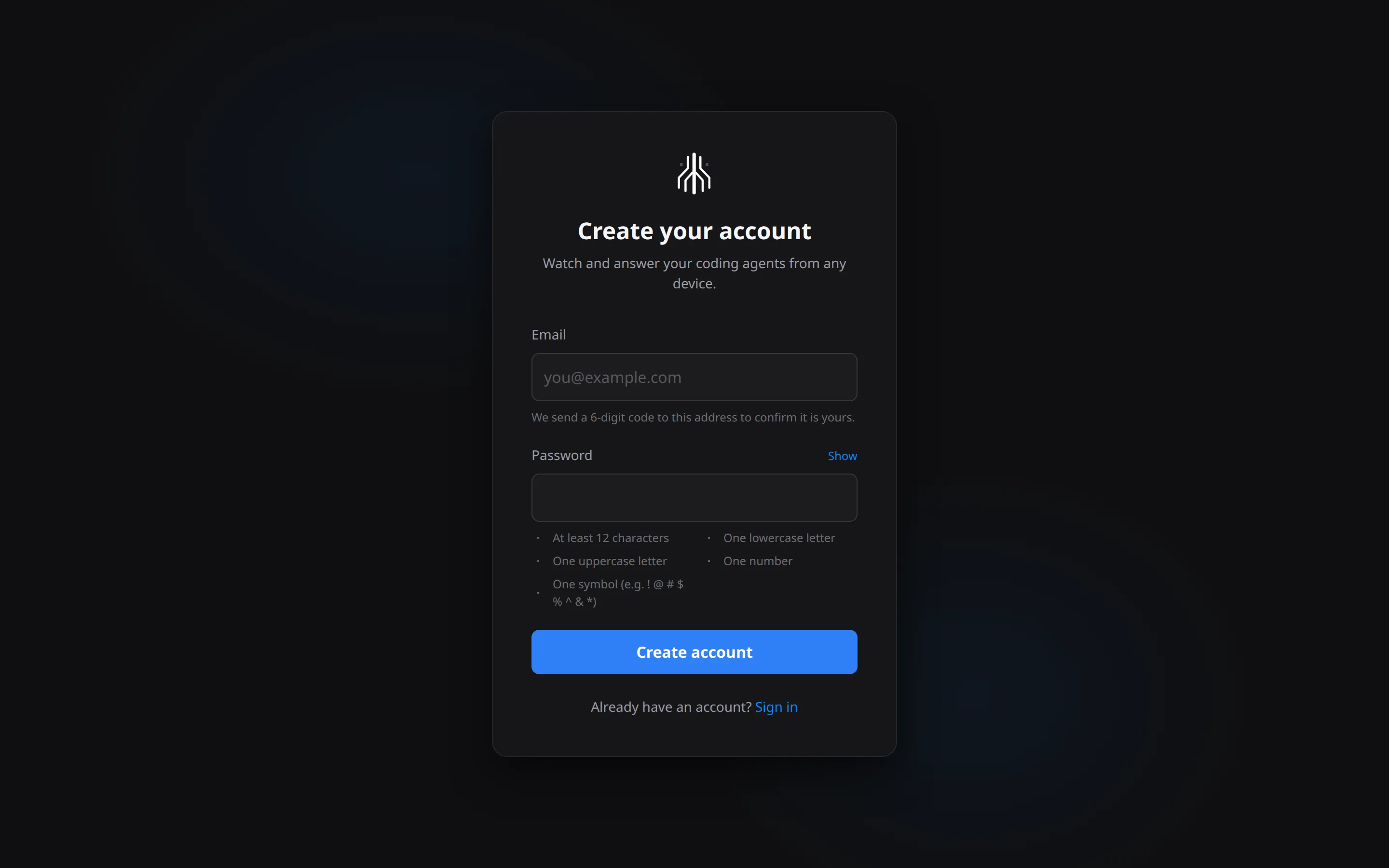
Section titled “Create the account”- Open app.commandchain.ai/register, or select Get started free at the top of any docs page.
- On Create your account, enter your Email and a Password. Select Show to check what you typed.
- Select Create account.
The page lists the password rules under the field and ticks each one off as you type:
- At least 12 characters
- One lowercase letter
- One uppercase letter
- One number
- One symbol (for example
!,@,#or$)
Confirm your email
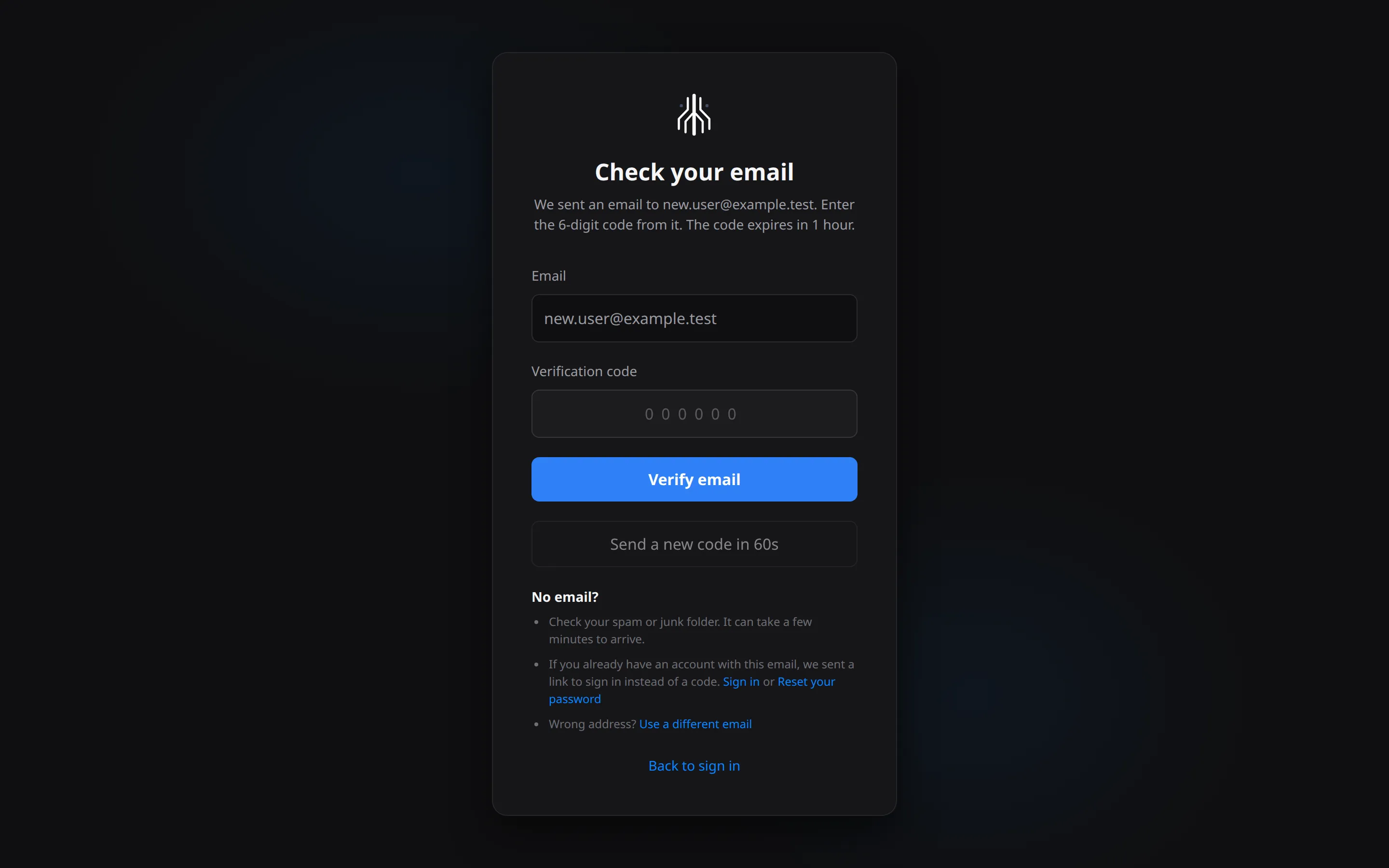
Section titled “Confirm your email”Next you see Check your email. We send you an email from CommandChain with a 6-digit code, not a link.
- Enter the code in Verification code.
- Select Verify email.
You land on your sessions list, signed in. The code expires in 1 hour.
Send a new code becomes available 60 seconds after the page opens, and 60 seconds after each send. If you asked for more than one code, use the code from the newest email.
If you reload the page or open it on another device, it also asks for your Password. Enter the one you chose when you created the account.
No email?
Section titled “No email?”- Check your spam or junk folder. It can take a few minutes to arrive.
- If you already have an account with that email, the email has a link to sign in instead of a code. Use Sign in, or Reset your password if you forgot it.
- Typed the wrong address? Select Use a different email and start again.
Sign in later
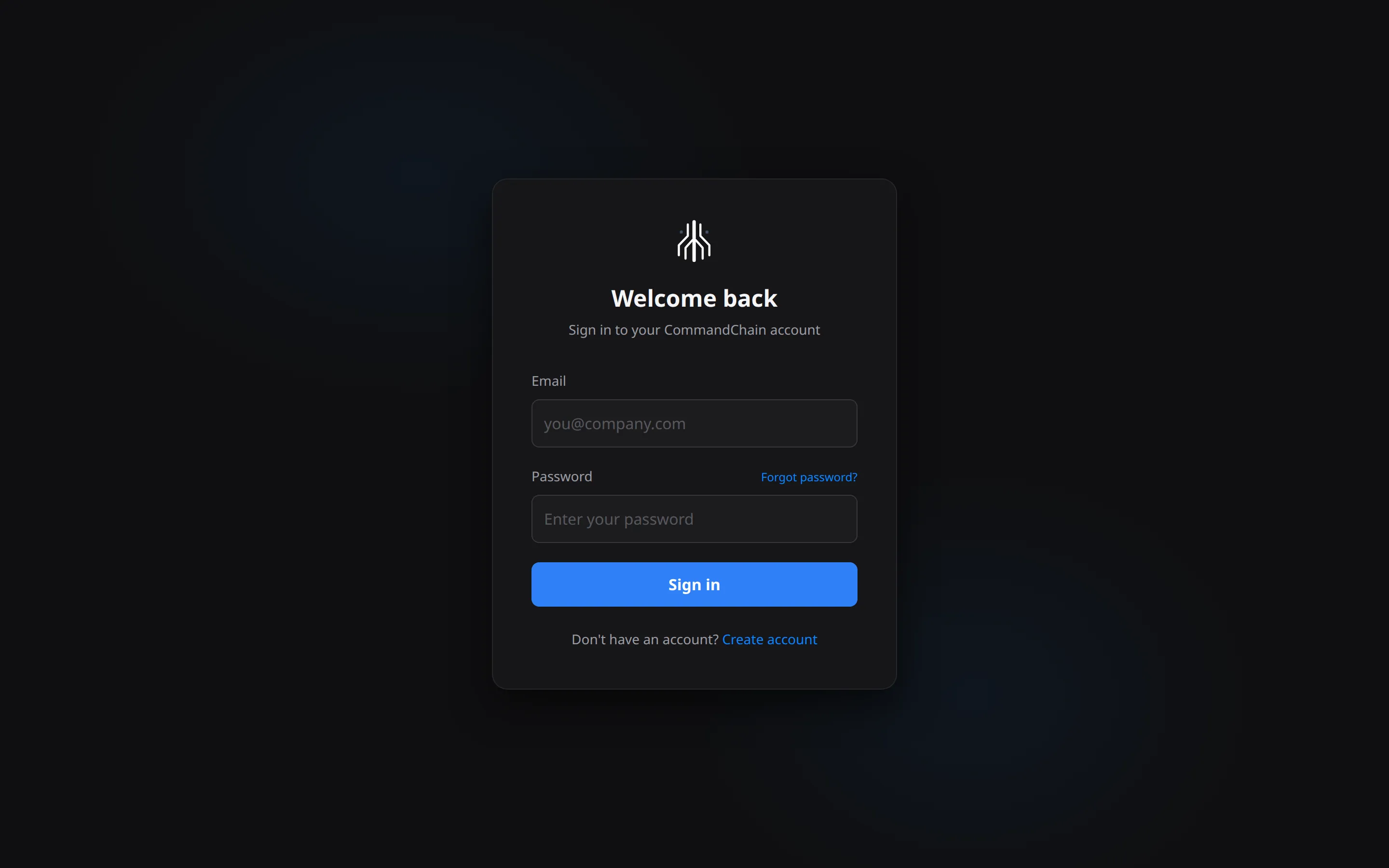
Section titled “Sign in later”Sign in at app.commandchain.ai/signin with your Email and Password, then select Sign in. If you open a link into the app while signed out (for example the pairing link your computer shows), you land on that page after you sign in.
If you sign in before you confirmed your email, CommandChain takes you to Check your email with one of these notices:
- “Confirm your email to finish creating your account. We sent a new code to
<email>.” - “Confirm your email to finish creating your account. Use the code from the newest email we sent to
<email>, or send a new code.”
Forgot your password
Section titled “Forgot your password”Select Forgot password? on the sign-in page. Enter your Email and select Email me a code. Enter the Code from your email and a New password, then select Set new password, and sign in with the new password. This also confirms an account whose email you had not confirmed yet.
Delete your account
Section titled “Delete your account”Deleting your account is permanent. Only the account owner can do it.
- Open the account menu and select Delete account.
- Read what is deleted.
- Type your account email under Type your email to confirm.
- Select Delete account.
CommandChain deletes your conversations with their images and files, your notes, your computers, your phones and browsers with their notifications, and your account and sign-in. You are signed out everywhere. The CommandChain app on your computers stops working with this account; to remove it, see Update and uninstall. Files and agent history on your own computers are not touched. Backup copies age out within 30 days.
If you are on Pro, your subscription is canceled right away and you are not charged again. Charged in the last 14 days? See Plans and billing.
To use CommandChain again, create a new account.
If something goes wrong
Section titled “If something goes wrong”| Message | What to do |
|---|---|
| That code is wrong or has expired. Check the newest email, or send a new code. | Enter the code from the newest email, or select Send a new code. |
Too many attempts from this network. Try again in {n} minutes. | Wait that long. Each network gets 10 attempts every 15 minutes, shared across signing in, creating an account, entering a verification code, sending a new code and resetting a password. See Limits. |
Sign-up is busy right now. Try again in {n} minutes. | Wait that long and try again. |
| New accounts are paused right now. Try again later. | Sign-up is switched off for now. Try again later. |
| Could not reach CommandChain. Check your connection and try again. | Check your internet connection and try again. |
What next
Section titled “What next”Your sessions list is empty until you connect a computer: it says Start your first session and offers Connect computer. Select it. The Connect a computer page shows the install command for Windows and for macOS or Linux, then where to approve the code your computer shows. Install the CommandChain app walks through the same steps.