

Find your sessions
Sessions is the first page you see after signing in. It lists the sessions you started in CommandChain and the agent conversations it finds on your online computers, including ones you started in a terminal. To start a new one, choose New session at the top of the page (see Start a session).
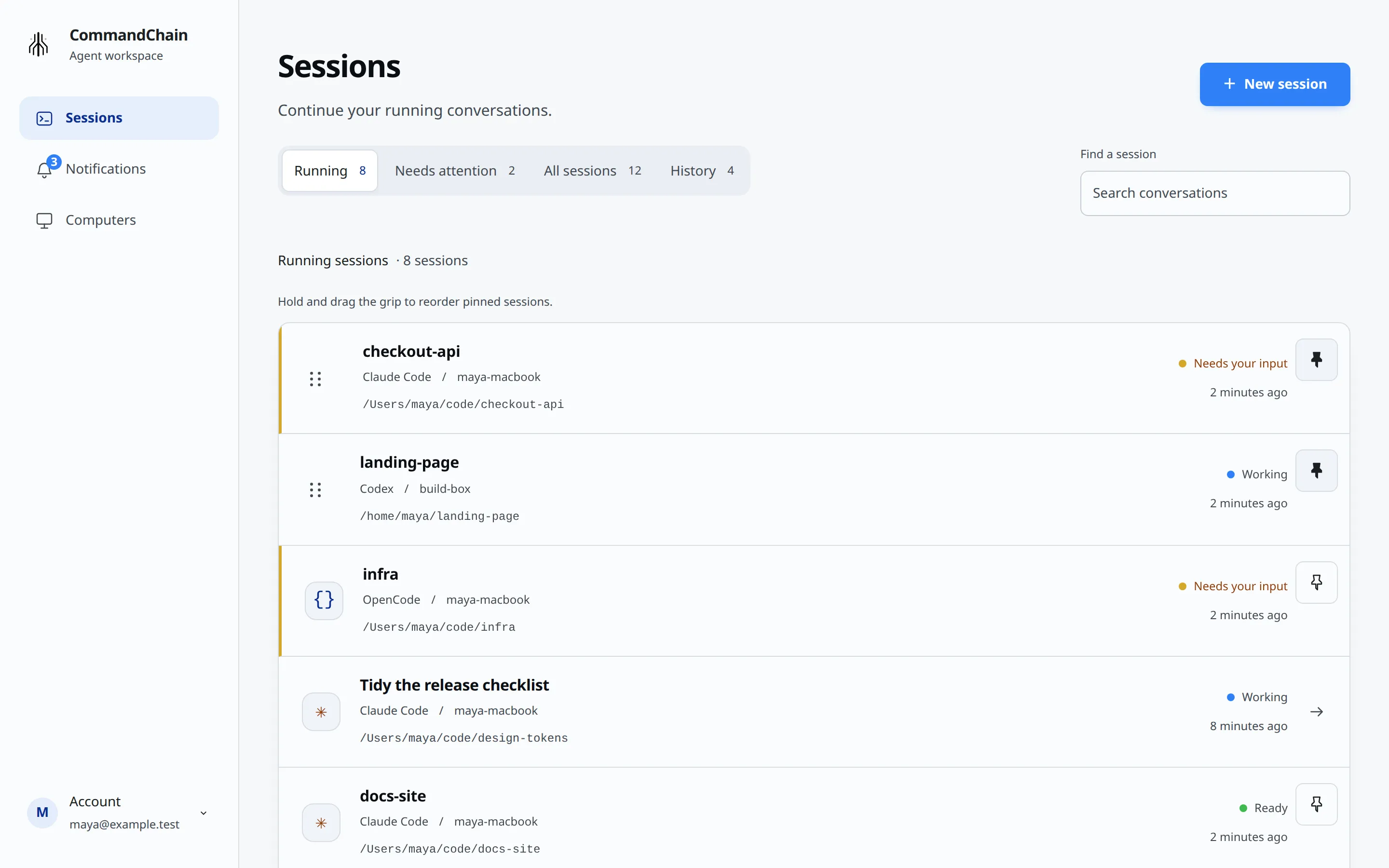
Read a row
Section titled “Read a row”Each row shows the session name, the agent and computer, the folder, a status and when it last changed. Statuses you will see:
- Needs your input: the agent asked a question or wants an approval.
- Working or Starting: the agent is busy.
- Ready: the agent is waiting for your next message.
- Not running: the agent is stopped. Sending a message starts it again.
- Computer offline: the computer that runs it is not connected.
- Needs review: something needs a look before you continue. Usually a message may not have reached the agent (see Send messages and files). For Claude Code connected from a terminal, it can also mean the terminal’s Claude has ended or changed, or its background monitor is unavailable. The banner in the conversation says which, and what to do.
- Status unavailable: CommandChain could not read the state of a conversation found on your computer.
A row with a pin button is a session you started or opened in CommandChain. A row with an arrow is a conversation found on one of your computers; opening it takes you to a page titled Open session, where you connect to it or resume it (see Open sessions started in your terminal).
Pinned sessions stay at the top in a fixed order, regardless of activity or status. Drag their grips to choose your own order. Unpinned sessions sort by those that need your input or review, then working ones, then ready ones, then offline ones, then stopped ones and ones whose status is unavailable. Within each unpinned group, the most recently updated comes first.
Filter and search
Section titled “Filter and search”Four filters sit above the list:
- Running (the default): running sessions, plus anything you pinned.
- Needs attention: sessions that show Needs your input or Needs review.
- All sessions: everything, including stopped and offline sessions.
- History: sessions that are not running.
On a phone the filters become one Show sessions select.
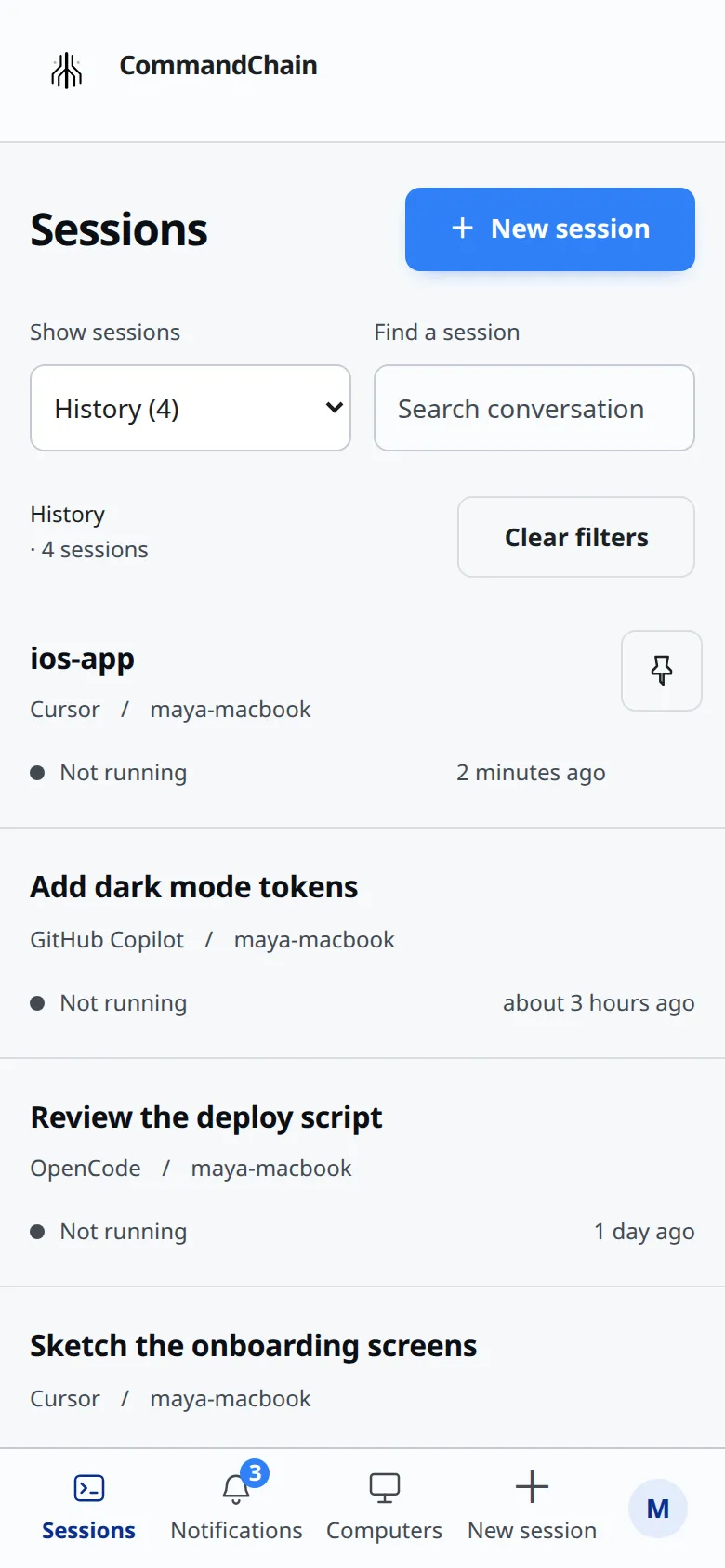
Type in Find a session to search names, folders, computer names and agent names. Clear filters takes you back to Running.
The filter, the search and the computer scope are part of the page address (?view=, ?q= and ?machine=), so you can reload or bookmark a view.
To see only one computer’s sessions, open Computers and choose View managed sessions on that computer’s card. The list then shows just the sessions on that computer.
Needs attention
Section titled “Needs attention”Delegated agents are collapsed under their lead conversation. Choose the agents control to expand or collapse the team. Its attention count stays visible when collapsed. Search and Needs attention reveal child sessions with their lead for context. See Delegate to other agents.
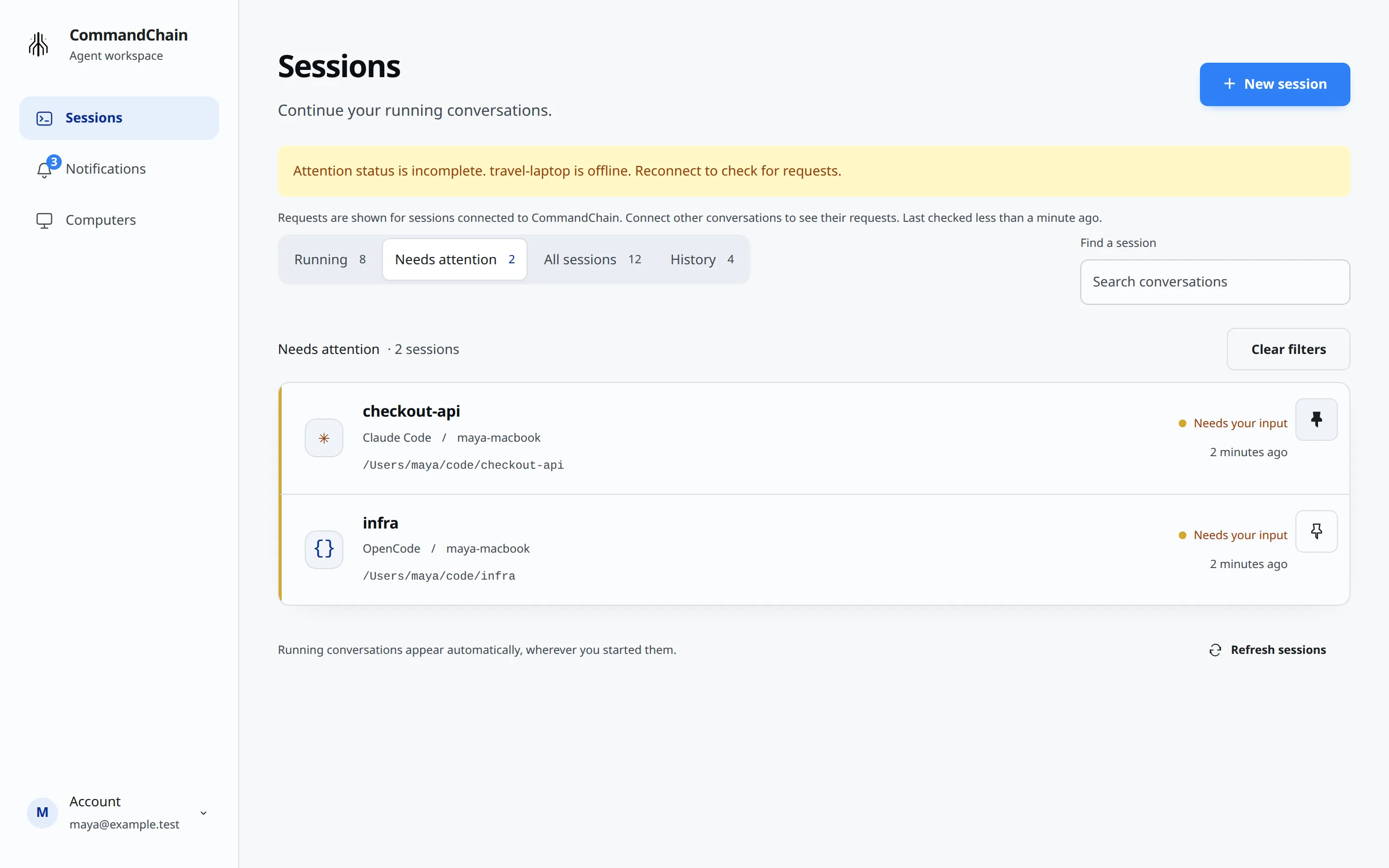
Needs attention shows requests from sessions connected to CommandChain. A conversation found on your computer but never opened here shows its requests only after you connect it.
If a computer is offline, the page says Attention status is incomplete. and names that computer, because its requests cannot be checked until it reconnects.
Pin and reorder
Section titled “Pin and reorder”Choose the pin on a row to keep that session at the top of the list. You can also pin from Session details (see Rename, pin and check repository status). If saving fails, the row shows Could not save the pin. Try again.
With two or more pinned sessions in view, each gets a grip. Hold and drag the grip to reorder. With a keyboard, focus the grip and press Space to pick it up, the arrow keys to move it, Enter to save, or Escape to cancel. If the new order cannot be saved, you see Could not save pinned order. Your previous order was restored. Try again.
Updates and size
Section titled “Updates and size”The list updates on its own while the page is open; pull down on a phone or choose Refresh sessions to check now. It shows your newest 500 sessions started in CommandChain, plus every pinned session, along with the conversations found on your computers.