

Choose agent permissions
Agent permissions decide how the agent’s tool requests are handled: whether you see an approval card for each command or edit, or the request is approved for you.
You set them in two places:
- On the New session form, under Security settings, in the Agent permissions field.
- In a running session: tap the session title to open Session details, then choose the Security row. This opens Security settings for that session.
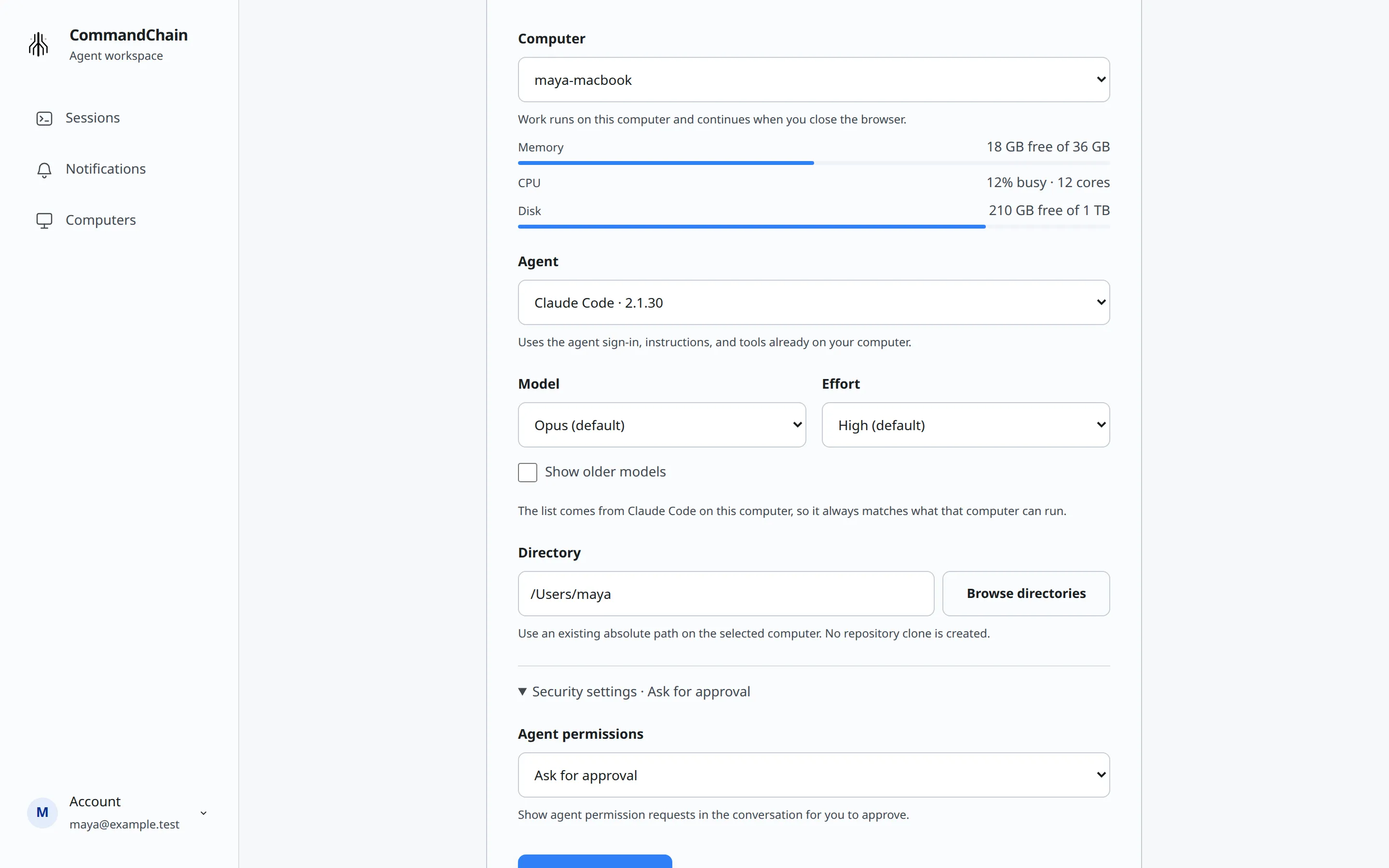
The three modes
Section titled “The three modes”- Auto approve (default): Claude Code and Codex use their native automatic reviewers. A request that needs human review still appears for you. Questions and your computer’s permission limits continue to apply.
- Ask for approval: each tool request appears as a card in the conversation for you to answer. See Answer questions and approvals.
- Full access: the agent skips its own permission prompts, and its sandbox where it has one. Each agent names it in its own words, for example Full access (dangerously skip permissions) for Claude Code.
The help text under the field explains the mode you picked for that agent. It reads a little differently on the New session form and in a running session.
Which mode to pick
Section titled “Which mode to pick”- Keep Auto approve for everyday work. The agent works without stopping for each command, and stops mainly to ask you questions.
- Pick Ask for approval when you want to see every command and edit before it happens, for example in a project you do not know well.
- Pick Full access only for work you trust with this computer’s full access.
Which modes you can pick depends on the agent. On the New session form, Cursor offers only Full access and Auto approve, because it cannot ask before it makes changes. The Security settings panel in a running session lists all three modes for every agent, but a Cursor session cannot use Ask for approval. Keep Cursor on one of its two modes.
A session you create with Continue with another agent always starts in Ask for approval. See Continue with another agent.
Delegated agents inherit the closest supported mode from their parent. For example, Claude Code with dangerously skip permissions starts a Codex child with YOLO/full access. Pending child approvals can be answered from the lead conversation in Agent approvals.
Change permissions in a session
Section titled “Change permissions in a session”You can change permissions between turns: when the session is Ready, Not running or Needs review, and no question or approval is waiting. Otherwise the Security settings panel shows Stop the agent before changing security settings.
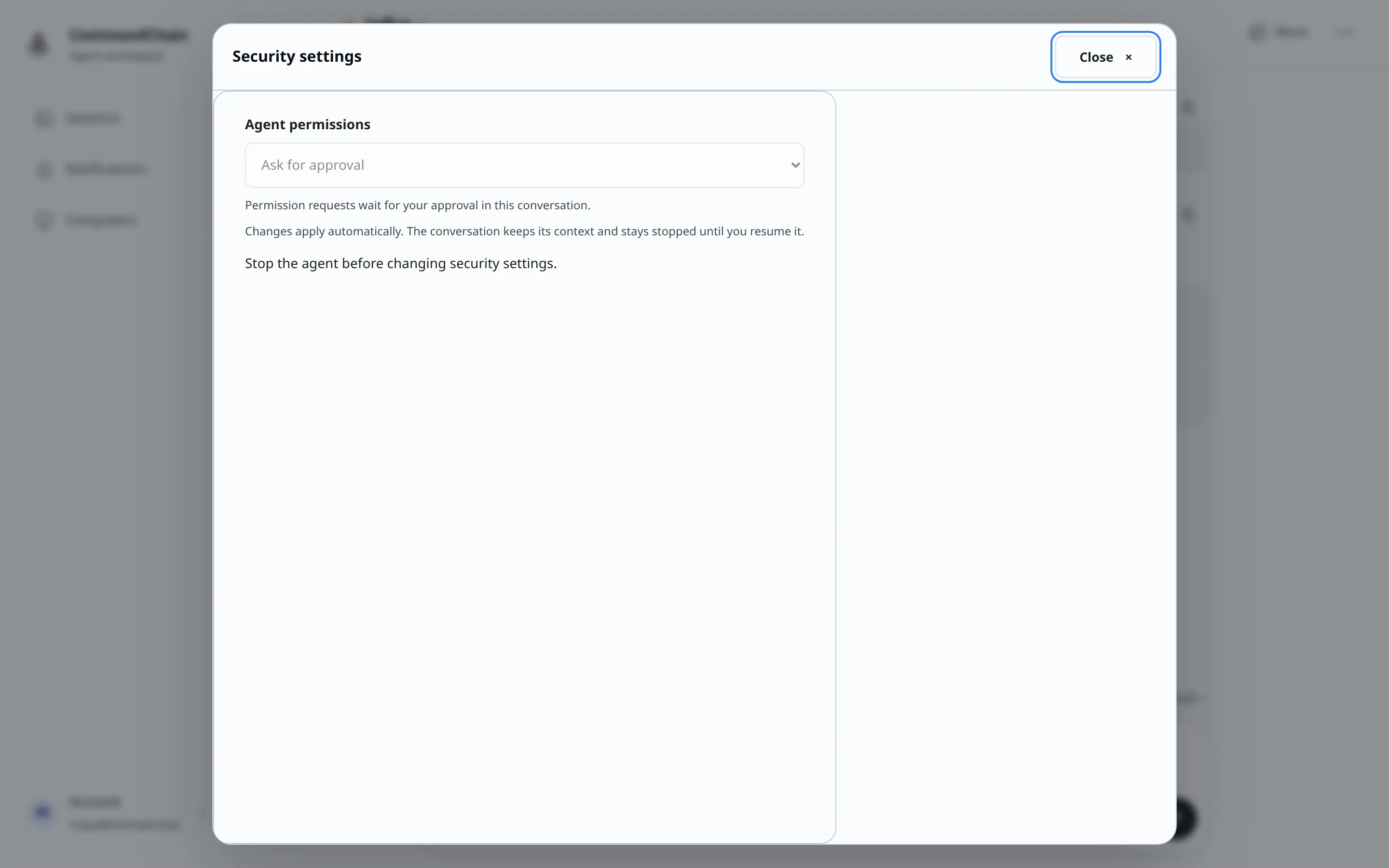
Pick a new mode and it is sent to your computer right away; there is no save button. While your computer applies it, you see Applying security settings on your computer. You can return to the conversation while this finishes. and the composer says Applying security settings. Sending resumes after your computer confirms them. You cannot send a message until it finishes.
When it is done, you see Applied on your computer. Send a message when you are ready to resume. The conversation keeps its context. If the change fails, choose Retry security change.
Claude Code in your terminal
Section titled “Claude Code in your terminal”For Claude Code connected from a terminal, change permission settings in that terminal. CommandChain displays its observed native mode and uses that mode when it delegates. Its own approvals stay in the terminal. See Connect Claude Code in your terminal.
What the modes do not change
Section titled “What the modes do not change”The mode you choose changes how the agent’s permission requests are handled. With Auto approve and Ask for approval, the agent’s own permission settings and your computer’s sandbox limits still apply. Full access is the exception: it skips the agent’s permission prompts, and its sandbox where it has one. See How your machine stays in charge.