

Connect Claude Code in your terminal
If you like running Claude Code in your own terminal, you can keep doing that and still follow and answer it from your phone. The CommandChain app on your computer connects to those sessions through a Claude Code plugin.
How it’s set up
Section titled “How it’s set up”There’s nothing to install yourself. While it runs, the CommandChain app sets up Claude Code for you and keeps that setup up to date. It makes these changes to your Claude Code user settings, and leaves your other plugins alone:
- It adds a local plugin marketplace named
commandchain-local. - It installs a plugin named
commandchainfrom that marketplace, for your user. The plugin adds Claude Code hooks for these events: SessionStart, UserPromptSubmit, PreToolUse, PostToolUse, PostToolUseFailure, SubagentStart, SubagentStop, Stop and SessionEnd. It also adds acommandchainMCP server, which is how the session reaches CommandChain, and a monitor that delivers messages you send from the browser while Claude Code is idle. - It wraps the status line command in Claude Code’s
settings.json. Your own status line still runs and shows as before. If you had none, the status line shows how much context is used. This is what lets the usage chip show Claude Code’s usage.
The monitor is a newer Claude Code plugin feature. If a session shows Unavailable with “its idle-message monitor is not connected”, check that your Claude Code version supports plugin monitors (update it if not), that the CommandChain app is still running, and then restart Claude Code.
It’s meant for interactive Claude Code that you keep open in a terminal.
Start in the right order
Section titled “Start in the right order”- Make sure the CommandChain app is running on that computer. After you install it it already runs in the background.
- Start Claude Code in your terminal as usual.
If Claude Code was already open before the plugin was installed or updated, run /reload-plugins in it. If messages from the browser still don’t arrive, restart Claude Code.
Then open the session from your session list or from Find existing sessions (see Open sessions started in your terminal).
How it behaves
Section titled “How it behaves”Claude Code stays in charge in your terminal. CommandChain follows along:
- Messages you send from the browser arrive in your terminal session.
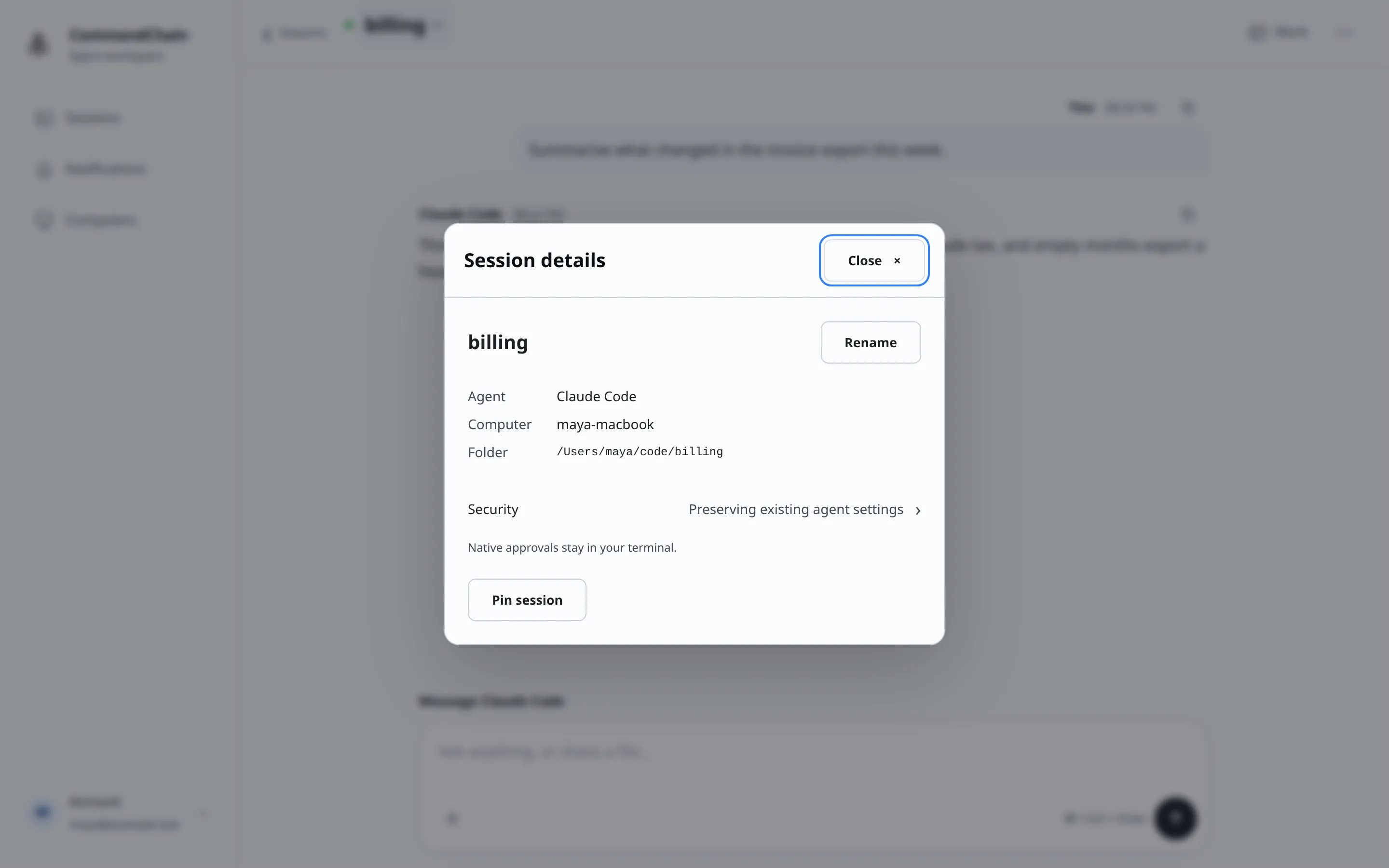
- Tool approvals stay in your terminal. Session details says “Native approvals stay in your terminal.”
- The model is set in the terminal, not from CommandChain.
- Full access is set in the terminal. Security starts as Preserving existing agent settings. You can change how tool approvals are handled from here, but the Full access option is disabled.
- There’s no Restart agent. Restart Claude Code in the terminal, or run
/reload-plugins. - Disconnect session in the options menu stops CommandChain following the session and leaves Claude Code running.
Check the plugin
Section titled “Check the plugin”commandchain-runner is the command the installer puts on your computer: in ~/.local/bin on macOS and Linux. If your terminal says the command isn’t found, open a new terminal, or run it as ~/.local/bin/commandchain-runner.
Run this on that computer to list the plugins Claude Code has installed:
commandchain-runner claude-integration statusIt prints Claude Code’s own plugin list. When the integration is set up, the list includes an entry with the id commandchain@commandchain-local. If that entry is missing, make sure the CommandChain app is running on that computer, then check again.
Claude Code with a custom configuration folder
Section titled “Claude Code with a custom configuration folder”Claude Code keeps its settings and plugins in a configuration folder, ~/.claude unless the CLAUDE_CONFIG_DIR environment variable points somewhere else. The CommandChain app sets up the plugin in the folder named by CLAUDE_CONFIG_DIR in its own environment, or in ~/.claude when that isn’t set. The app running in the background normally uses ~/.claude.
If you start Claude Code with a different CLAUDE_CONFIG_DIR, the plugin isn’t set up in that folder, so that Claude Code doesn’t connect.
Turn it off
Section titled “Turn it off”The plugin stays installed while the CommandChain app runs on that computer. The app running in the background has no setting to turn it off. If you run the app in a terminal yourself, you can start it with --no-claude-terminal-integration (see Command line). If you disable the commandchain plugin in Claude Code, the CommandChain app leaves it disabled.
To remove the plugin, run this before you uninstall CommandChain:
commandchain-runner claude-integration uninstallIt removes the commandchain plugin and the commandchain-local marketplace, and puts your status line back as it was. When it finishes it prints {"installed":false}. While the CommandChain app keeps running, it sets the plugin up again, so uninstall CommandChain afterwards.
On Windows
Section titled “On Windows”On Windows, the CommandChain app doesn’t set up the plugin, and connecting to Claude Code sessions open in a terminal isn’t available yet. Sessions started from CommandChain work as usual.