

Send messages and files
The composer sits at the bottom of every conversation. Its label names the agent, for example Message Claude Code.
Write and send
Section titled “Write and send”- A message can be up to 6,000 characters. A counter appears once you pass 4,800.
- Press Cmd+Enter on a Mac, or Ctrl+Enter elsewhere, to send. Enter alone adds a new line.
- The send button changes with the session:
- Send message for a running agent.
- Send and resume for a stopped session that already has a conversation.
- Send and start for a new session whose agent has not started yet.
- Send and continue for a stopped Claude Code session that was connected from your terminal.
Each session has its own draft, so you can switch between sessions in the same tab without losing what you typed.
Typing /clear and sending it opens Clear session instead of sending the text. See Stop, restart or clear a session.
To copy a message, choose Copy message on it.
Attach files
Section titled “Attach files”Attach up to 4 files, 3 MB each. Three ways:
- Choose the attach button (the plus) next to the message field.
- Drag files onto the composer and drop them.
- Paste a file or screenshot into the message field.
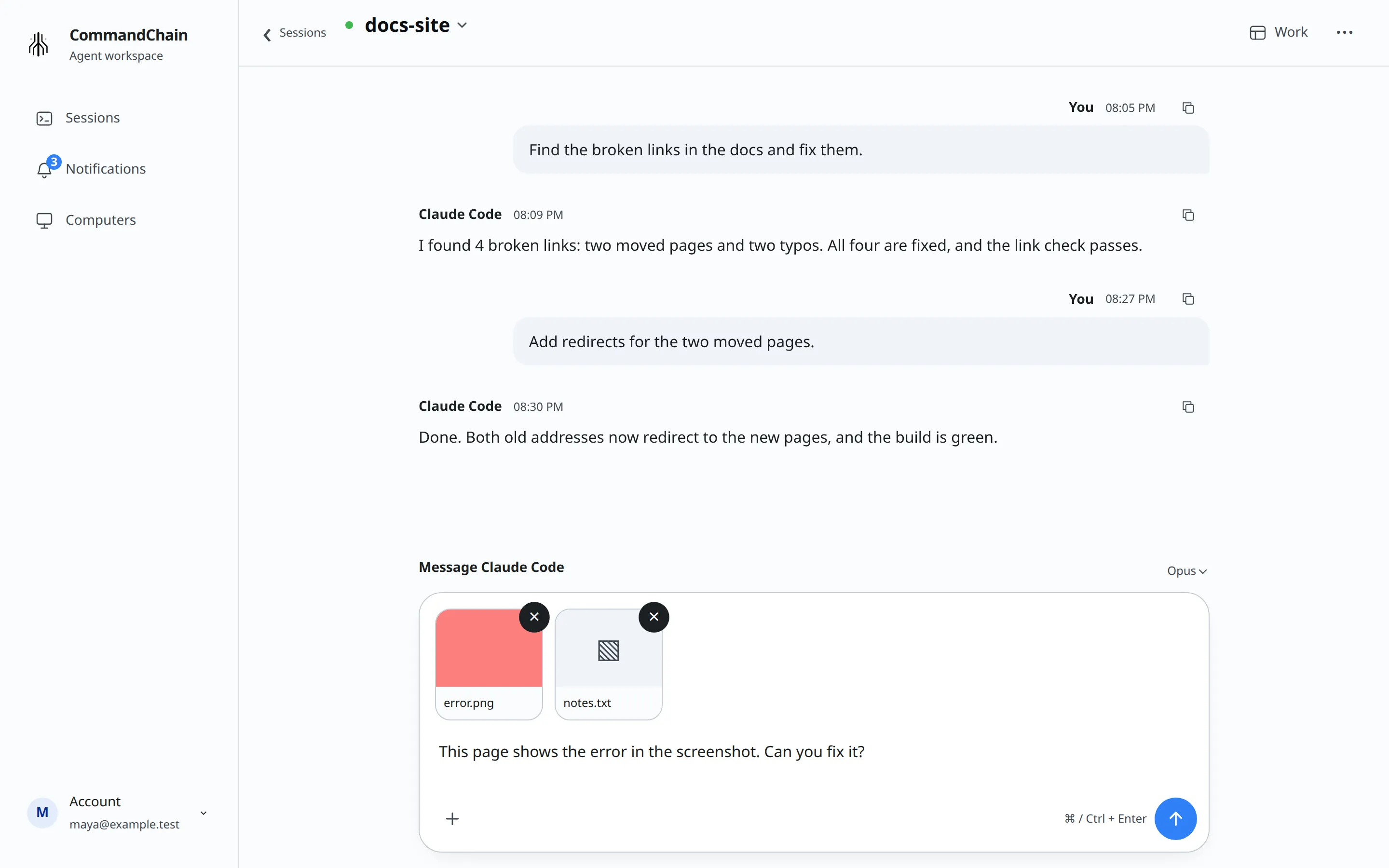
Images show inline in the conversation. Other files show as a download link with the file name.
Mark up an image
Section titled “Mark up an image”Choose Mark up on an attached image, or open an image shared by the agent and choose Mark up in the viewer.
Use arrows, rectangles, freehand drawing, or numbered labels to point out what you want changed. Choose a color, and add short text to a numbered label when useful. Undo reverses your last change, including Clear marks. You can draw with a mouse or touch. Expand Drawing with a keyboard for keyboard controls.
Choose Use marked-up copy to put the image in your message draft. For an attached image, the copy replaces that attachment in the draft; the original image is unchanged. For an image shared by the agent, the copy becomes a new attachment. Add your instructions, review the draft, then send it. The agent receives the markings as part of the image.
Copies follow the same 4-file and 3 MB attachment limits. Large images are resized to fit within 2048 pixels on the longest side. Some external images cannot be opened for markup; download and attach a copy to mark those up.
You can send attachments without text. The agent then receives Please review the attached images. or Please review the attached files.
If an upload fails, the file shows File upload failed. Retry or remove it. You cannot send until you retry or remove it.
Send while the agent is working
Section titled “Send while the agent is working”A message you send mid-turn shows Queued until the agent takes it, and the session shows Waiting for the agent.
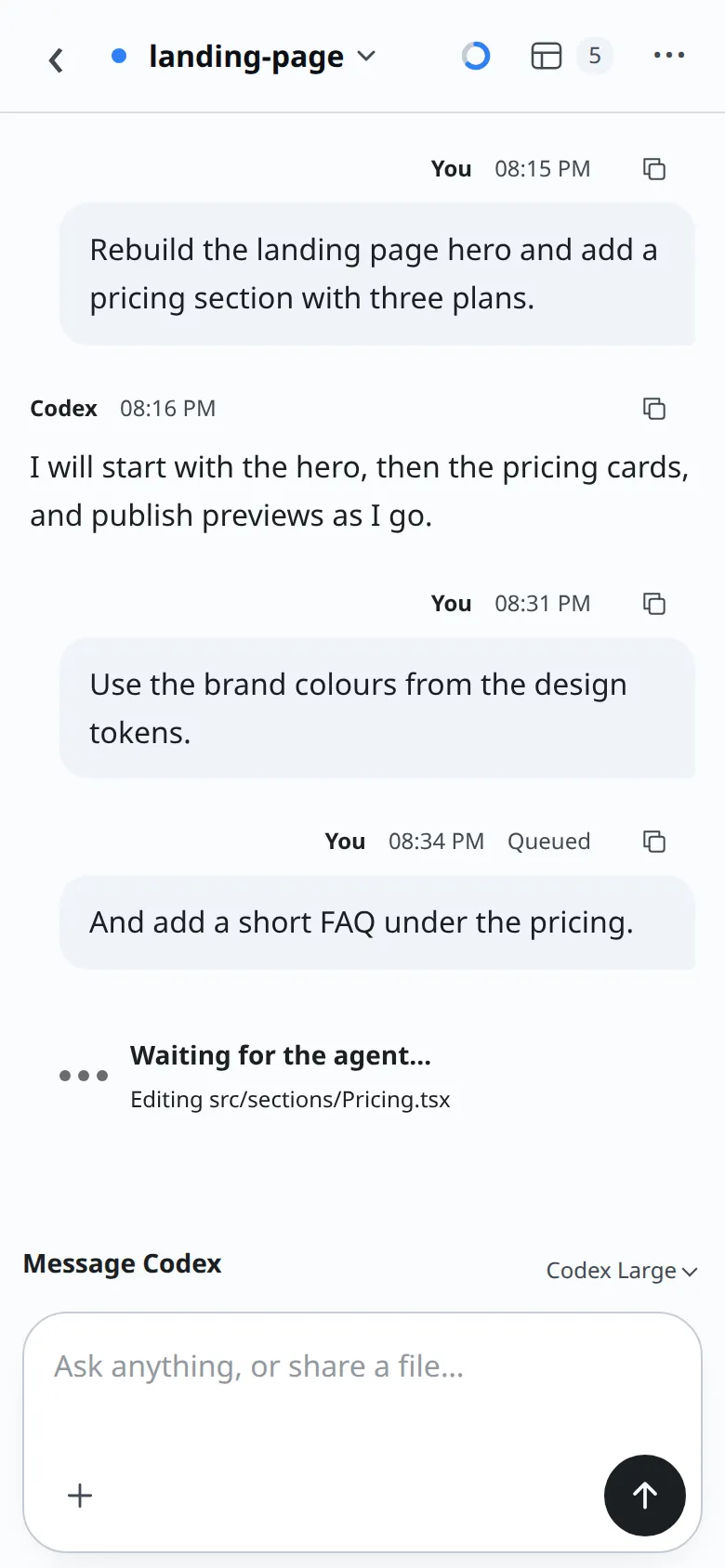
What happens next depends on the agent:
- Claude Code started in CommandChain, GitHub Copilot, OpenCode and Cursor: the message waits, and the agent reads it when the current turn ends.
- Codex: the message steers the turn already in progress.
- Claude Code in your terminal: the message arrives in the terminal as a notification. See Connect Claude Code in your terminal.
Send to a stopped session
Section titled “Send to a stopped session”A stopped session shows Not running. Sending a message starts the agent again with the conversation’s existing context. Claude Code started in CommandChain stops on its own after 30 minutes idle, and resumes the same way on your next message.
When the computer is offline
Section titled “When the computer is offline”If the computer goes offline, the conversation shows Computer offline. Messages will wait for it to reconnect. Start the CommandChain app on that computer to bring it back. See Keep the CommandChain app running.
Delivery warnings
Section titled “Delivery warnings”Sometimes CommandChain cannot confirm that a message reached the agent. The message then gets a ! marker, the session shows Needs review, and the conversation shows Review unconfirmed messages before continuing.
CommandChain never resends a message on its own. Choose the marker to open Message delivery, which says Delivery is unconfirmed. Resending could repeat work the agent already started. Then:
- Resend message sends it again.
- Dismiss delivery warning keeps things as they are. Choose this if you can see the agent already acted on it.