

Get notified
You don’t have to watch a session to know when it needs you. CommandChain can notify your phone or computer, and the Notifications page keeps a list you can catch up on.
What sends a notification
Section titled “What sends a notification”- An agent asks you a question.
- An agent needs your approval.
- An agent shares new work, such as an artifact.
- An agent updates work it shared earlier.
- An agent asks for your attention. Each session sends at most one of these a minute.
Ordinary replies never notify you, however long they stream. Several items that arrive in one update become one notification.
What a notification says
Section titled “What a notification says”Notifications can show on your lock screen and pass through your browser or phone maker’s notification service, so they never include what’s in your conversation. A notification doesn’t show the question, the approval, the name of the work or the agent’s message. Open the session to see those.
Every notification is titled CommandChain. The text says which session needs you and why:
- A session needs you: question
- A session needs you: approval
- A session needs you: new work
- A session needs you: attention
If you renamed the session yourself, the notification uses your name for it, such as “checkout-api needs you: question”. A session you haven’t renamed shows as “A session”, because its automatic name comes from your first message. To rename one, see Rename, pin and check repository status.
Several items at once become one notification, such as “A session needs you: 2 new items”. Tap a notification to open its session.
Choose your notifications
Section titled “Choose your notifications”Notifications are set per device. Do this on each phone or computer you want notified.
- Open the account menu. On a computer, it’s at the bottom of the left sidebar, labeled Account with your email. On a phone, it’s the button with your initial at the right end of the bar along the bottom of the screen.
- Select Notification settings. You can also open it from the Notifications page.
- Choose which types you want under Your sessions and Subagent sessions.
- Allow notifications when your browser asks the first time you enable a type.
Each group has separate switches for Questions, Approvals, New work, Updated work, and Attention requests. For example, leave New work on under Your sessions and turn it off under Subagent sessions to hear about your main sessions’ artifacts without alerts for delegated work. The subagent choices also apply to nested subagents.
Changes save automatically, and the page shows Saved for this device. Turn every switch off to stop device notifications. Muted activity still appears in your Notifications list. Signing out also turns device notifications off.
On an iPhone or iPad, notifications work only from the Home Screen app. In a Safari tab the settings page explains how to open it. See Use it on your phone for how to add it.
If notifications are blocked, allow them in your browser or device settings, then reopen Notification settings. If your browser or the server cannot send notifications, the settings page explains this. Your Notifications list still works.
The Notifications page
Section titled “The Notifications page”Select Notifications in the left sidebar on a computer, or in the bar along the bottom of the screen on a phone. A badge shows how many are unread.
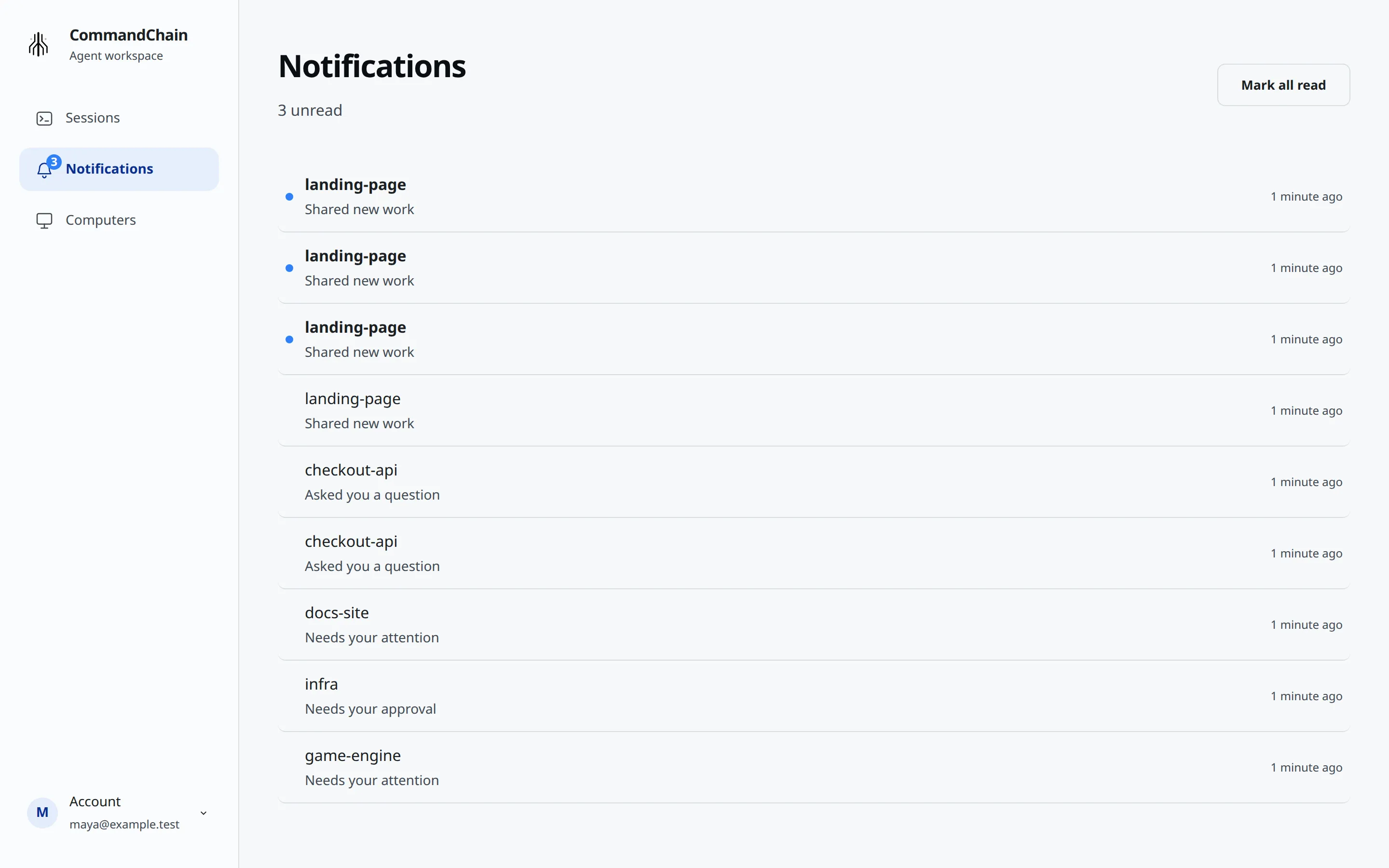
Each row shows the session name, what happened and when:
- Asked you a question
- Needs your approval
- Shared new work
- Updated their work: the agent replaced something it shared earlier with a new version
- Needs your attention
Unread rows have a dot. Select a row to open its session; opening a session marks its notifications read. Select Mark all read to clear them all. The page lists your newest 100 notifications.