

Start your first session
A session is one conversation with one agent, in one folder on one of your computers. You need a connected computer with at least one coding agent signed in.
Open the form
Section titled “Open the form”On Sessions, select New session at the top of the page. While your list is still empty, Start a session in the middle of the page does the same. Or, on Computers, select New session on the computer’s card, which picks that computer for you.
After your first session, the form also lists Your projects at the top: up to 6 folders you have worked in, the most used first. Select one to fill in its computer, agent and folder in one go. Projects on an offline computer cannot be selected.
Fill it in
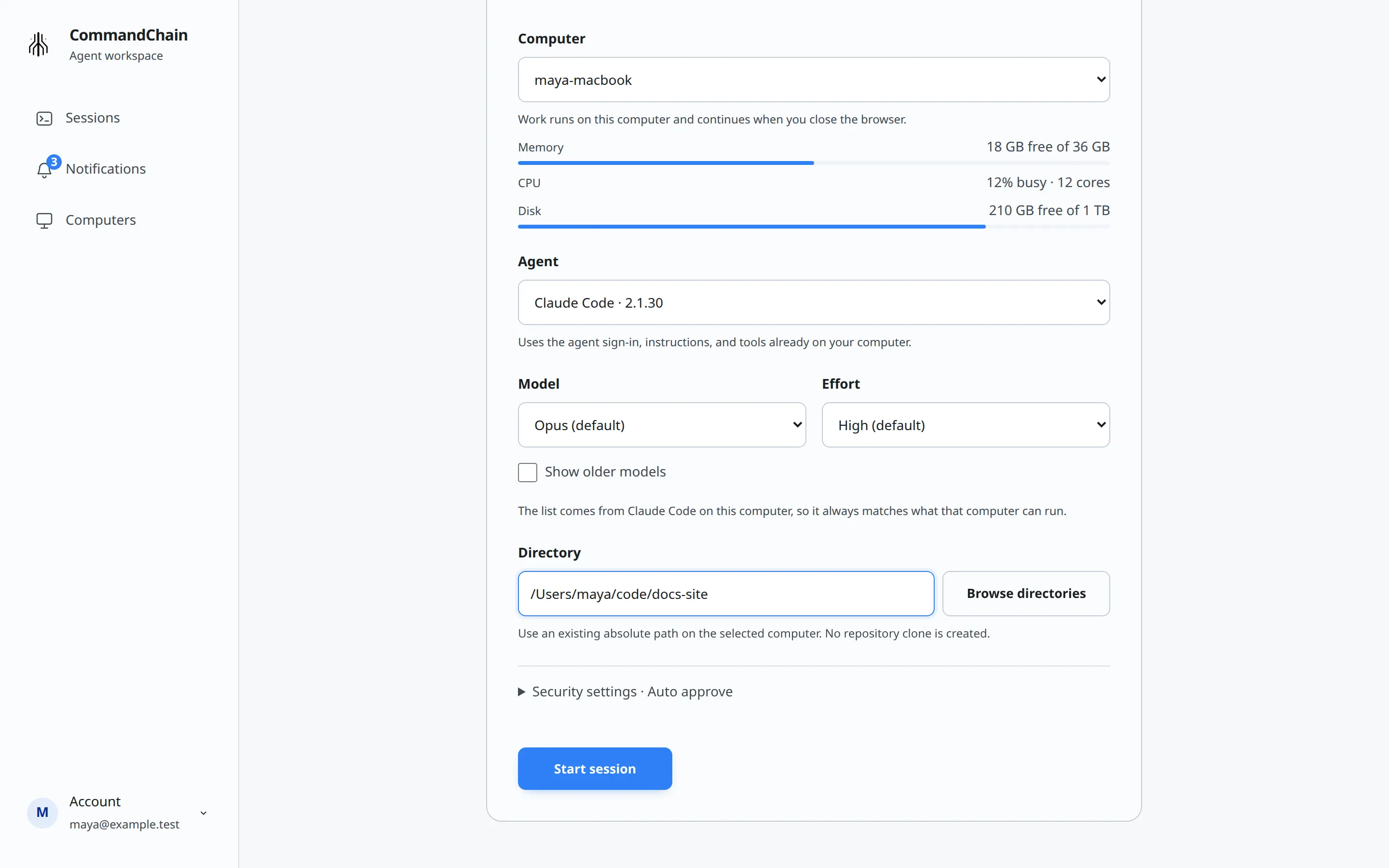
Section titled “Fill it in”- Computer: choose an online computer. Offline computers are listed but cannot be chosen. Once you pick one, the form shows its memory, CPU and disk.
- Agent: choose one of the agents installed on that computer. Each one uses the sign-in, instructions and tools it already has on your computer. If the form says “No supported agent is ready on this computer”, install and sign in to a coding agent there, then refresh Computers. See Supported agents.
- Model and Effort: keep the defaults for now. You can change them later. See Pick a model and effort.
- Directory: the folder the agent works in. When you pick a computer, this starts as that computer’s home folder. Change it to an existing absolute path on that computer, such as
/Users/you/code/my-apporC:\Users\you\code\my-app. Type it, or select Browse directories (available while the computer is online), open folders until you reach the one you want, and select Use this directory. No repository clone is created: the agent works in that folder as it is. - Security settings: keep the default, Auto approve, for now. See Choose agent permissions before you change it.
- Select Start session.
If your computer is listed as offline, the CommandChain app on it is not running or cannot reach CommandChain (for example, the computer is asleep or has no network). Run commandchain-runner in a terminal on that computer and follow what it shows. See Troubleshooting.
Send your first message
Section titled “Send your first message”The conversation opens with “Start a conversation with <agent>” and a reminder of the folder. The agent starts when you send your first message.
Type in the box at the bottom, then send it with the arrow button, or press Cmd+Enter or Ctrl+Enter. While the agent works, a line above the box shows “<agent> is working…” and what it is doing right now.
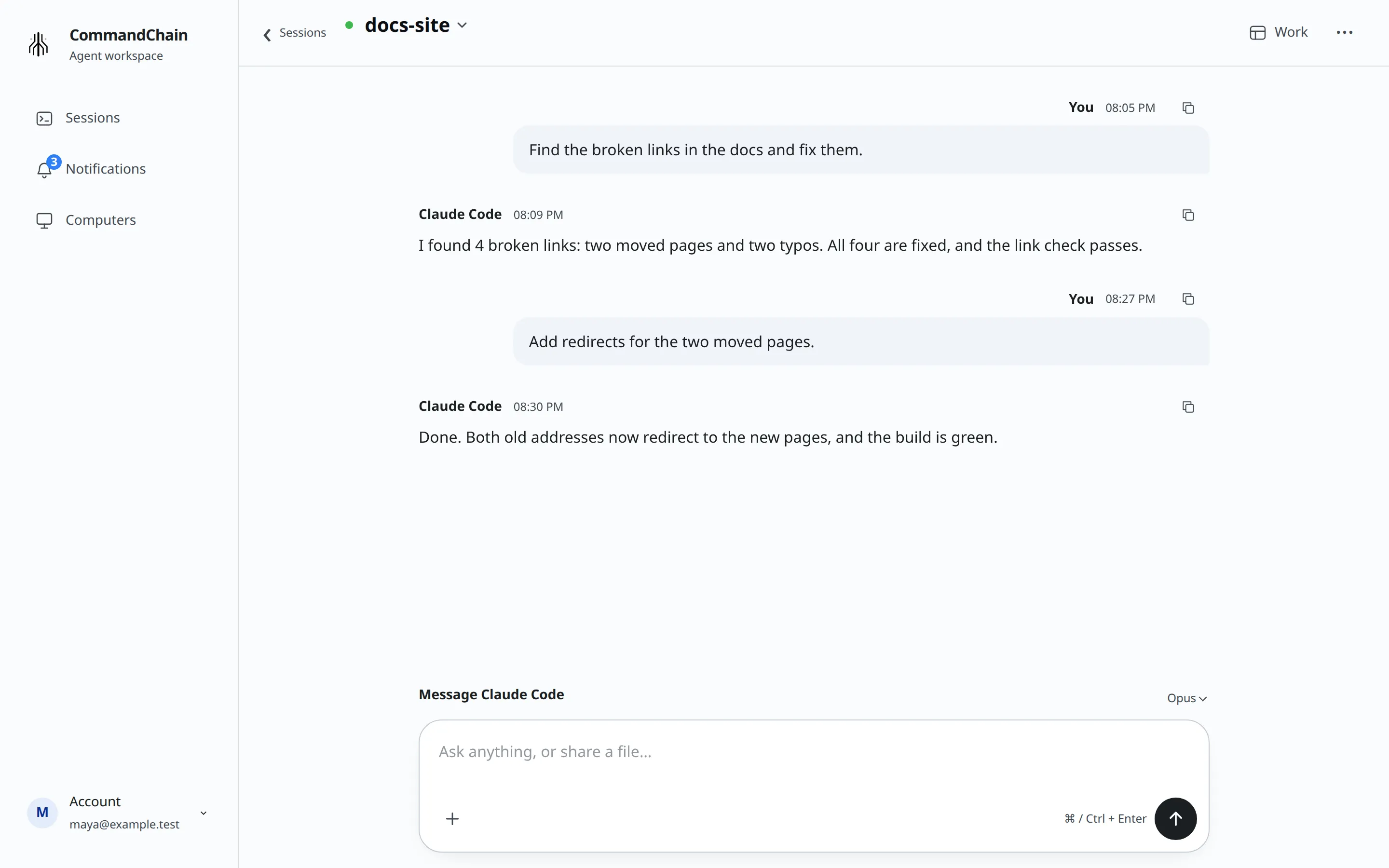
The work runs on your computer. You can close the tab, switch devices or put your phone away, and the agent carries on. Find the session again on Sessions.