

Connect your computer
A computer joins your account when you approve its pairing code. There is no token to copy or paste: the computer shows a short code, and you approve it in the browser. Each code works for 10 minutes. While the installer waits, it shows a fresh code each time one runs out, for up to an hour.
Open the approval page
Section titled “Open the approval page”There are two ways in. Both lead to the same Connect a computer page.
- Open the link the computer printed. It opens the page with the code filled in. The address ends in
/app/pair?code=.... - Type the code yourself. In the app, go to Computers and select Connect computer. Enter the code in Pairing code from your terminal and select Look up.
The link works on any device. On a computer with no browser, such as a server or a machine you reach over SSH, open the link on your phone or laptop instead.
If you are signed out, sign in or create an account first. You come back to the same page afterwards.
Check and approve
Section titled “Check and approve”The page shows a card for the code:
- Computer name: the name the computer gave itself. By default this is
user@hostname. To choose another name, install with--display-name(on Windows,-DisplayName). See Command line reference. - Status: Waiting for your approval.
Check that the name and the code match what your computer shows. Then select Approve. The computer is added to the account you are signed in with.
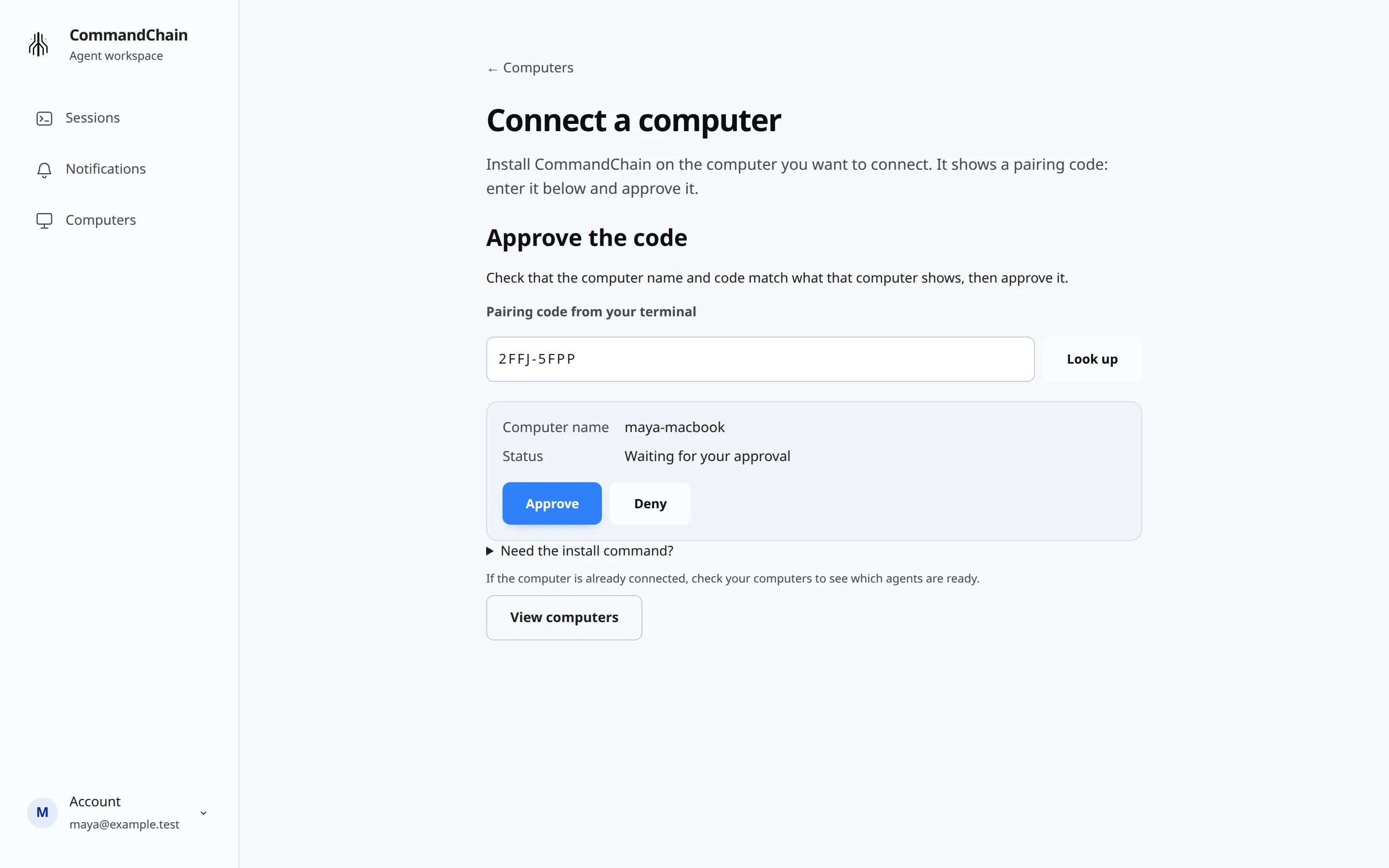
The page then says “Approved. Waiting for <name> to connect…”, and a few seconds later:
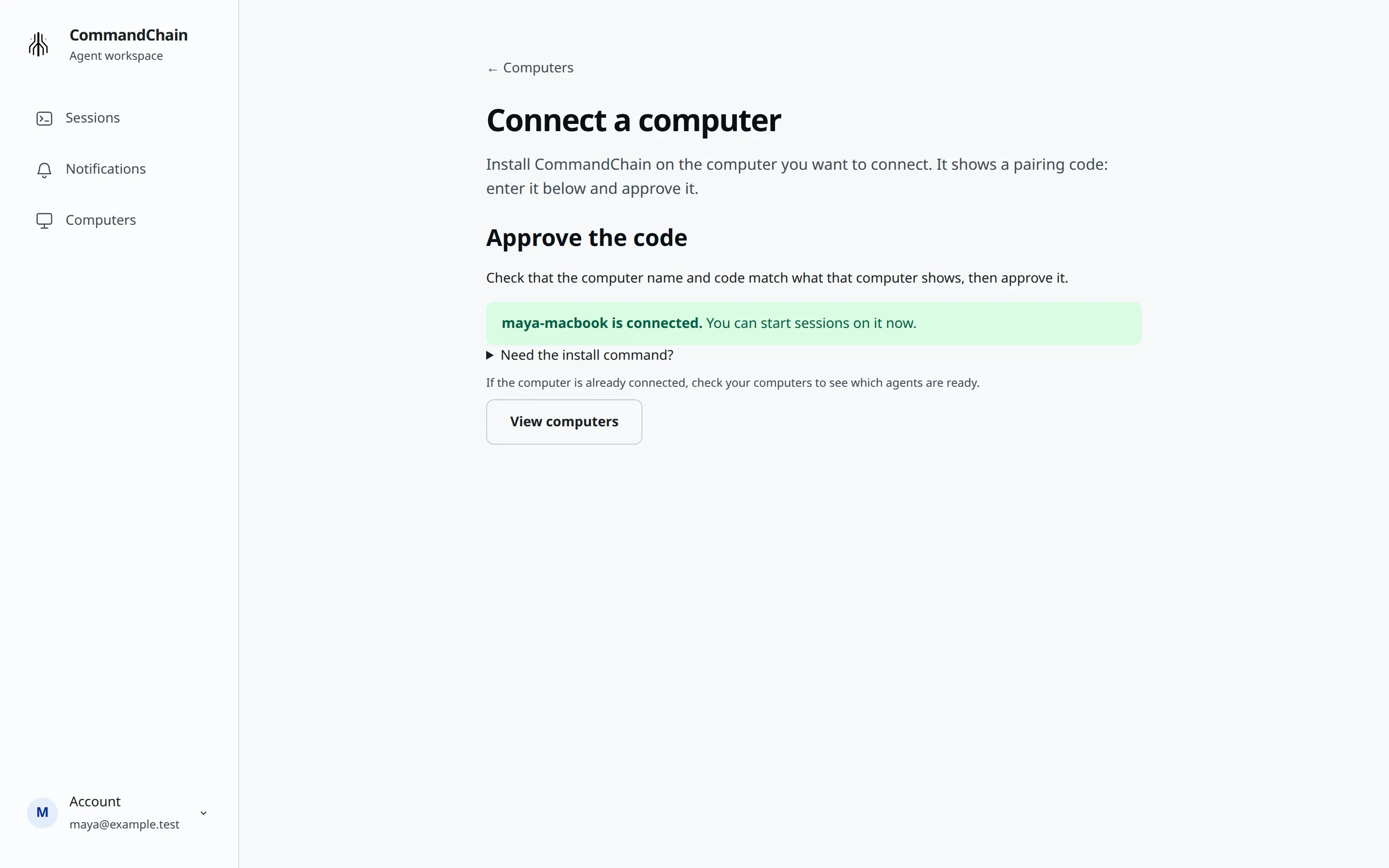
“<name> is connected. You can start sessions on it now.”
Deny a code you do not recognise
Section titled “Deny a code you do not recognise”Select Deny, add a reason if you like in Reason for denial (optional), then select Confirm deny. The page says “Pairing denied. That computer will not connect.” and the computer stops waiting.
When a code no longer works
Section titled “When a code no longer works”| Status on the card | What the page says |
|---|---|
| Expired | This code has expired. |
| Denied | This code was denied. |
| Already approved | This code has already been approved. Your computers list shows whether that computer is connected. |
For an expired or denied code, get a new one on that computer: run the install command again, or, if CommandChain is already installed there, run commandchain-runner in a terminal and follow what it shows.
Add another computer
Section titled “Add another computer”Run the install command on that computer and approve its code. See Install the CommandChain app. Every computer you approve appears on Computers.
Free includes 1 connected computer and Pro up to 5. On Free, remove the computer you no longer use before you connect another, or upgrade. See Plans and billing.
Pair the same computer again
Section titled “Pair the same computer again”To replace a computer’s pairing, for example to give it a new name, run this on that computer:
commandchain-runner --force-pair --display-name "work-laptop"Leave out --display-name to keep the name it has now. Each approval adds a new entry to Computers. The old entry shows as Offline. Once it has been offline for 5 minutes, select Remove on its card. See Manage your machines.