

Answer questions and approvals
When the agent needs you, the session shows Needs your input, sorts right after your pinned sessions, and appears under Needs attention. Questions and approvals wait for you. Claude Code waits up to 24 hours for an answer to a question; after that it stops waiting for that answer.
Answer a question
Section titled “Answer a question”A question appears as a card in the conversation with an Answer question button. When the agent asks several questions at once, the card says how many, for example 2 questions to answer.
The first set of questions opens on its own in a dialog titled Agent has a question or Agent has questions. Choose Hide to read the conversation or look at the agent’s work first, and Answer question on the card to come back. What you already chose is still there.
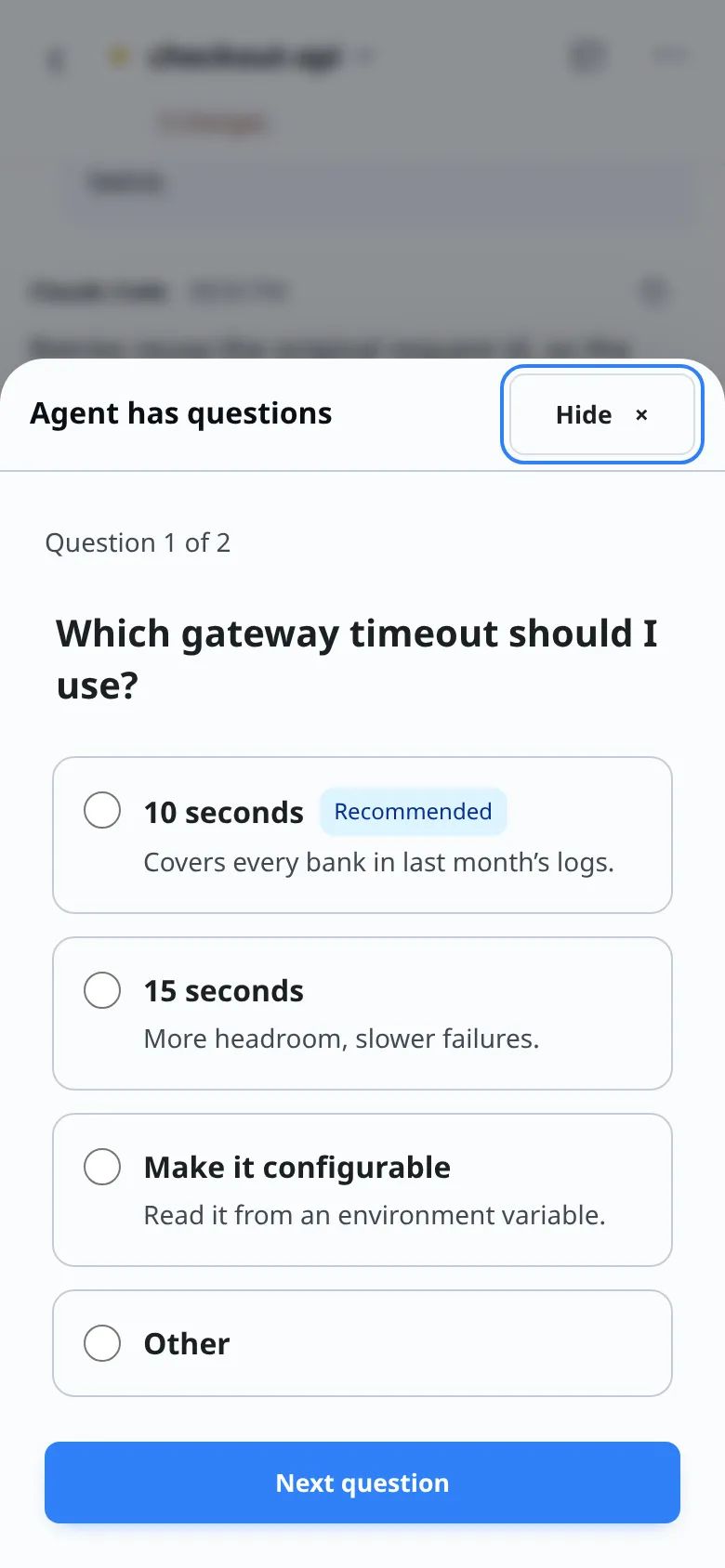
In the dialog:
-
If a question refers to an image, the agent can attach it directly to that question. Images appear above the choices. Tap Enlarge image to inspect details, then close it to return to your answer. Agents can attach up to four images per question from local PNG, JPEG, WebP, or GIF files (up to 3 MB each), or HTTPS image URLs.
-
Each option has a label and, if the agent gave one, a description. An option the agent suggests is marked Recommended.
-
Some questions take one answer, others say Choose all that apply.
-
Other lets you write your own answer, up to 6,000 characters.
-
With several questions, Question 1 of 2 shows where you are. Use Next question and Back, or swipe left and right on a phone. The last question has Send answers (or Send answer for a single question).
After you send, the dialog says Answer sent. Waiting for the agent. If you see 2 answers were sent. Try again to send the remaining answers., some answers went through and some did not: send again to finish.
Some agents ask an open question with no options. It shows as a card with a Your answer field and the agent’s buttons.
Answered questions stay in the conversation as Your answer to 1 question or Your answers to 3 questions, so you can look back at what you chose.
Approve a tool request
Section titled “Approve a tool request”Approval cards are what Ask for approval mode is for. New sessions start in Auto approve, so to review each request yourself, pick Ask for approval under Security settings when you start the session. To change it later, tap the session title and choose Security in Session details; you can change it when the agent is ready or stopped. Not every agent offers Ask for approval. See Choose agent permissions.
In Ask for approval mode, the agent asks before it runs a command, edits a file or uses a tool. The request appears as a card with what the agent wants to do and one button per choice.
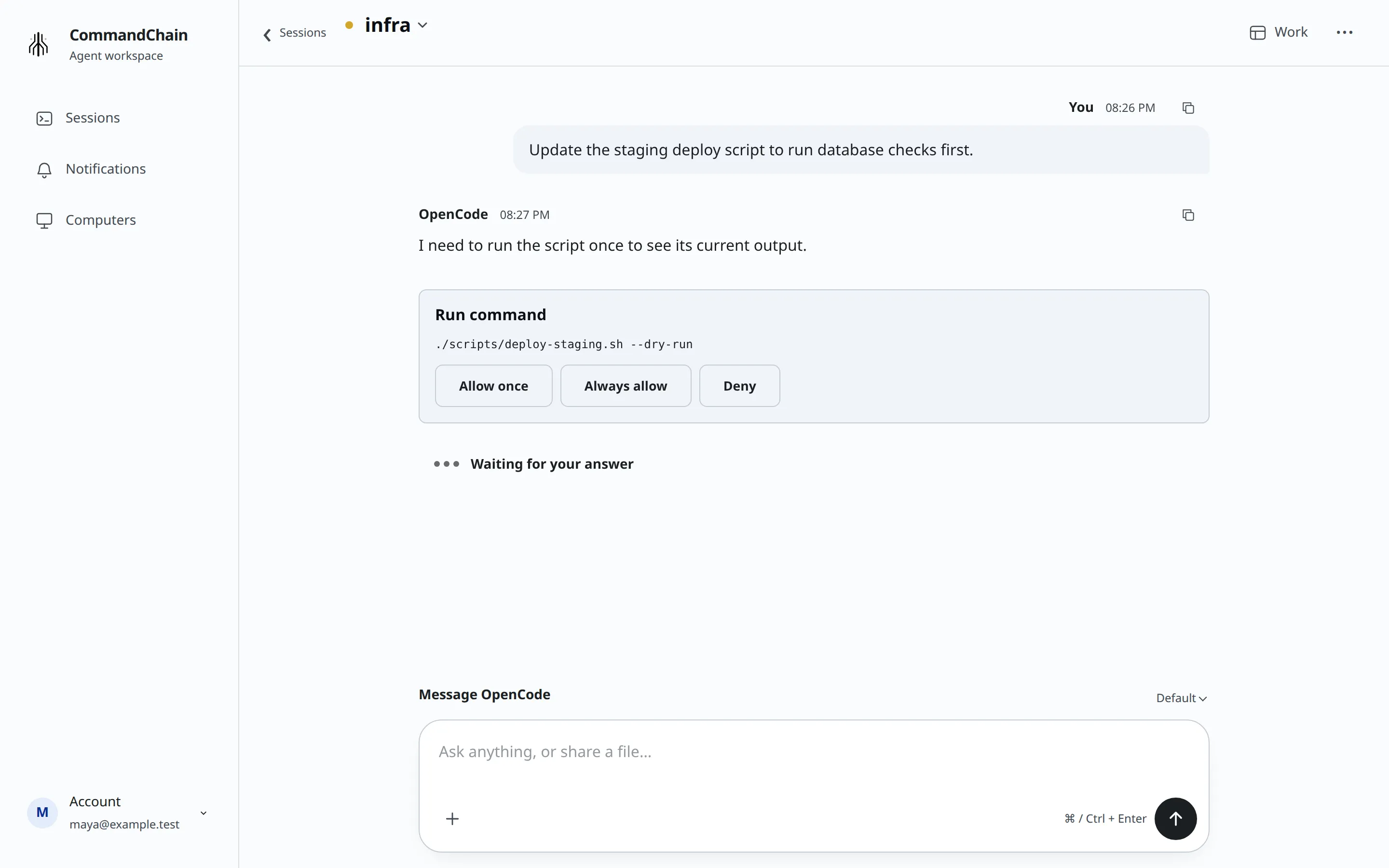
The buttons use the agent’s own choices:
- Claude Code shows Allow and Deny.
- Codex shows some of Allow once, Allow for session, Deny and Cancel, as it offers them for that request.
- GitHub Copilot and OpenCode show some of Allow once, Always allow, Deny and Always deny, as the agent offers them.
- Cursor does not offer Ask for approval, so you see its approval cards only for the rare request that has no plain allow choice.
After you choose, the card says Response sent. Waiting for the agent.
In Auto approve and Full access modes, tool requests are approved for you, so you usually see no approval cards. The exception is a request the agent offers no plain “allow” choice for: that card still appears for you to answer. Questions wait for your answer in every mode.
Claude Code in your terminal is different: its approvals stay in the terminal. See Connect Claude Code in your terminal.
Answer from your phone
Section titled “Answer from your phone”You can answer from your phone’s browser in the same way as on a laptop: open the session and the question opens in a sheet you can swipe through.
To hear about a question or approval as soon as it arrives, turn on notifications on your phone:
- Open CommandChain on your phone. On an iPhone or iPad, add it to your Home Screen and open it from there first, because notifications work only in the Home Screen app. See Use it on your phone.
- Open the account menu, which shows your email, and select Notification settings.
- Turn on Questions and Approvals for your sessions and any subagent sessions you want to hear from.
- Allow notifications when your phone asks.
Tapping a notification opens the session. See Get notified.