

Continue with another agent
Sometimes a different agent suits the next part of the work better. Continue with another agent starts a new session with another agent installed on the same computer, in the same folder, and gives it a summary you write. The original session stays as it is.
Before you start
Section titled “Before you start”The source session must be Ready or Not running, with no unanswered questions or approvals and no messages still being delivered. Otherwise the panel shows:
Wait for the agent to finish or stop it, then resolve pending requests and deliveries.
The computer must be online and have another agent installed. See Supported agents for which agents work and how to install them; the panel lists the ones it finds on that computer.
Hand off
Section titled “Hand off”- Open the options menu (···) and select Continue with another agent.
- If the computer has more than one other agent, choose one under Agent.
- Review the context in the Context for box. As the panel says, “Review the context it will receive.”
- Select Continue with followed by the agent’s name, for example Continue with Codex.
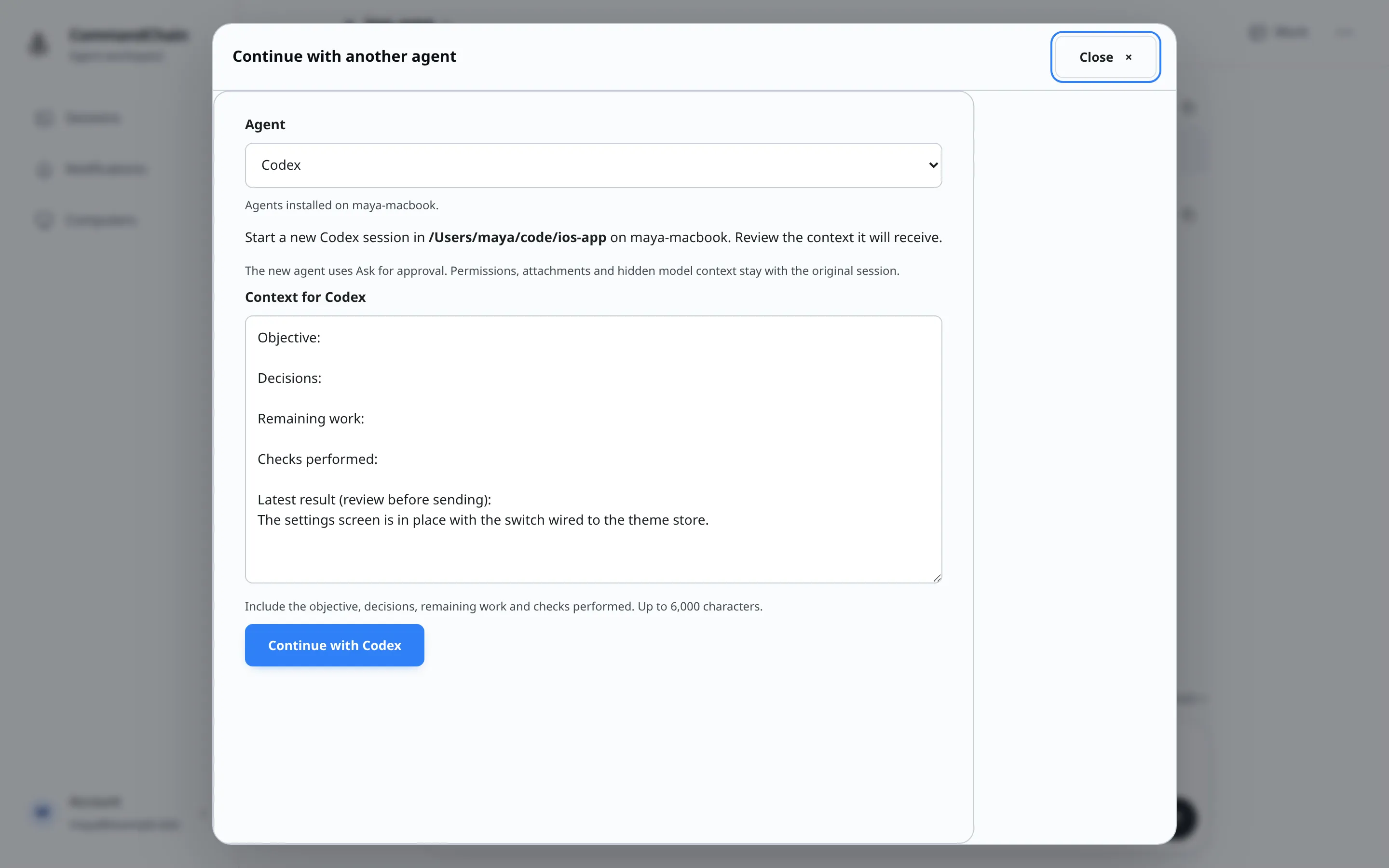
The context box starts with a template to fill in: Objective, Decisions, Remaining work, Checks performed, and the agent’s latest reply under “Latest result (review before sending)”. Edit it freely. It can be up to 6,000 characters.
As the panel says: “The new agent uses Ask for approval. Permissions, attachments and hidden model context stay with the original session.” Because the new session must start in Ask for approval, you can’t continue with Cursor, which doesn’t offer that mode. See Choose agent permissions.
When the new session starts, you land in it. It shows “Continued from” with a link back to the original session, and View handoff context shows what you sent. The original session’s Session details links to the continuation.
If the handoff is refused, for example because the session changed after you opened the panel, the panel shows why. Select Review current session to reload it, then try again. Retrying a handoff that was already requested sends the same request, so you never get two new sessions.
Continue in a terminal
Section titled “Continue in a terminal”The panel also shows Continue in a terminal when the agent’s own conversation ID is known. It’s a command to run on that computer that reopens the same conversation in the agent’s own command line. Copy it with the copy button. Stop the agent here first.
The copied command changes to the session’s folder, then runs the agent’s resume command, in the form cd <folder> && <resume command>. For example, for Codex:
cd /home/maya/ios-app && codex resume <id>The app fills in the real folder and conversation ID. The resume command for each agent is:
| Agent | Resume command |
|---|---|
| Claude Code | claude --resume <id> |
| Codex | codex resume <id> |
| GitHub Copilot | copilot --resume=<id> |
| OpenCode | opencode --session <id> |
| Cursor | cursor-agent --resume <id> |