

Rename, pin and check repository status
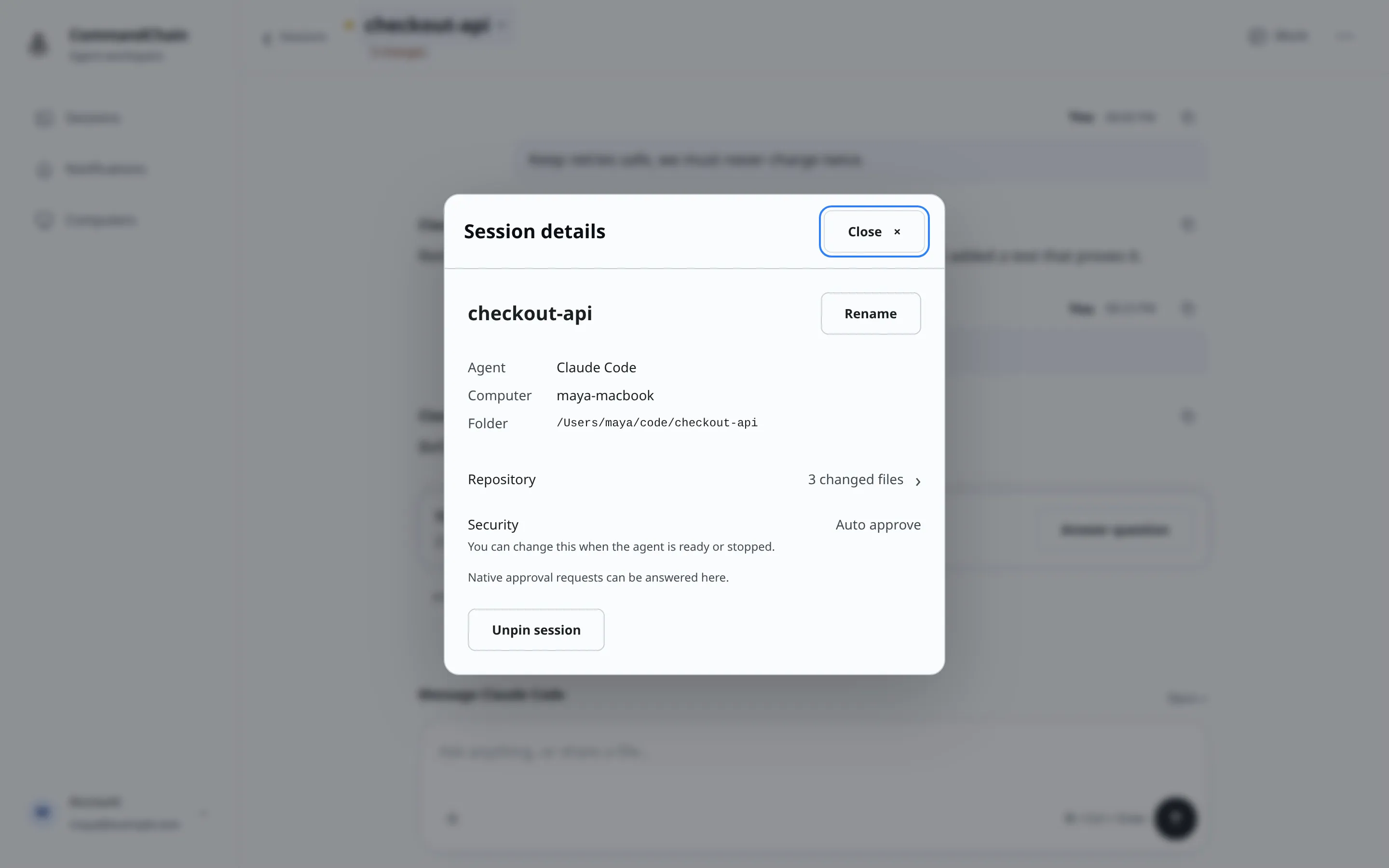
Select the session title at the top of a conversation to open Session details. It shows what the session is and where it runs, and it’s where you rename and pin it.
What you see
Section titled “What you see”- Agent, Computer and Folder: the agent running the session, the computer it runs on and the folder it works in.
- Repository: shown when the folder is in a Git repository. It summarizes the working tree, for example “3 changed files” or “All changes committed”. Select it for the full status.
- Security: the session’s permission mode. Select it to change it. While the agent is busy, the row says “You can change this when the agent is ready or stopped.”
- If the session was continued with another agent, a link opens the continuation.
Rename a session
Section titled “Rename a session”- Select Rename.
- Type a name of up to 120 characters. The help text below the field shows the default name.
- Select Save name.
The name shows in your session list so you can tell sessions apart. To go back to the default after you have renamed a session, select Use default name, or type the default name back in. If the name is longer than that once spaces at the start and end are trimmed, you see “Use 120 characters or fewer.”
Pin a session
Section titled “Pin a session”Select Pin session to keep the session at the top of your list. Select Unpin session to let it sort normally again. You can also pin from the session list and drag pinned sessions into your own order (see Find your sessions).
Check repository status
Section titled “Check repository status”The CommandChain app on your computer reads Git status for the session’s folder. When the working tree isn’t clean, a chip in the session header shows the number of changes, such as “3 changes”. There’s no chip when everything is committed.
Select the chip, or the Repository row in Session details, to open Repository status.
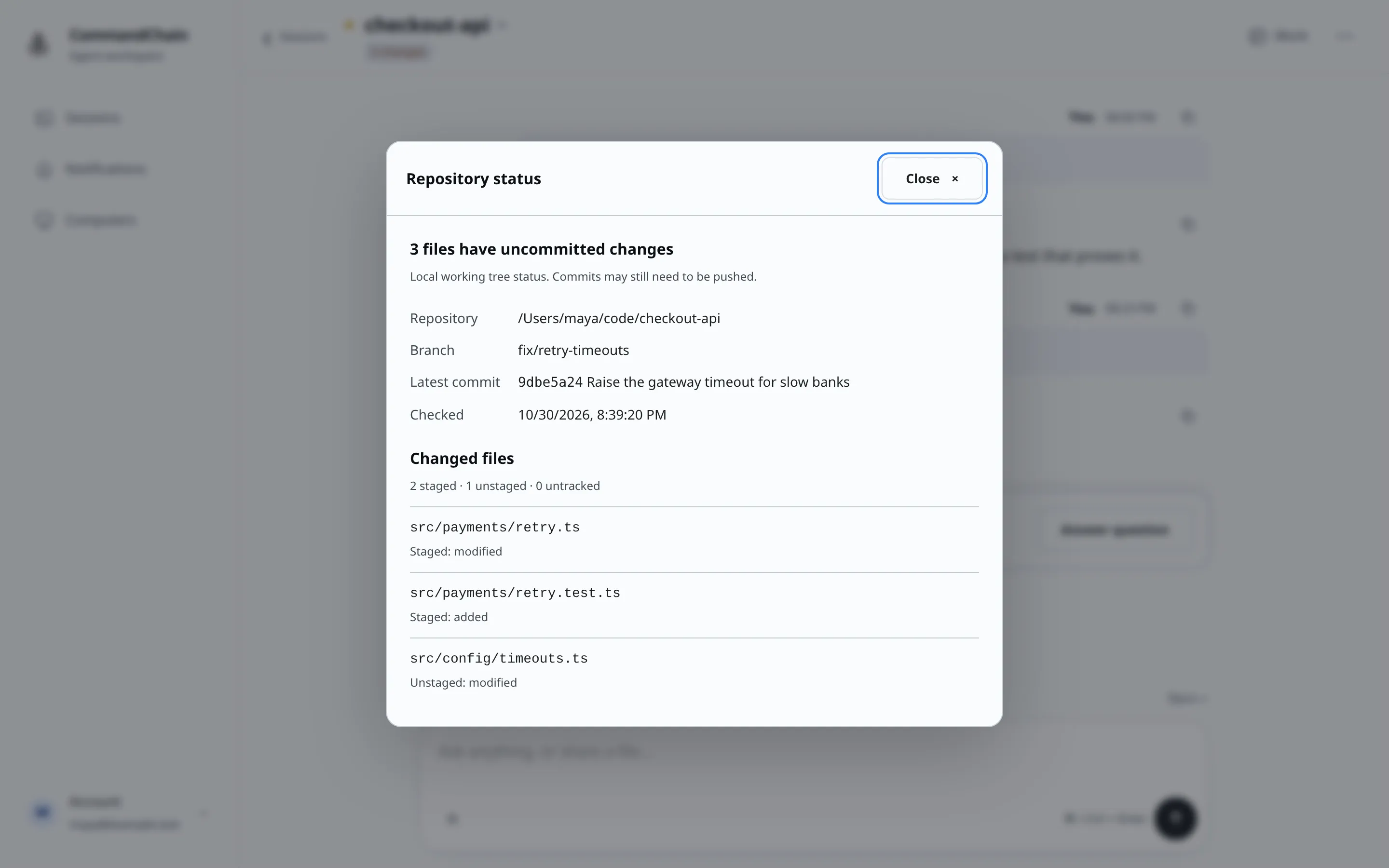
It shows:
- Repository, Branch and Latest commit, and when it was Checked.
- Changed files: a count of staged, unstaged and untracked files, then each file with what changed, for example “Staged: modified” or “Unstaged: deleted”. Conflicts and untracked files are labeled as such.
This is your local working tree. Commits may still need to be pushed. If a repository has many changes, the list shows the first ones and tells you to open the repository on your computer for the rest.
When status is unavailable
Section titled “When status is unavailable”- “Last known status. Reconnect your computer to receive current Git status.” The computer is offline, or its last report is more than 90 seconds old.
- “Git status could not be read. Check the repository on your computer; CommandChain will retry automatically.” Git couldn’t read the folder.
In both cases the chip reads Git status unavailable.